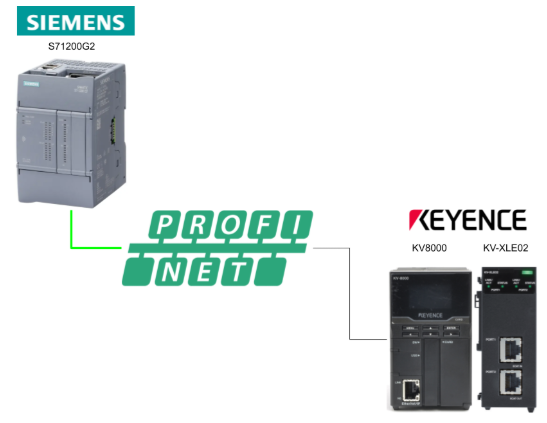
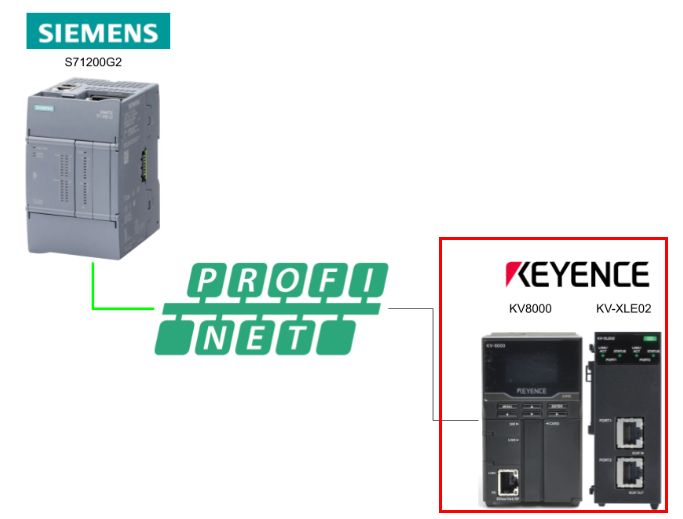
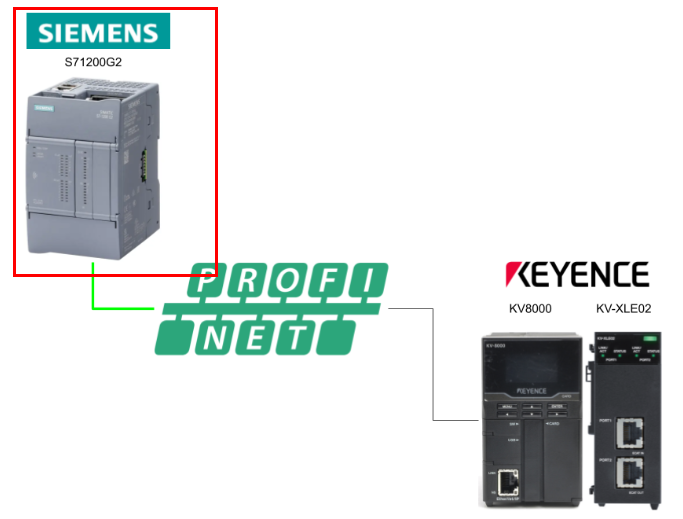
In this article, we will set up a PROFINET device on Keyence’s KV-XLE02 and connect it to a Siemens S7-1200G2. The S7-1200G2 side will act as the PROFINET IO Controller.
Now, let’s enjoy Factory Automation!
PROFINET?
PROFINET is an open communication standard defined by PROFIBUS & PROFINET International (PI). It is based on standard Ethernet and can be used in combination with general Ethernet communications.
- PROFINET communication includes:
- IRT (Isochronous Real-Time) used for high-speed synchronous control such as motion control
- RT (Real-Time) communication for real-time networks on the millisecond order
These two types are supported. The KV-XLE02 used in this article supports RT communication.

KV-XLE02とProfinet?
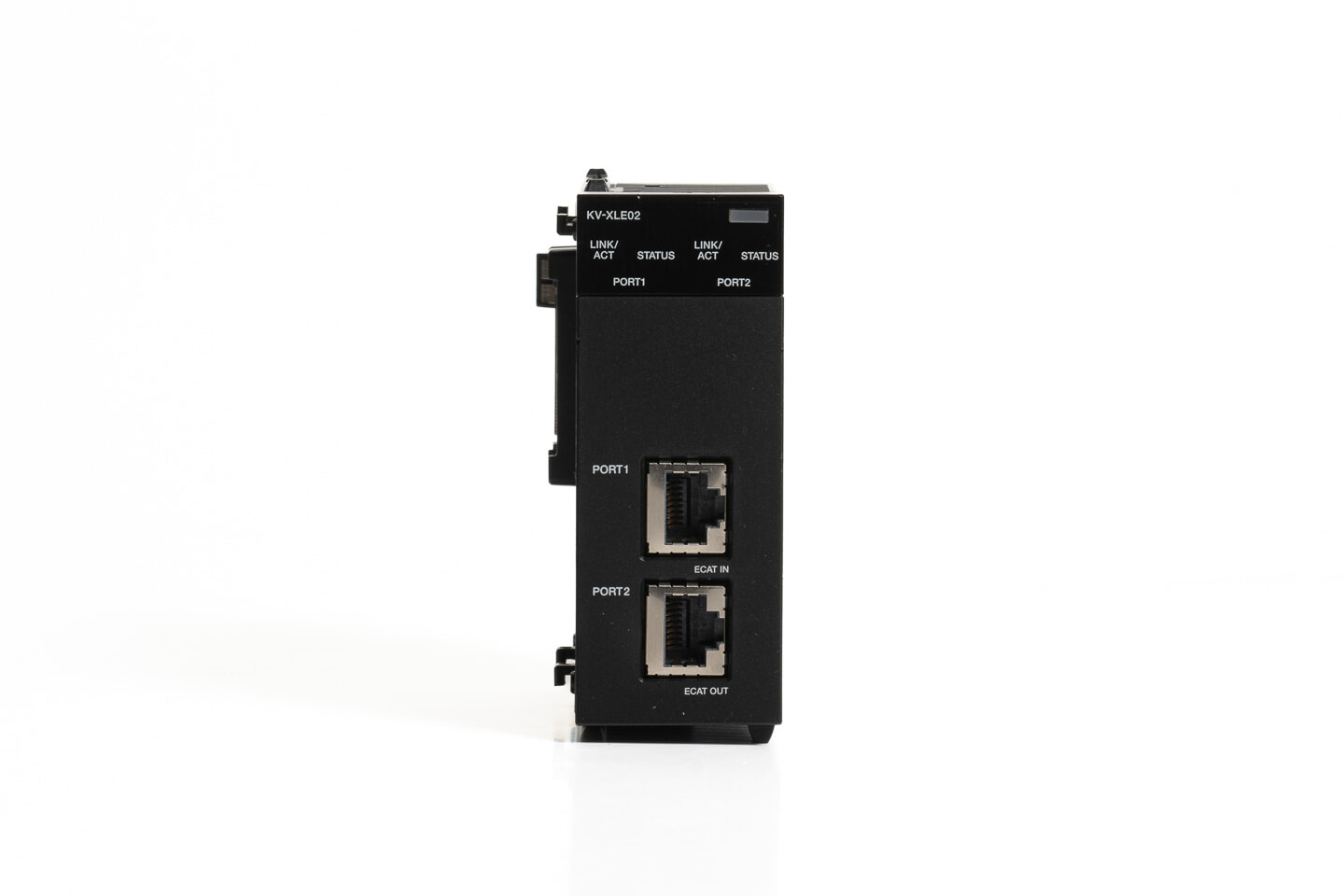
The KV-XLE02 operates as a PROFINET IO device compliant with Conformance Class A, supporting cyclic (I/O) communication, data record communication, and alarm communication. In addition, PROFINET communication functions can be used in combination with general Ethernet*.
General Ethernet refers to standard Ethernet functions of the KV-XLE02 such as FTP and socket communication, which can be used alongside open network communications other than EtherNet/IP, PROFINET, CC-Link IE Field, and EtherCAT.
Cyclic (I/O) communication
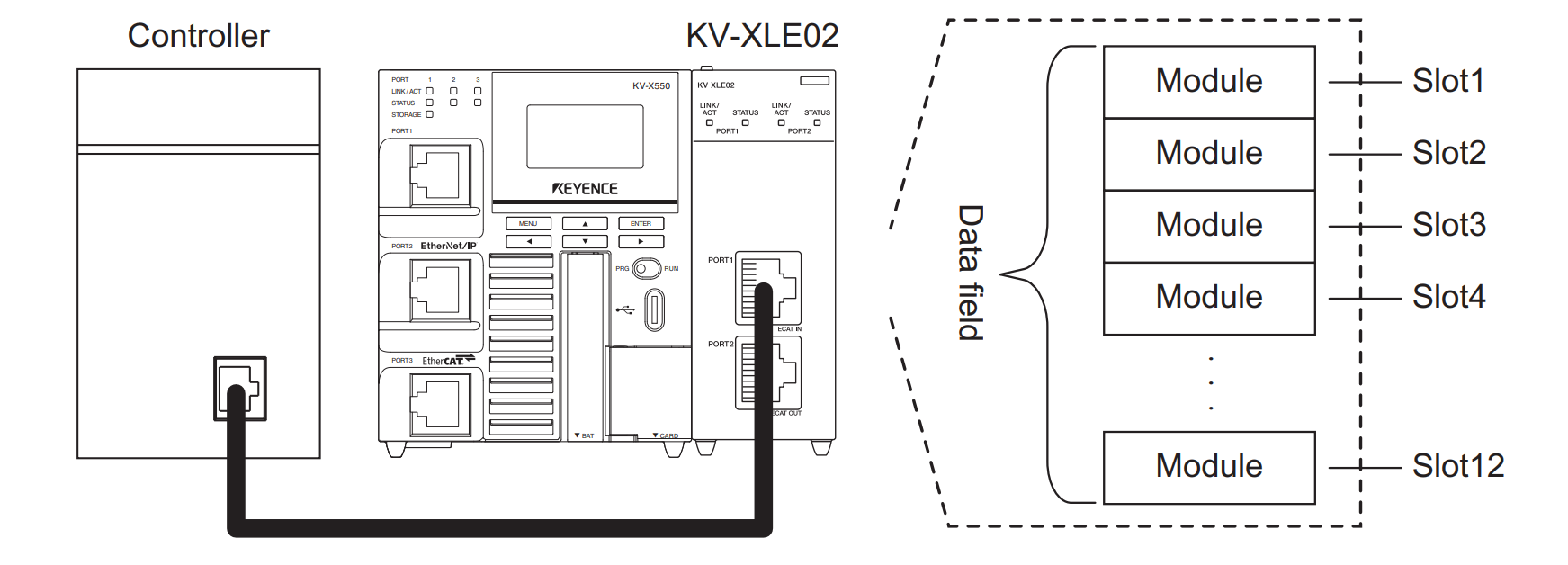
This function performs data communication periodically (at fixed intervals) between the PROFINET controller and device. It uses data I/O communication and specifies module addresses using slots on PROFINET.
In PROFINET, device data is managed in module units, and module addresses are specified by slots.
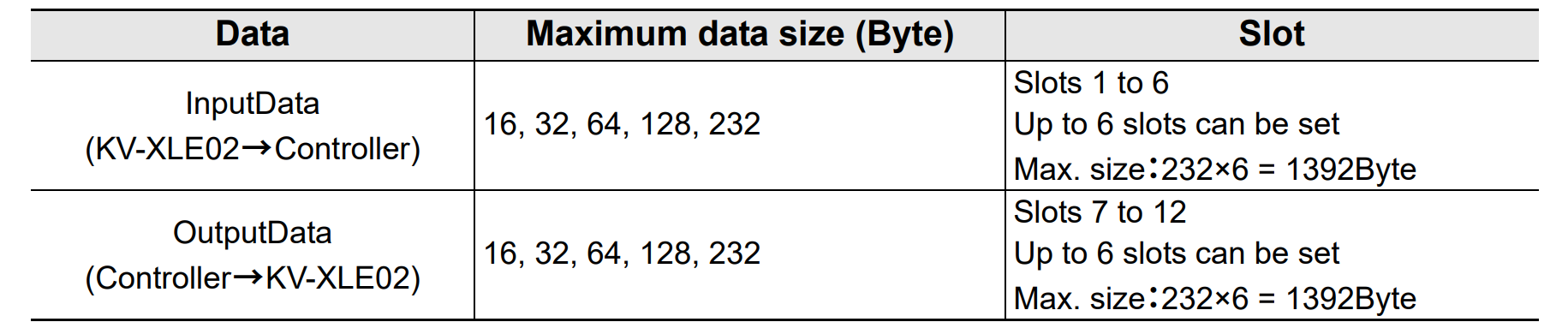
- Input data (KV-XLE02 to Controller) is specified by modules in slots 1 to 6
- Output data (KV-XLE02 from Controller) is specified by modules in slots 7 to 12
CPU Device and Cyclic (I/O) communication Data
Data processed in cyclic (I/O) communication is stored in the buffer memory of the KV-XLE02. Data communication between the CPU unit and KV-XLE02 can be handled by either automatically refreshing the CPU unit’s devices or reading/writing using buffer memory commands at arbitrary timing (direct refresh).
When using auto-refresh, four device types (R, B, DM, and W) can be assigned.
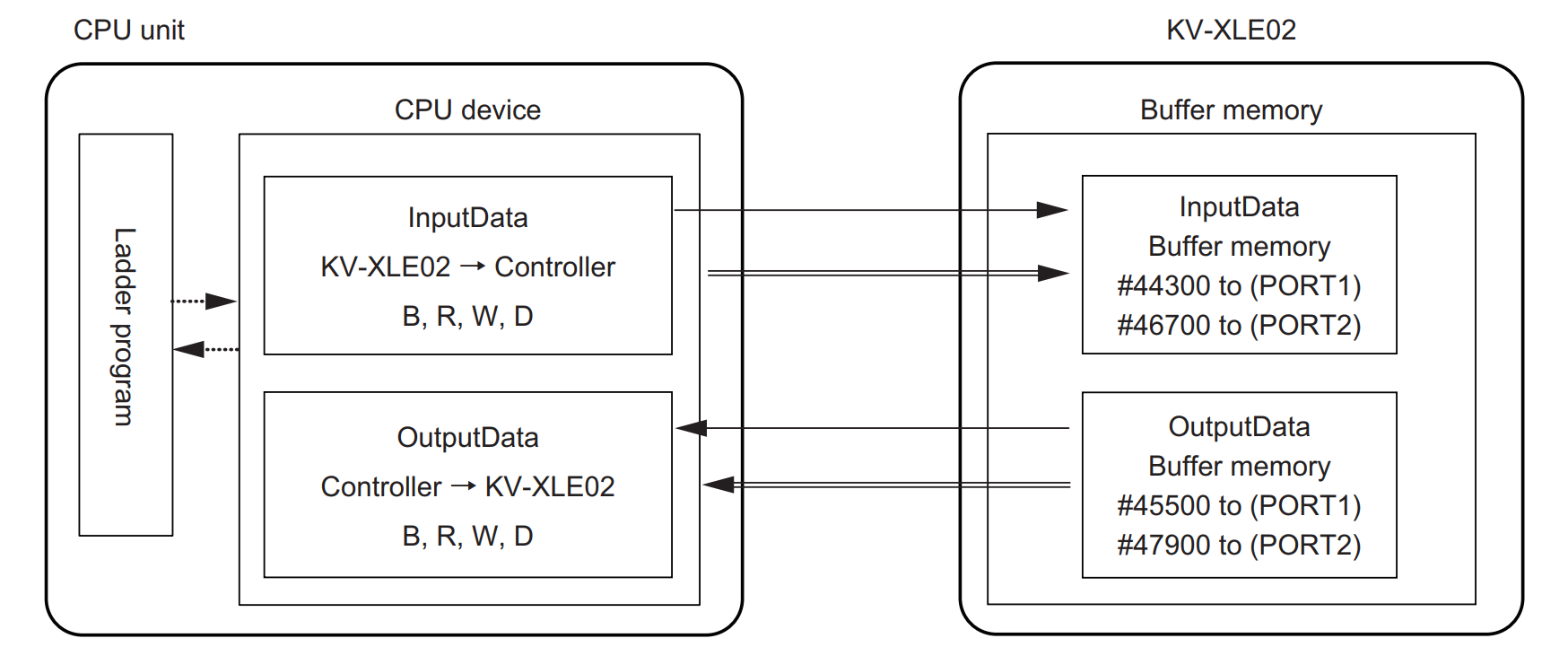
Auto refresh
When “END processing” or “Inter-unit synchronization” is selected as the refresh timing in the Unit Editor’s Refresh Setting tab, CPU devices are assigned to InputData and OutputData. The assigned CPU device values are refreshed (updated) at each scan time (during END processing) or inter-unit synchronization timing, respectively.
Data size
The sizes of module data (each slot) configurable in cyclic (I/O) communication are shown in the table below.

Data record communication
A data communication function for performing data transfer at arbitrary timing.
Alarm communication
A function that enables communication of error details and other data when an error occurs in PROFINET controller or device equipment.
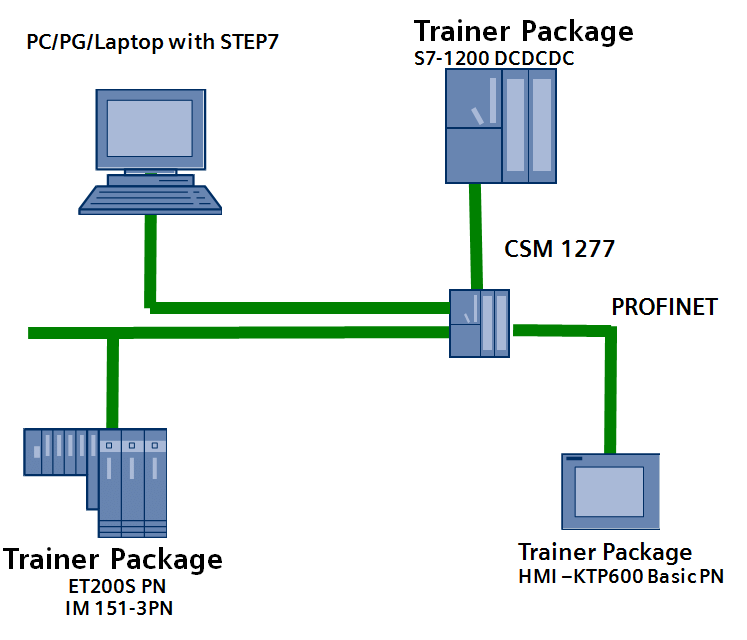
PROFINET Network Wiring
The PROFINET (device) function of the KV-XLE02 supports star network topology only.
PROFINET device settings
Device name
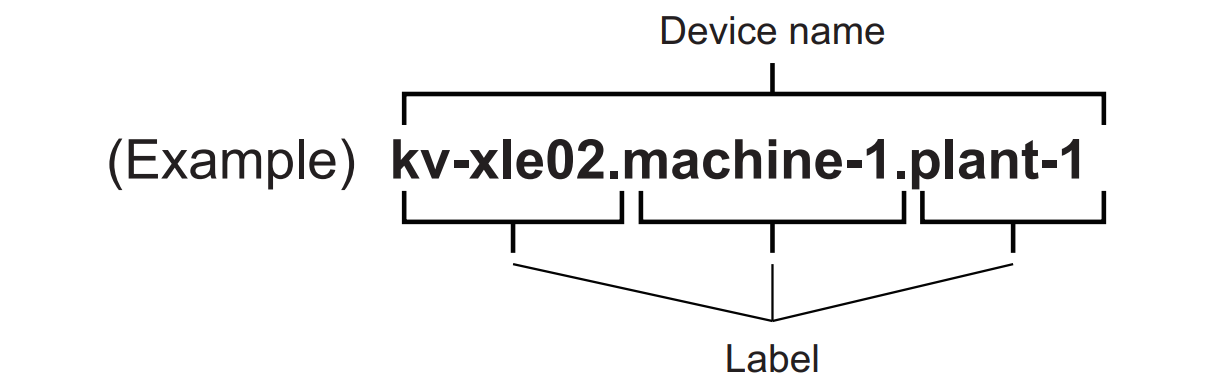
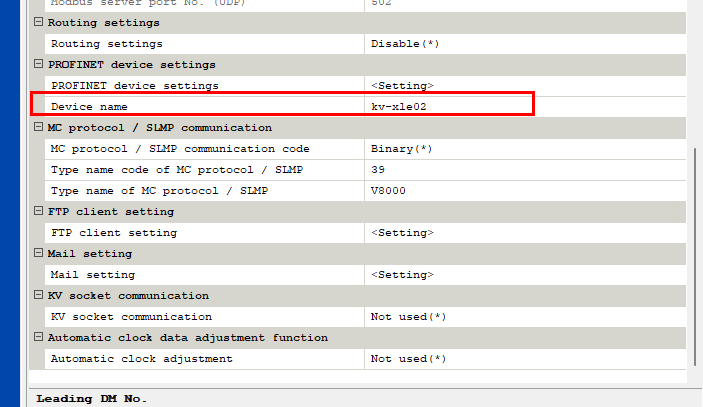
Set the device name for the KV-XLE02. In PROFINET, devices are managed by device names. A device name consists of multiple labels, which refer to strings separated by [.] (dots). This name must match the setting on the controller software side; the default value is “kv-xle02”.
Implementation
From here, we will build the project.
Keyence Side
First, build the Keyence KV8000 side.
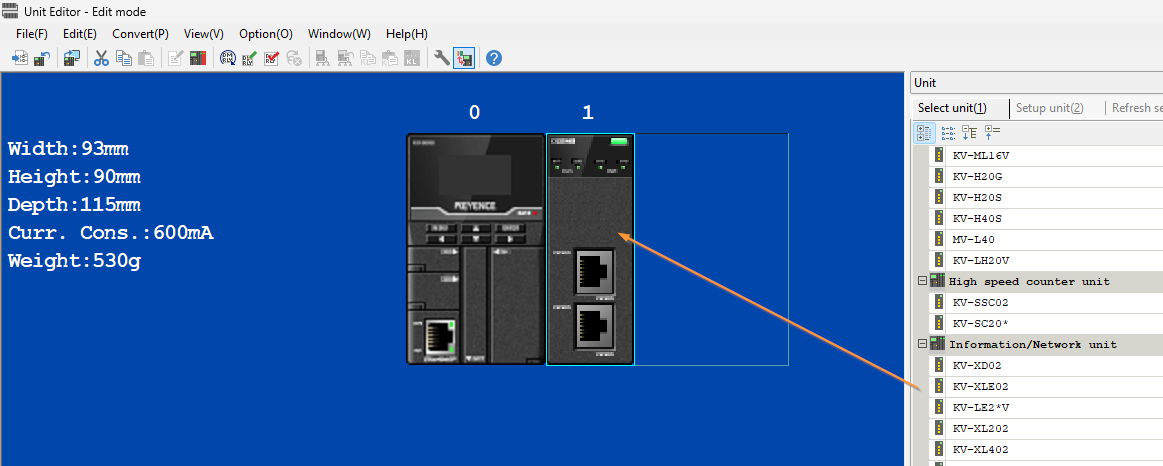
Add Module
Add the KV-XLE02 used in this article to the Hardware Configuration.
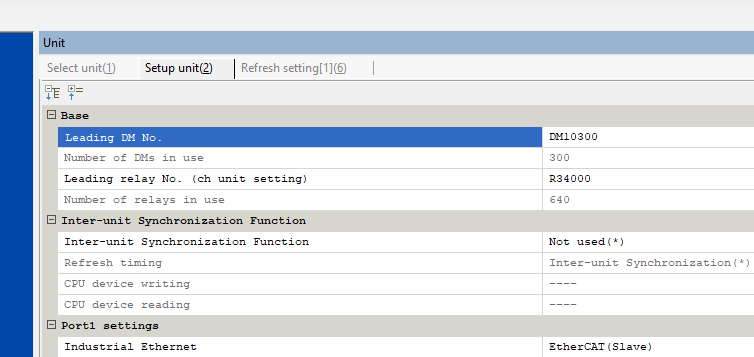
Configure Base Settings
Configure the base settings for the KV-XLE02.
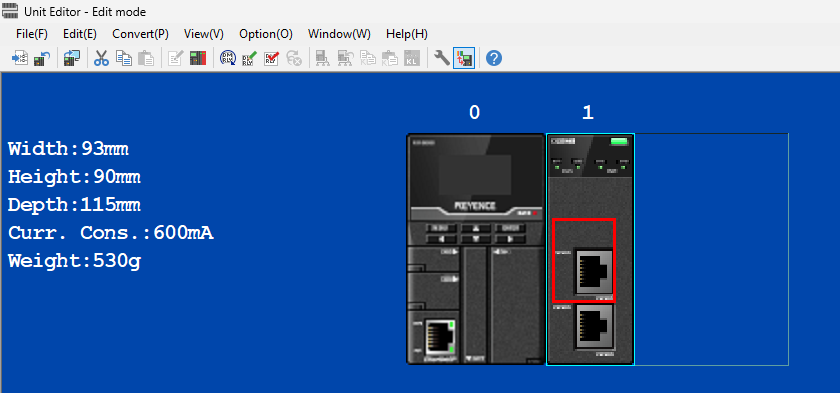
Configure Port1
In this article, Port 1 will be connected to the S71200-G2.
Industrial Ethernet Type
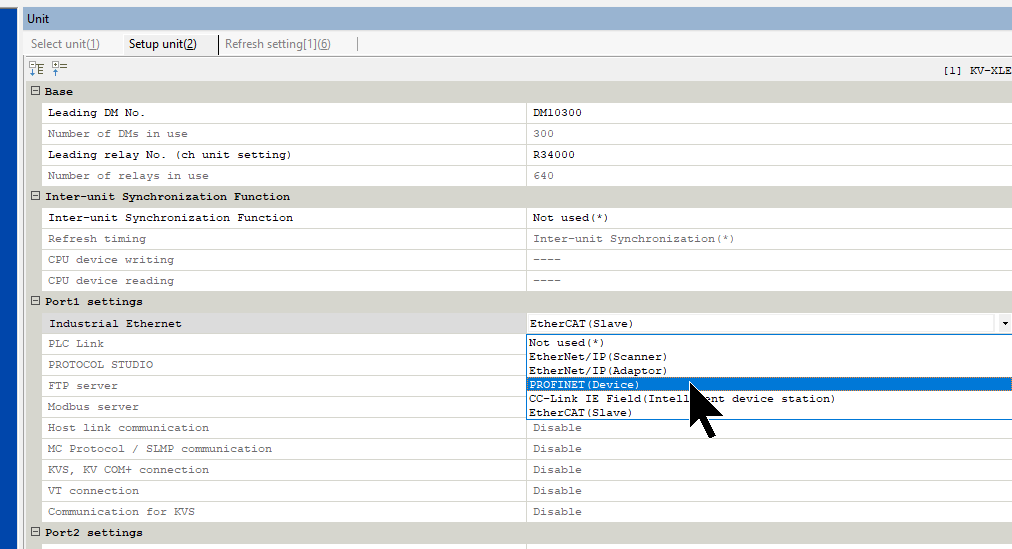
Select Port1 Settings > PROTOCOL STUDIO > PROFINET (DEVICE).
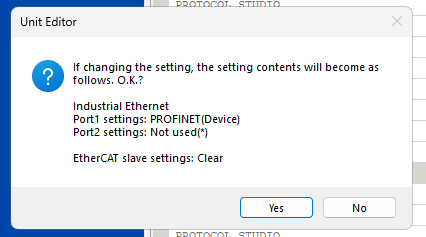
If the communication settings are changed, the current settings will be updated, so click Yes to confirm.
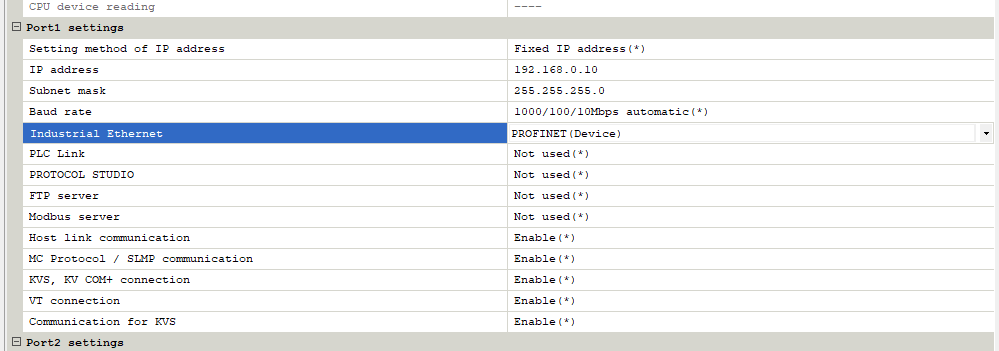
Done!
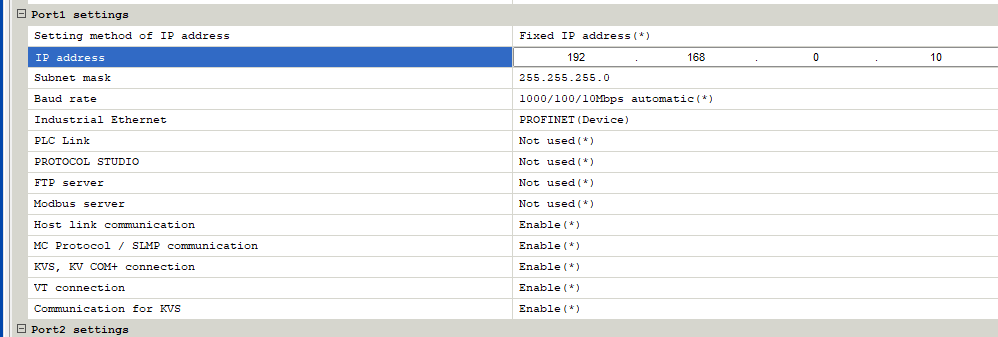
IP address
Next, set the IP address according to your application.
Device Name
Since a device name is required for PROFINET communication, set it in PROFINET device settings > Device name.
Refresh Setting
Next, configure the Refresh Setting. This setting matches data sent and received via PROFINET with internal memory in the KV8000.
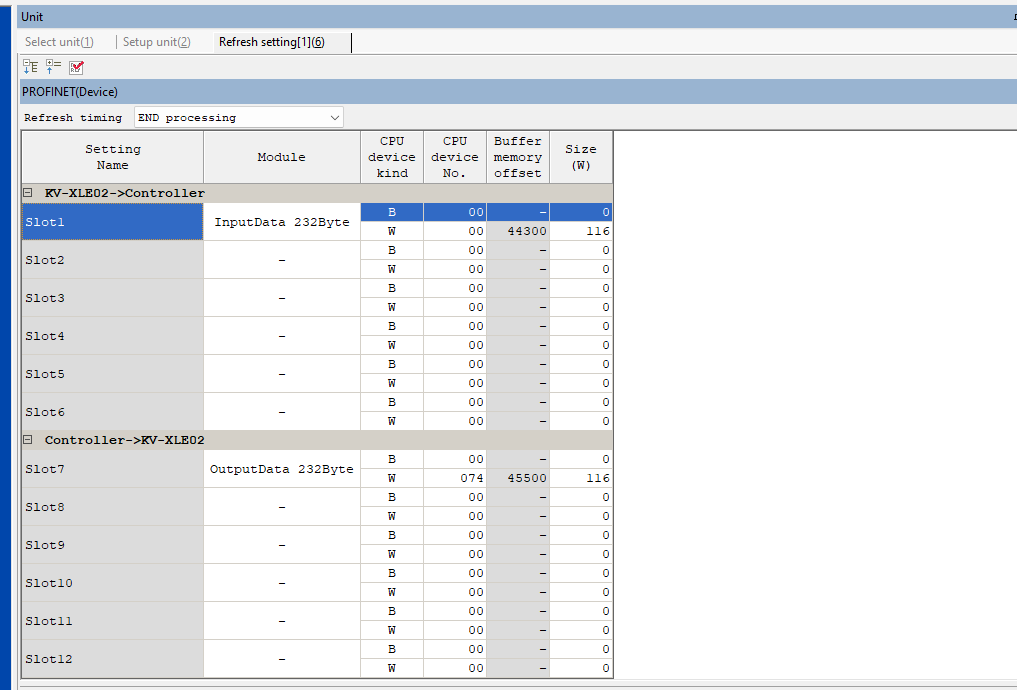
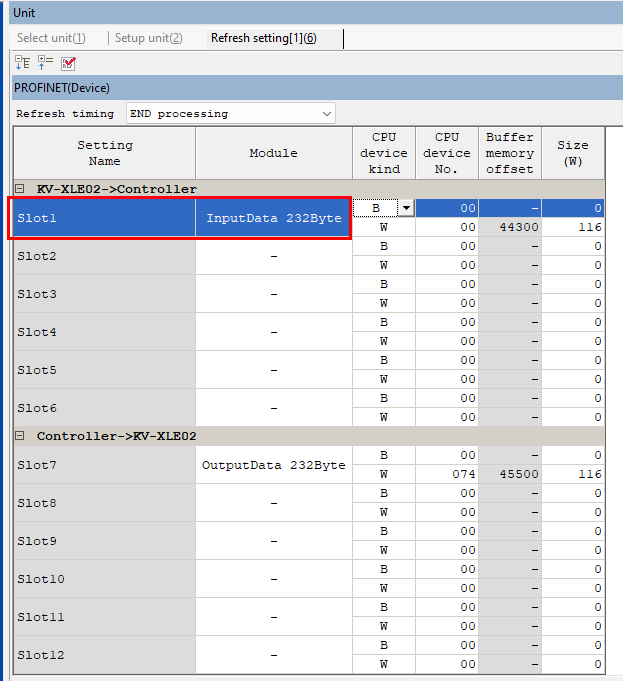
KV-XLE02->Controller
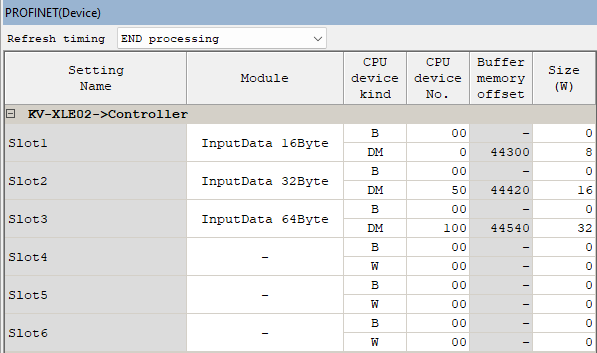
KV-XLE02->Controller indicates data from KV-XLE02 to the PROFINET IO Controller (S7-1200G2 in this article). Up to 6 slots in total can be set for output data.
Click the drop-down list in the Module column to configure different data size slots for each slot.
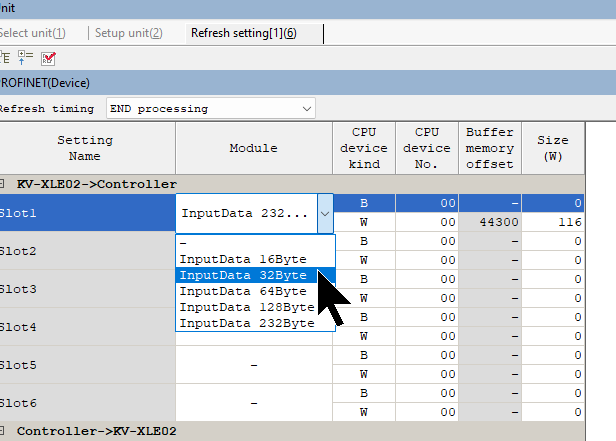
In the example figure below, Slot 1 is set as a 16-byte output.
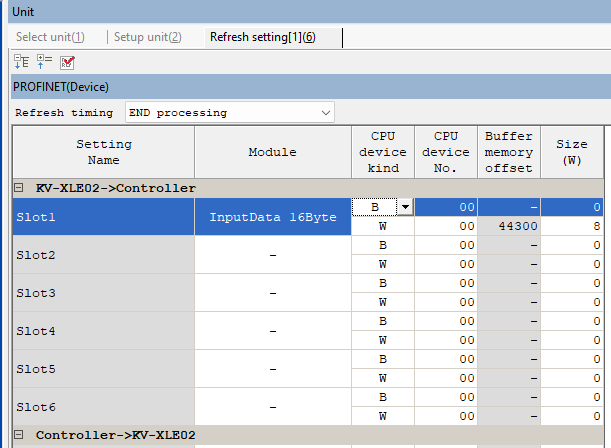
This shows the slot configuration for KV-XLE02 → Controller set in this article.
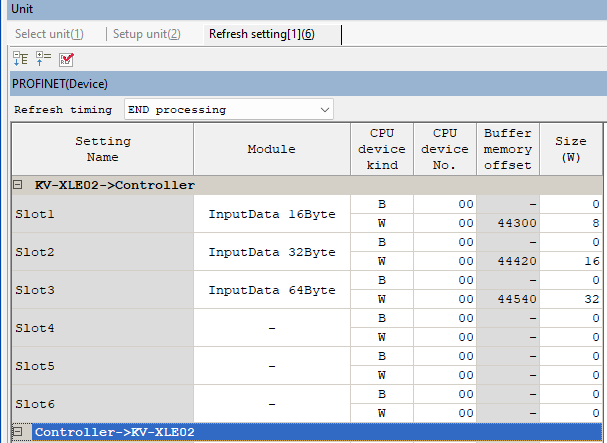
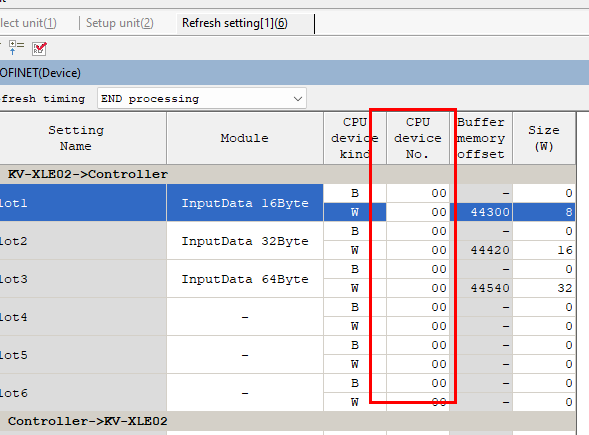
Next, set the KV8000 memory address mapped to each slot in the CPU device No. column.
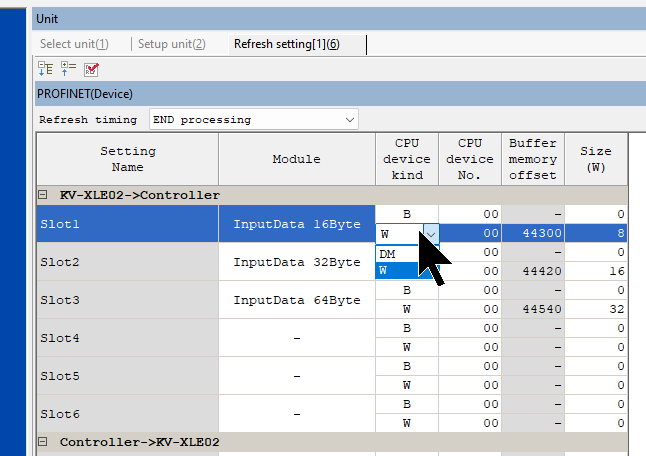
There is a drop-down list in the W column, which allows selection of either W devices or DM devices.
Done! This completes the configuration for KV-XLE02 → Controller.
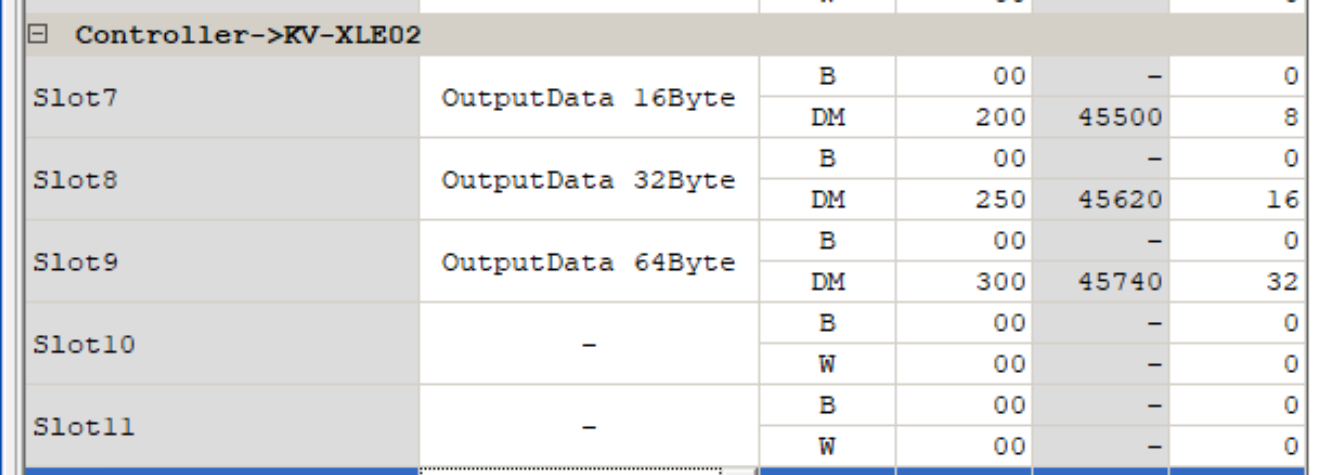
Controller->KV-XLE02
Next, configure Controller → KV-XLE02 (input data).
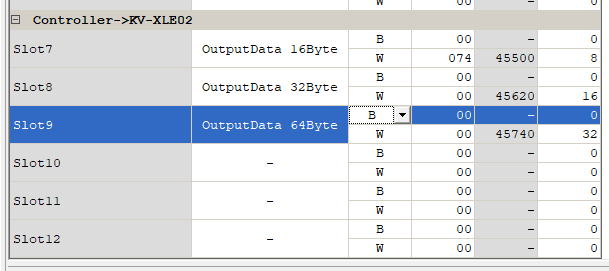
Done! Proceed with the same steps as before.
Result
This shows the completed settings for the KV-XLE02.
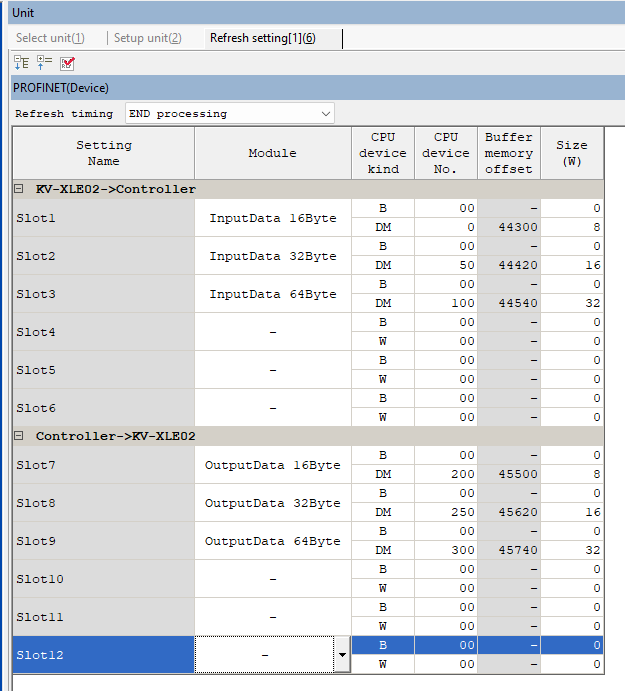
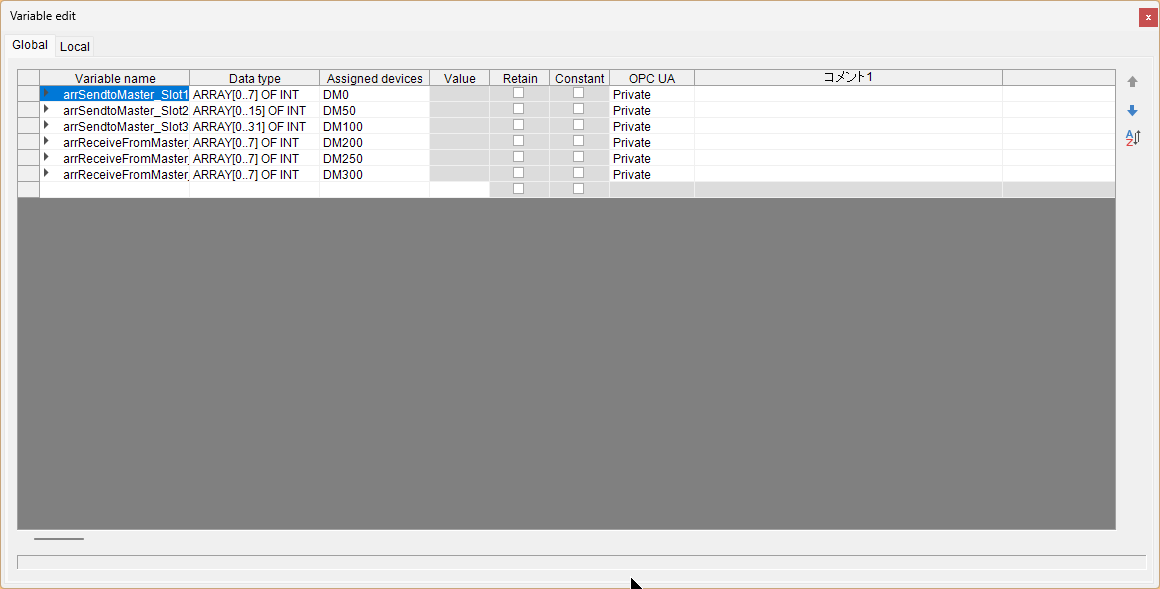
Variable Define
Define input and output variables according to the Refresh Setting previously applied to the KV-XLE02.
Program
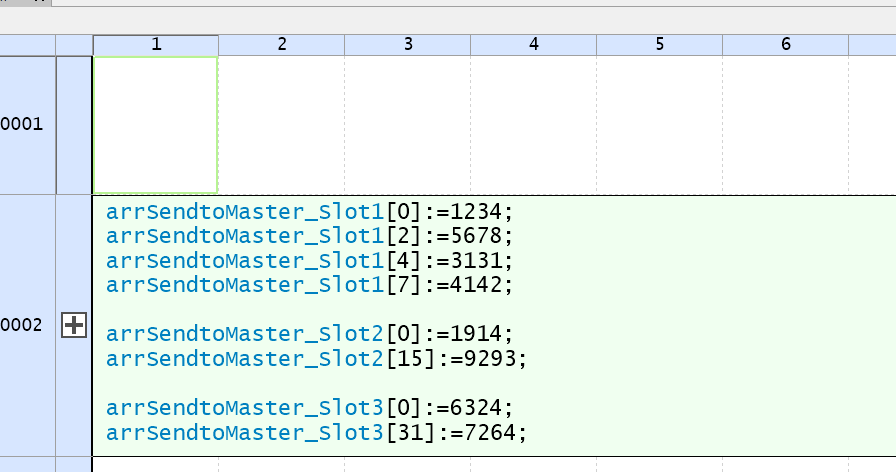
Create an ST program to write constant values to the output variables of the KV-XLE02.
Download
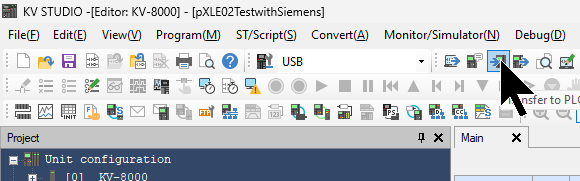
Download the project to the CPU.
Siemens Side
Next, configure the Siemens S7-1200G2 side.
Download GSDML
Download the GSDML file for the Keyence KV-XLE02 from the following website.
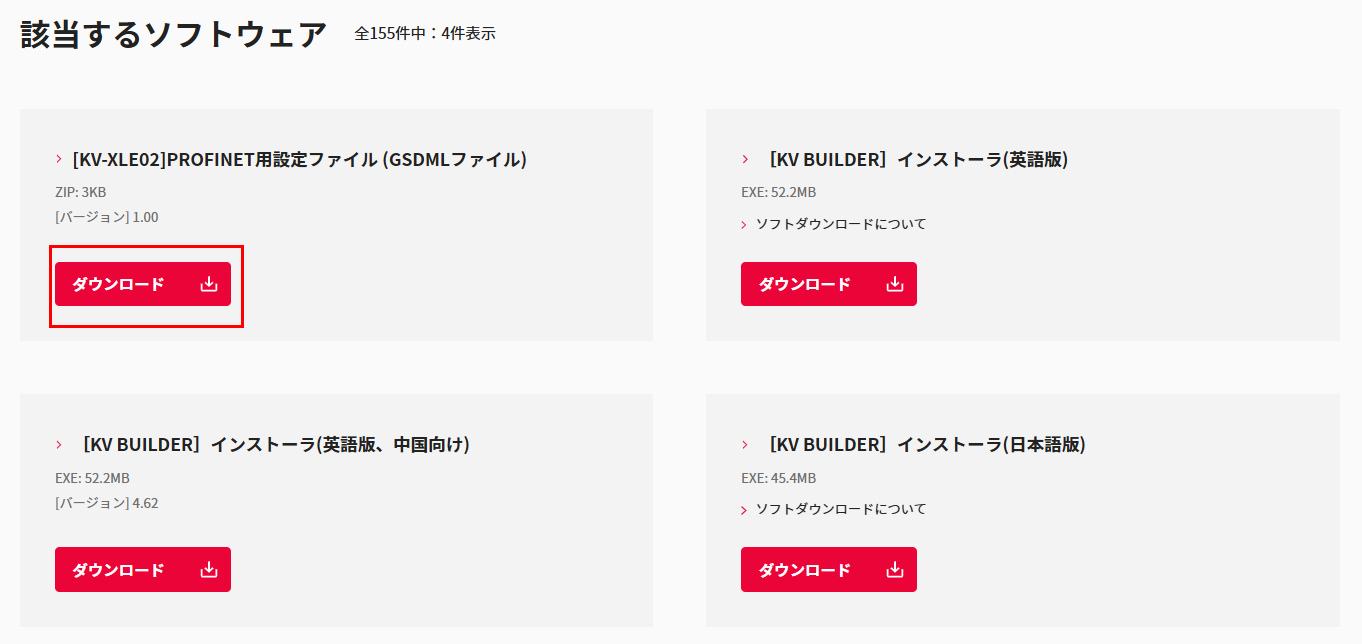
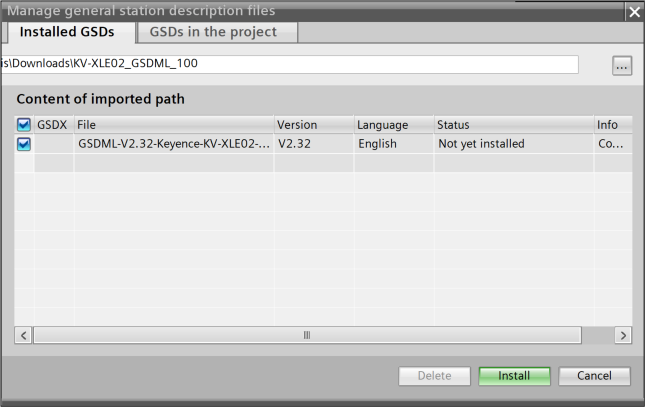
Install GSDML File
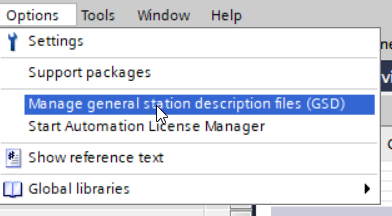
Click Options > Manage general station description files (GSD).
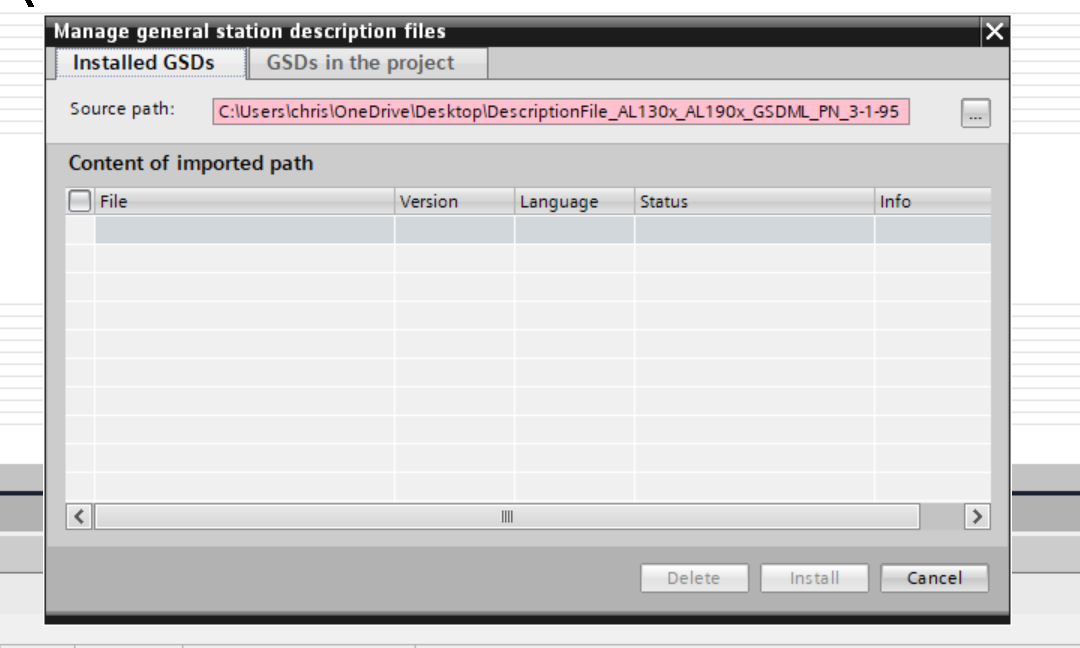
The GSDML management screen appears; click the “…” button.
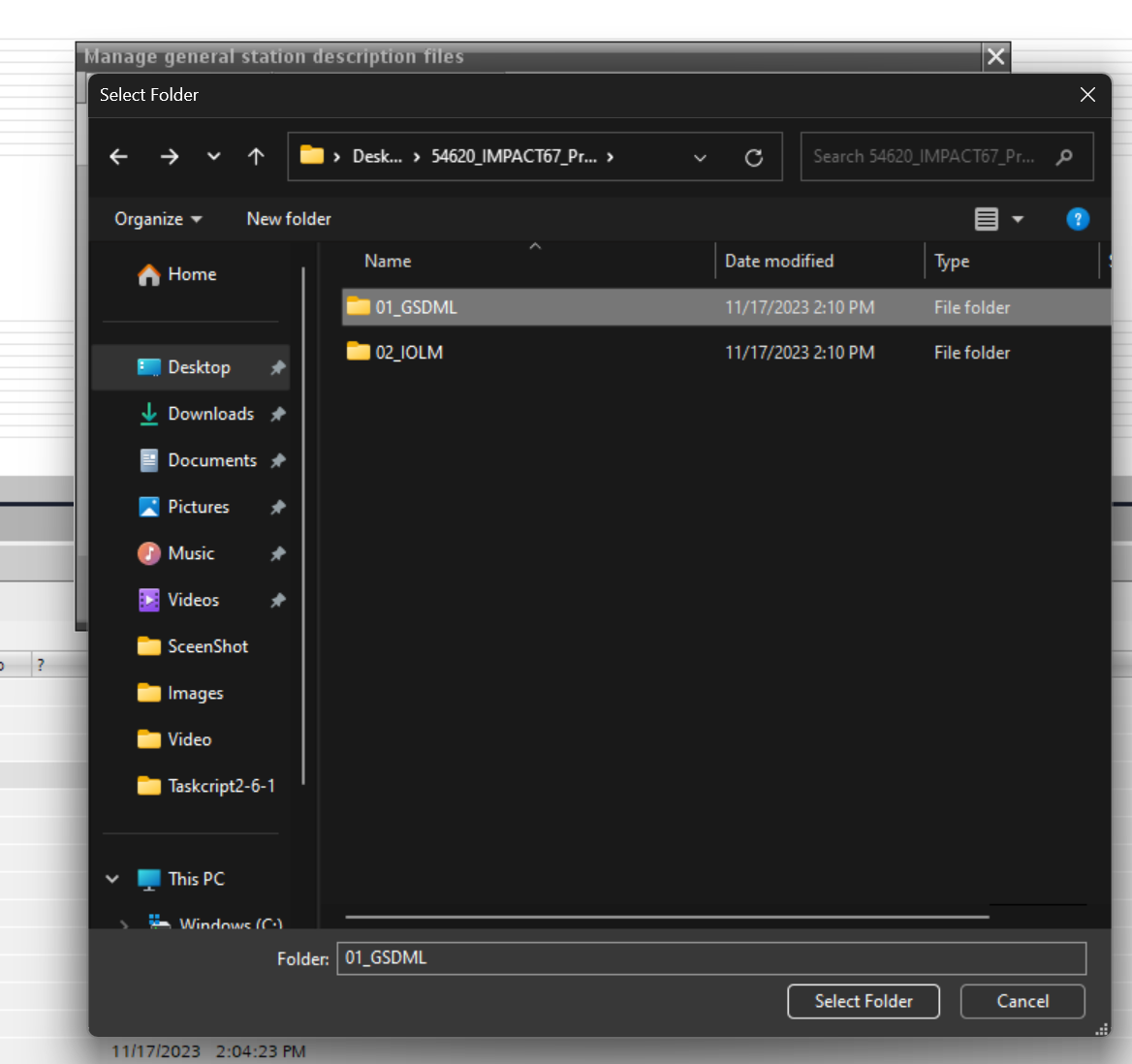
Select the downloaded GSDML folder.
Done!
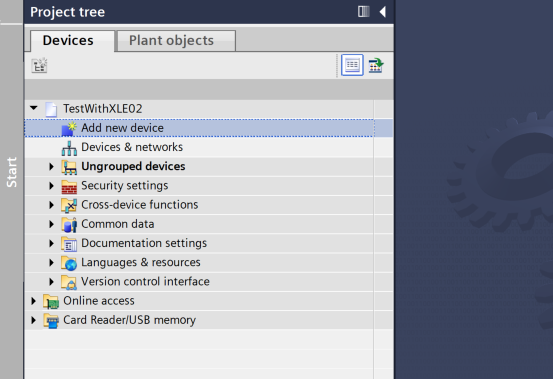
Add S71200-G2
Next, click Add new device to add the S71200-G2.
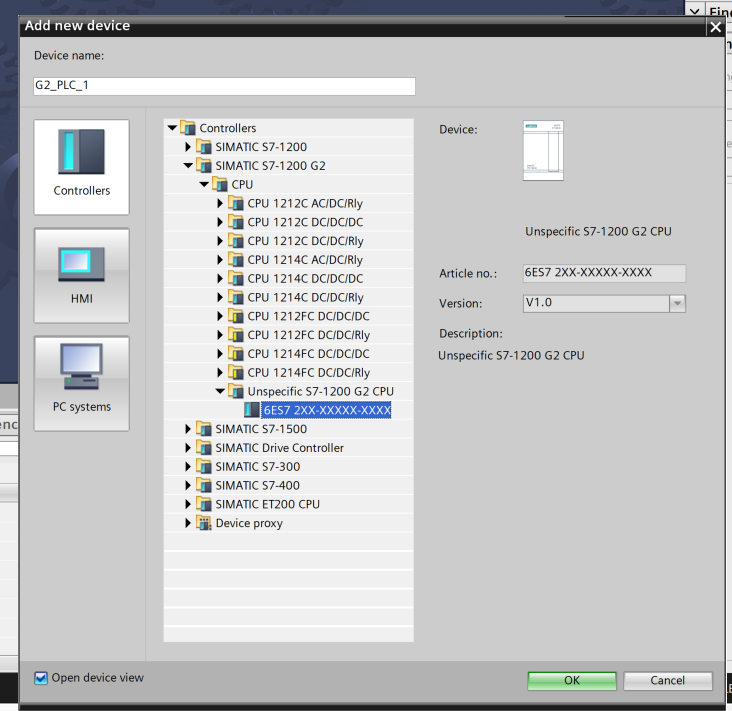
Select Controllers > SIMATIC S7-1200 G2 > Unspecific S7-1200 G2 CPU > 6ES7 2XXXX, then click OK to proceed.
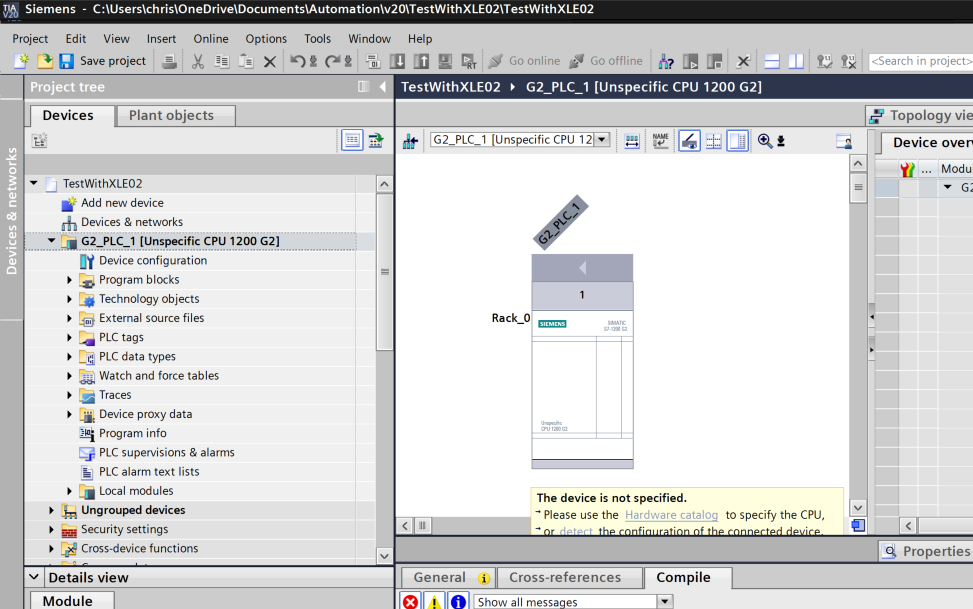
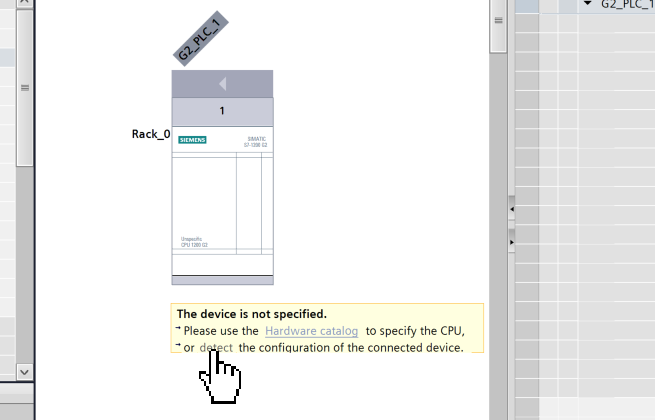
Done! An unspecified S71200-G2 has been added.
Detect
Next, click the Detect button to search for the S71200-G2 connected via Ethernet.
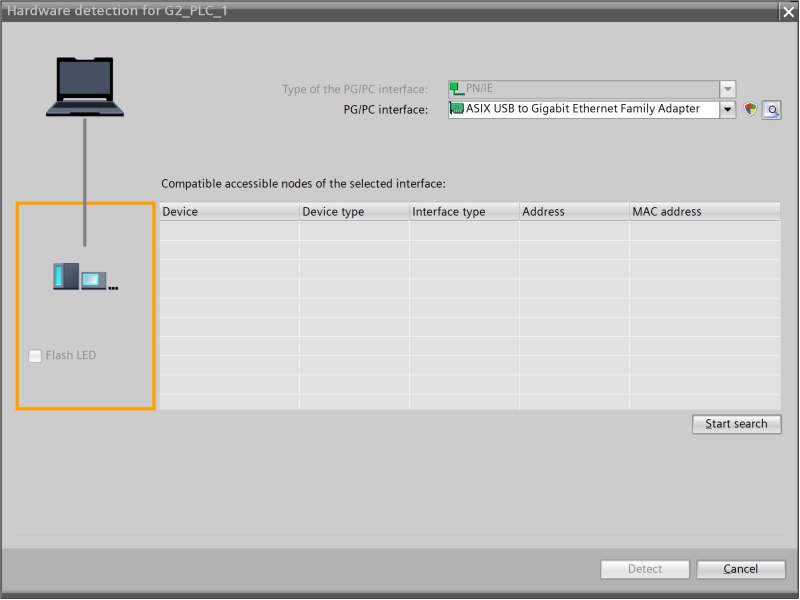
Click Start search.
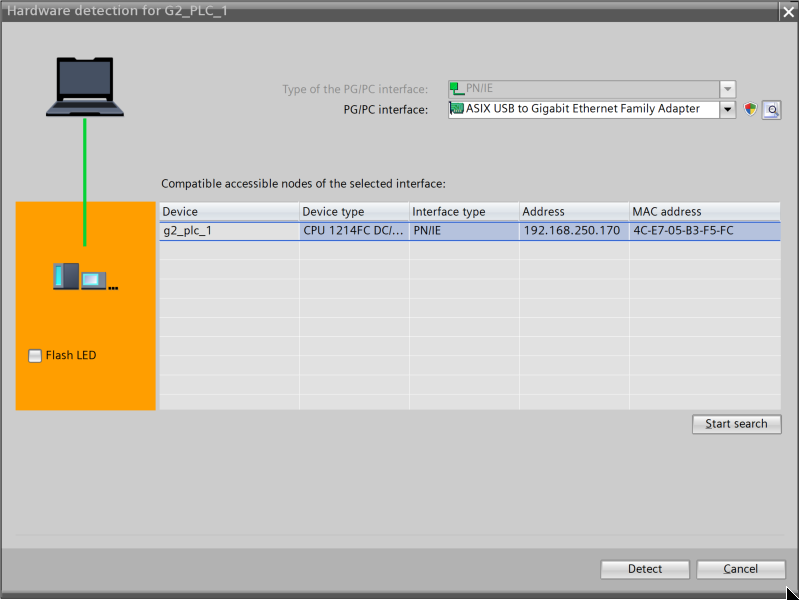
Done! The S71200-G2 was found.
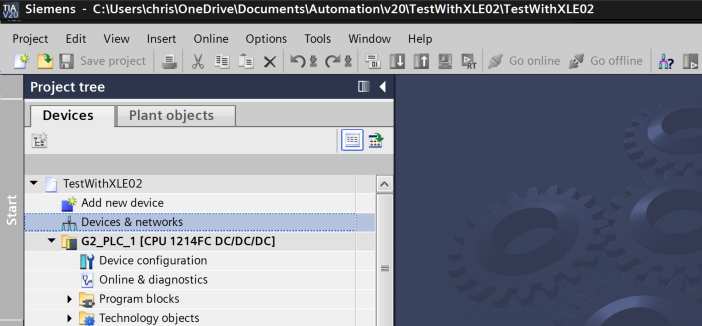
Click Connect to upload the S71200-G2 to the TIA project.
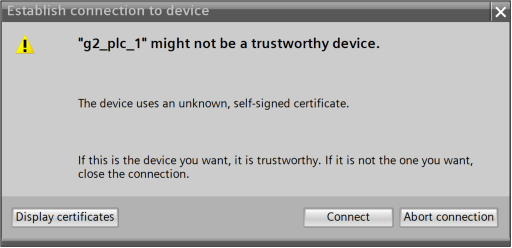
Configure the security settings according to your actual application.
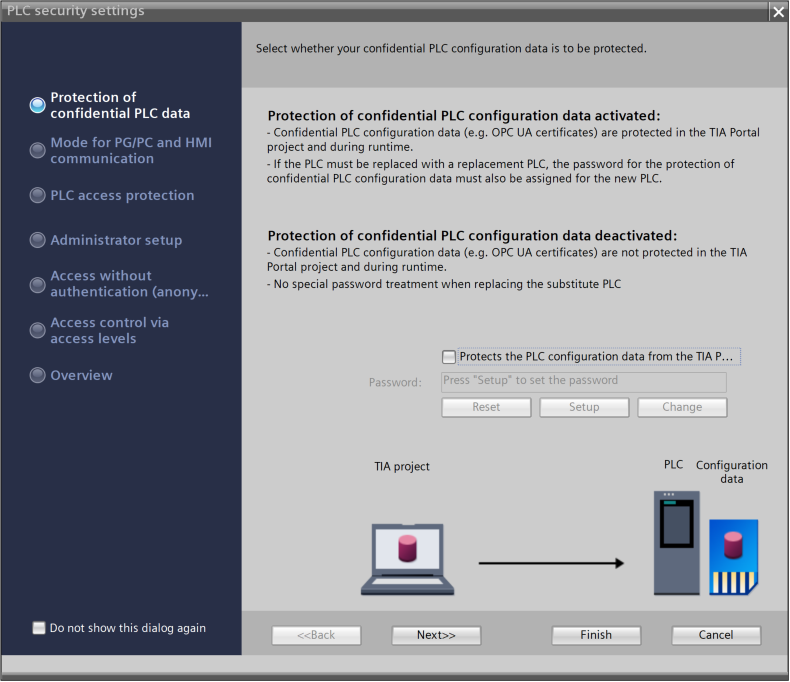
Done!
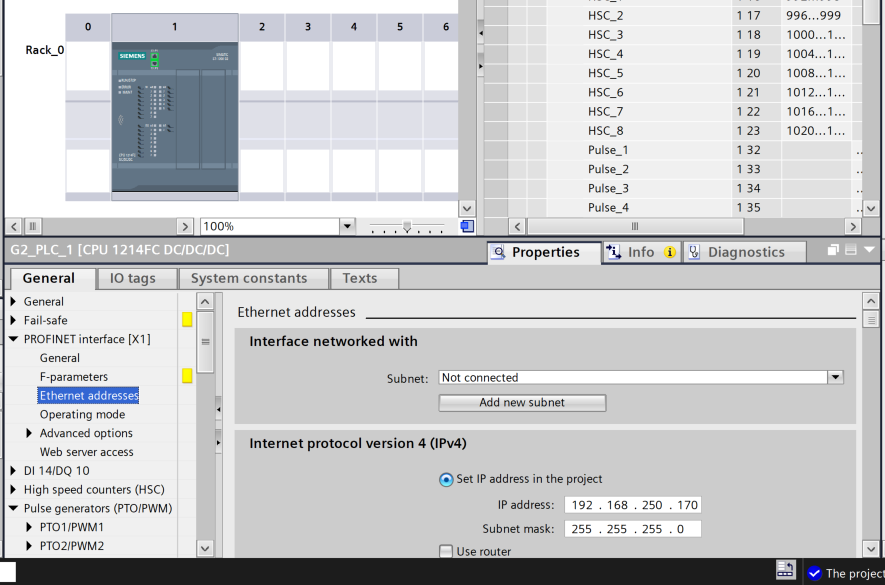
IP Configuration
Set the IP address of the S71200-G2 under PROFINET interface > Ethernet addresses.
Add XLE02
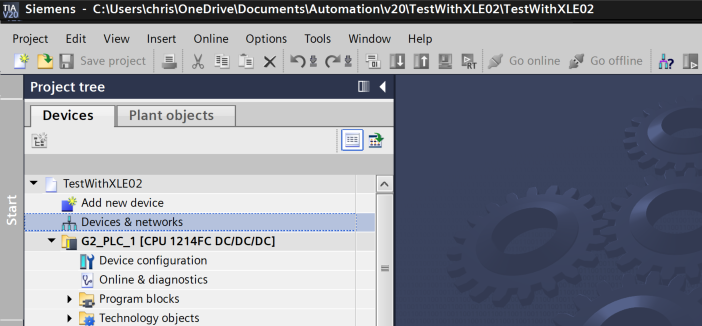
Next, click Devices and Networks to add the Keyence KV-XLE02 to the PROFINET network.
Add the KV-XLE02 from the catalog to the PROFINET network.
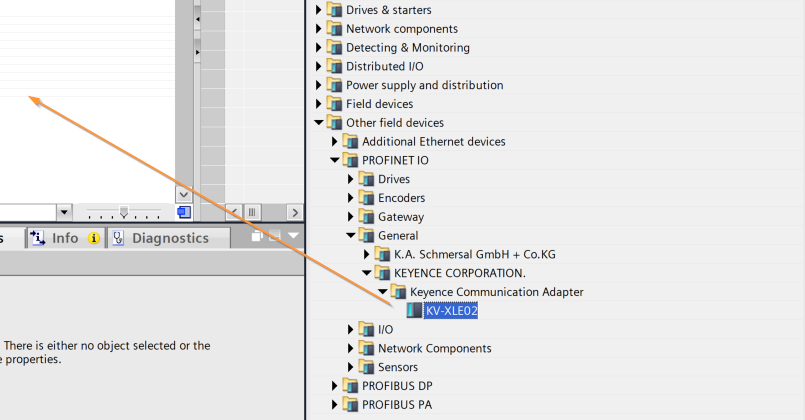
Done!
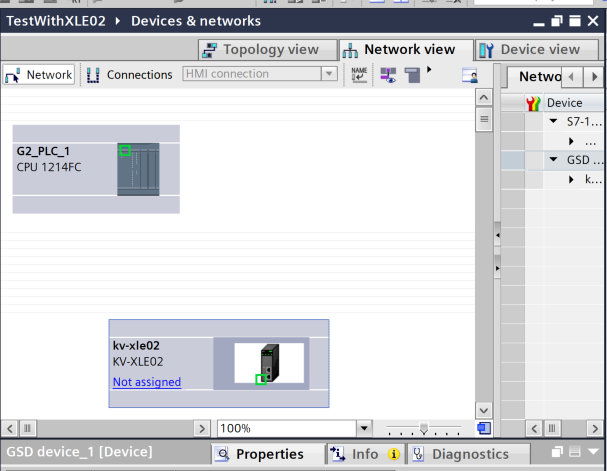
Configure Profinet Network
Click “Not Assigned” on the added KV-XLE02 and assign it to the same PROFINET network as the S7-1200G2.
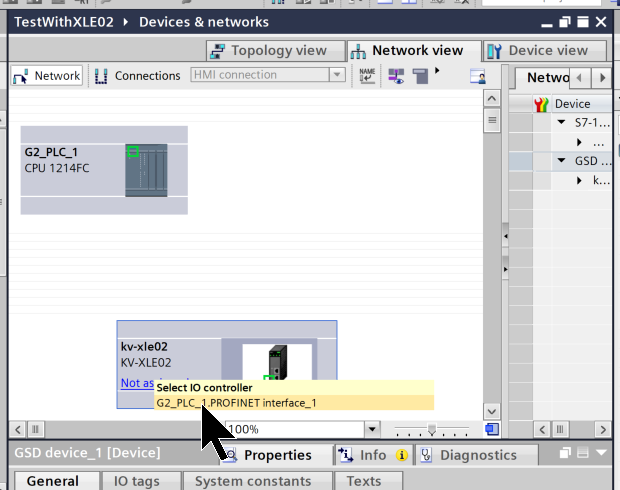
Done!
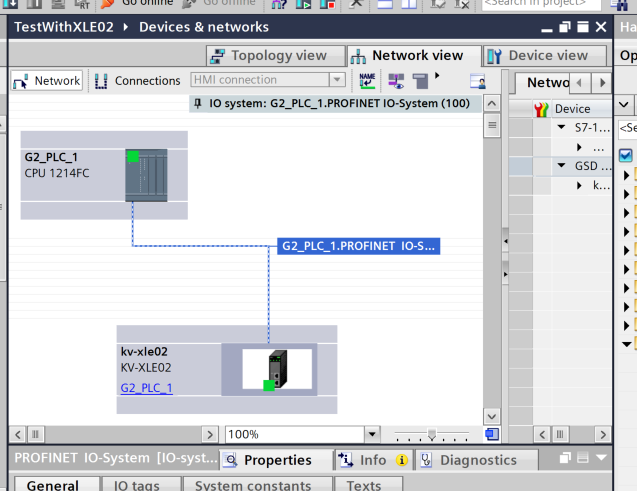
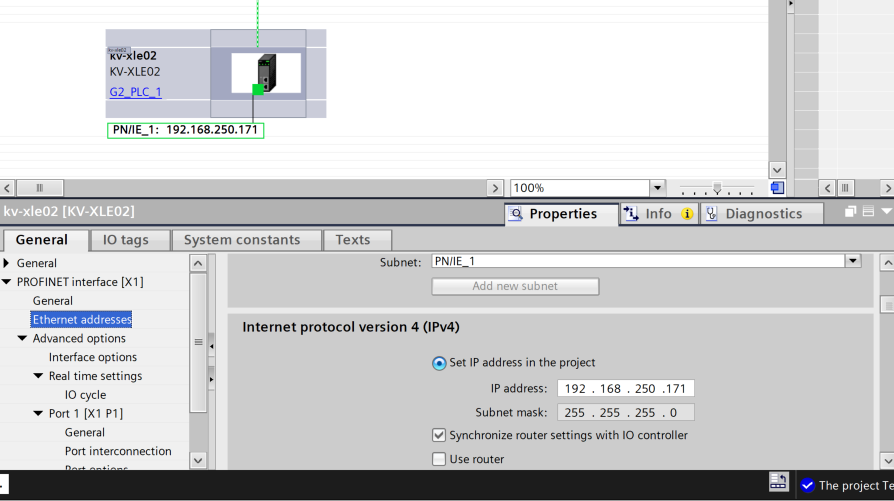
IP Configuration
Select the KV-XLE02 > PROFINET interface > Ethernet Addresses and set the IP address to match KV Studio.
Slot Configuration
Next, double-click the KV-XLE02 to switch to Device View.
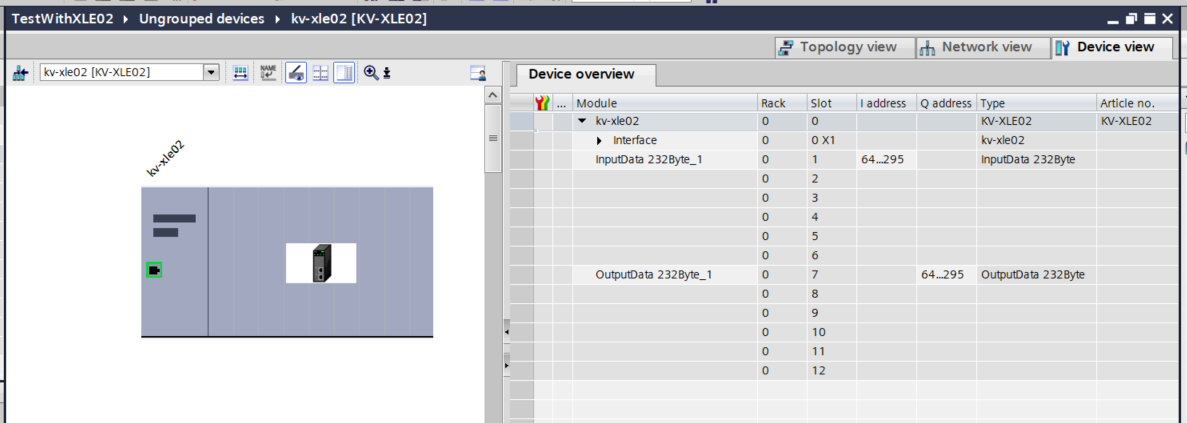
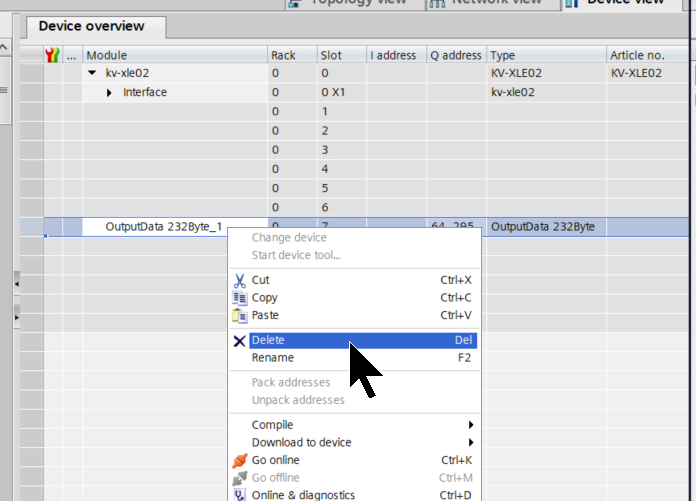
Delete the default slots first.
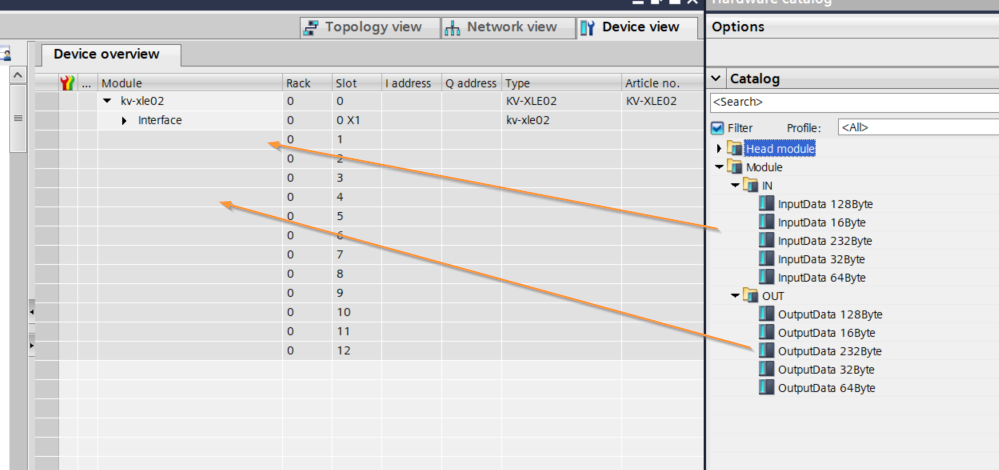
Construct input/output slots from Module on the right side.
Done!
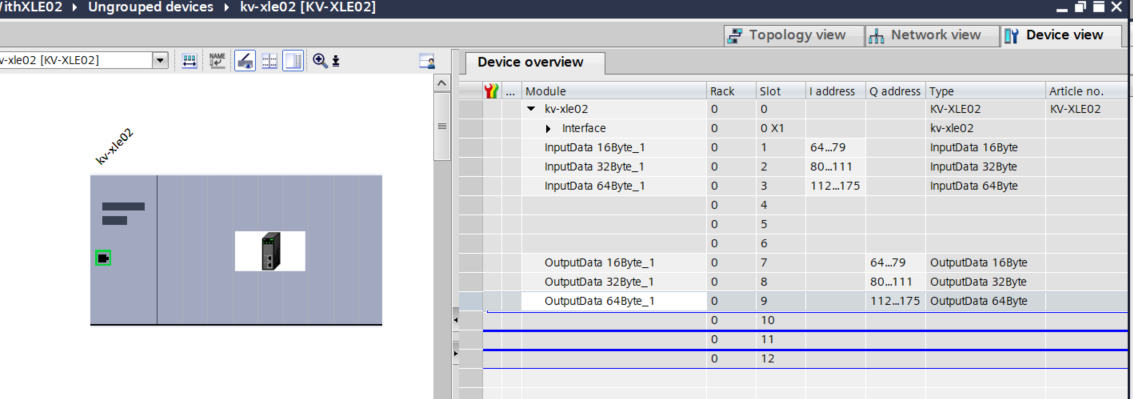
Note that the Slot Configuration of the KV8000 XLE02 and S7-1200G2 must match.

Assign device name
Now assign the device name to the Keyence KV-XLE02.
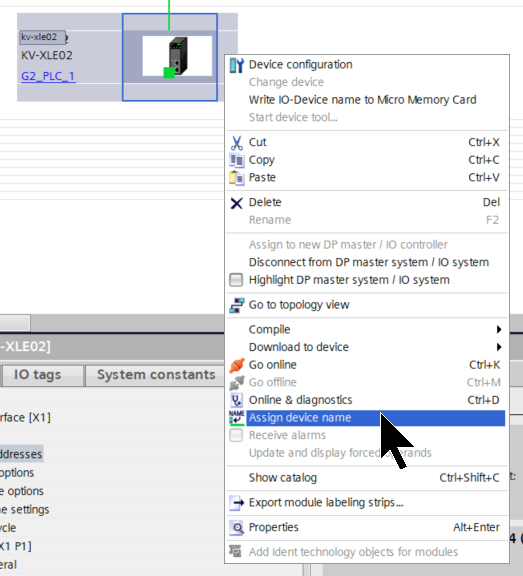
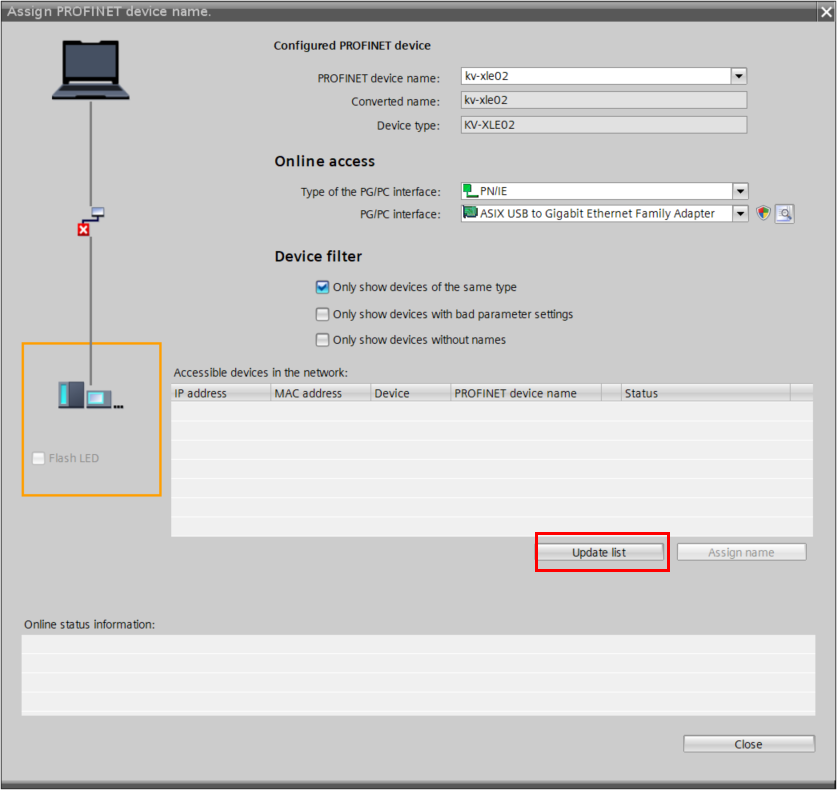
Click Update List to search for devices on the network.
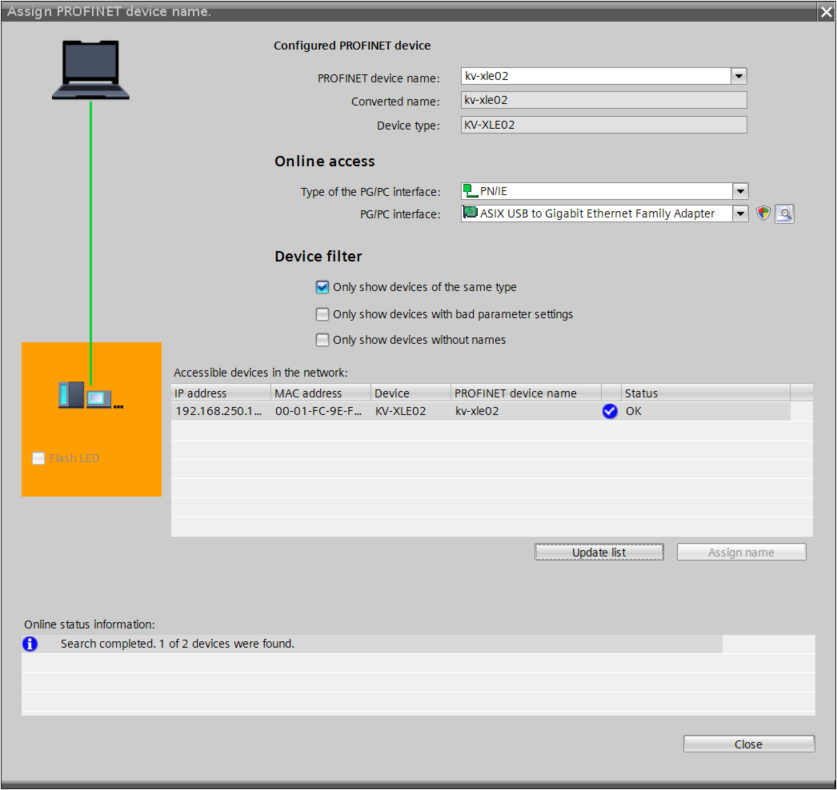
Done! The KV-XLE02 was found; click Assign name to assign the device name.
Download
Download the Hardware Configuration to the S7-1200G2.
Result
Done! PROFINET communication between the Siemens S7-1200G2 and KV-XLE02 has been established.
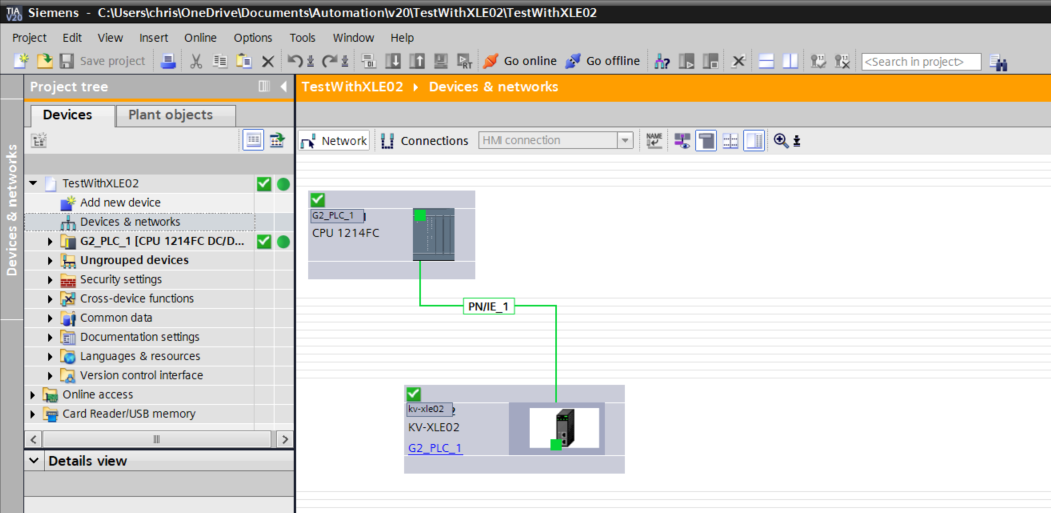
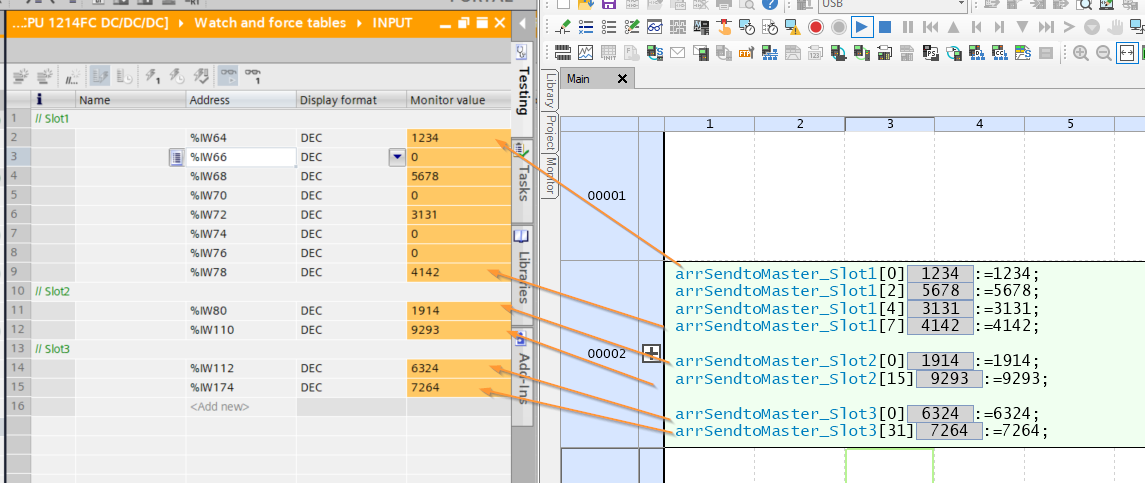
Create a Watch Table in TIA to check communication data.
Writing to Slot 1 output data on the KV-XLE02 side was successfully reflected on the Siemens S7-1200G2 side as well.
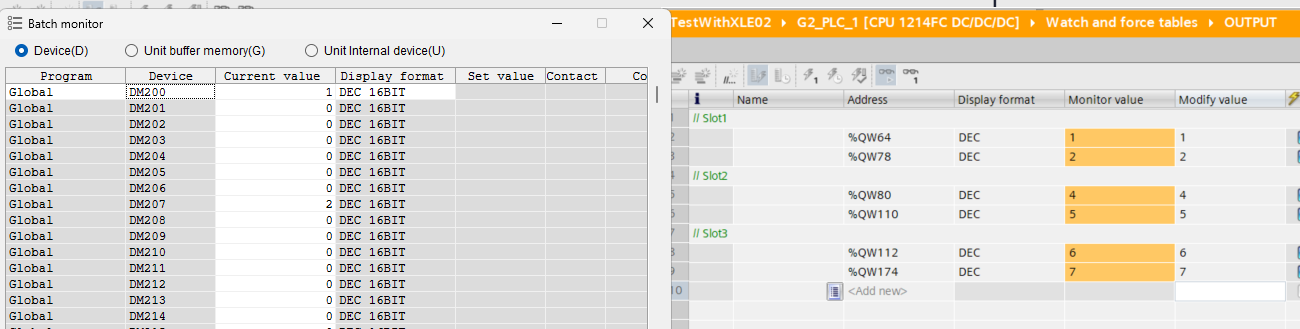
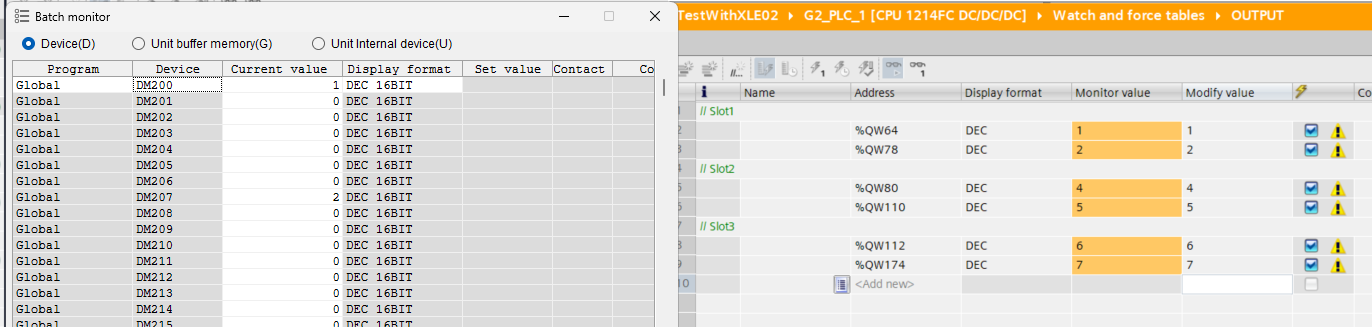
Writing to Slot 1 output data on the Siemens side was successfully reflected on the KV-XLE02 side as well.
Writing to Slot 2 output data on the Siemens side was successfully reflected on the KV-XLE02 side as well.
Writing to Slot 3 output data on the Siemens side was successfully reflected on the KV-XLE02 side as well.
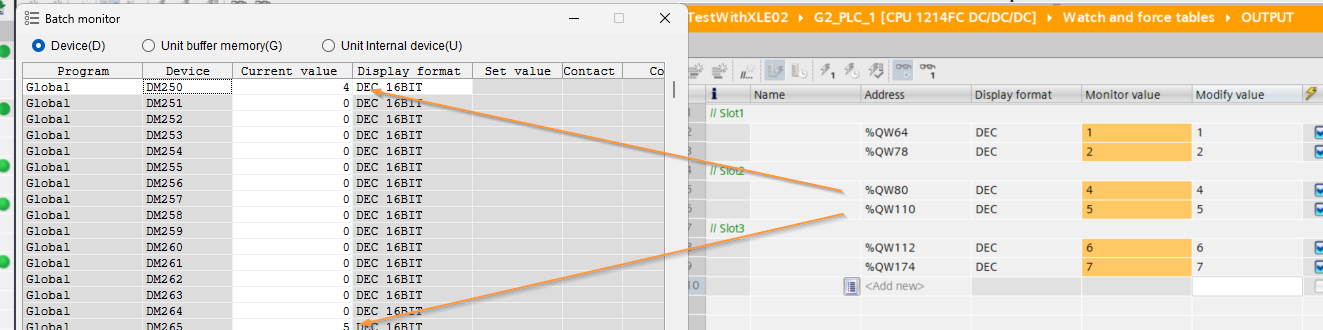
Writing output data on the Keyence side was successfully reflected on the Siemens side as well.
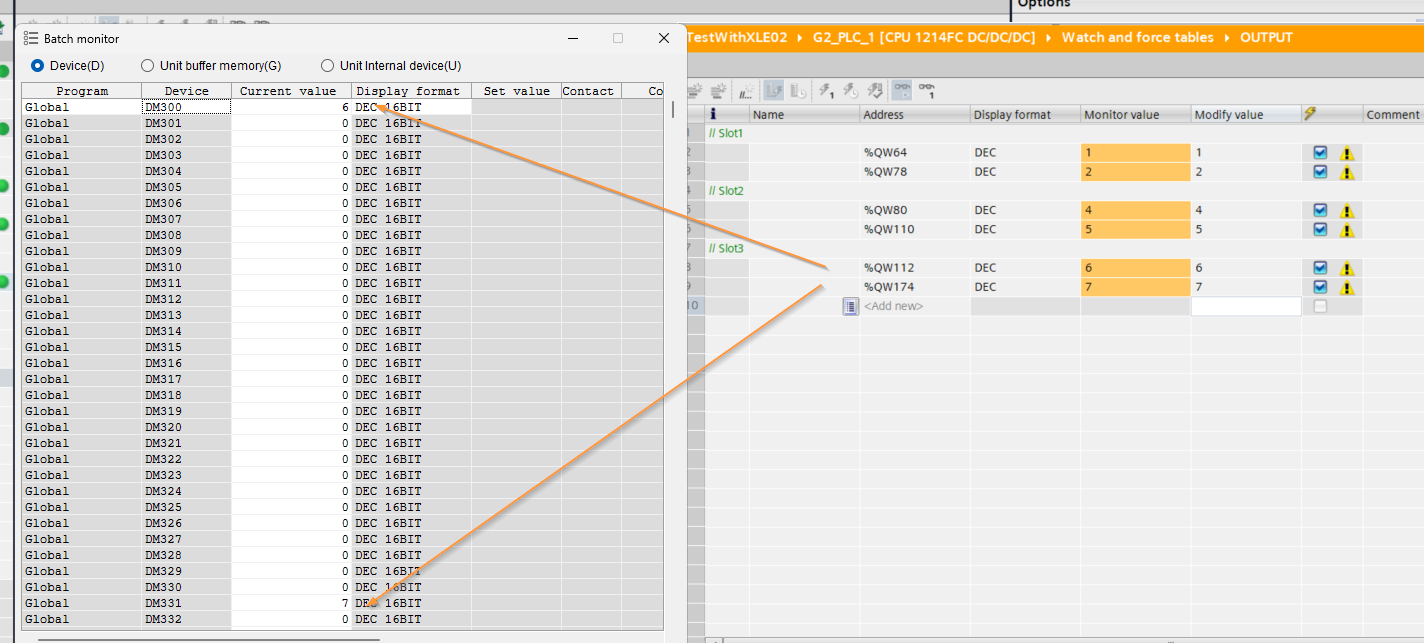
We were able to write the output data from the Keyence side and have it reflected on the Siemens side as well.