In this article, I will take notes on the setup procedure when using Codesys TargetVISU and WebVISU from EXOR’s HMI.
Now, let’s enjoy FA.

Implementation
Install Runtime
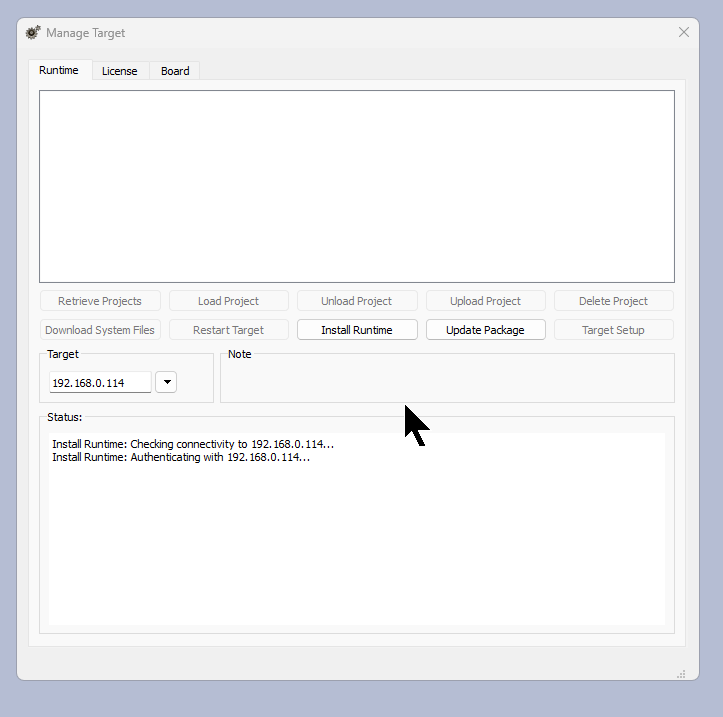
First, launch JMOBILE, click Manage Target → Install Runtime, and install the Runtime.
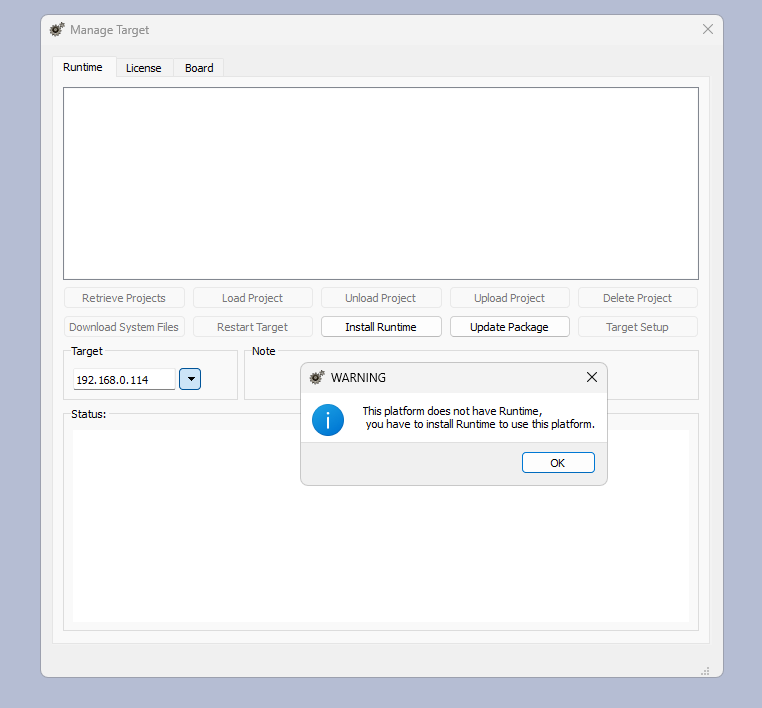
It takes about 2 to 3 minutes.
Activate Codesys License
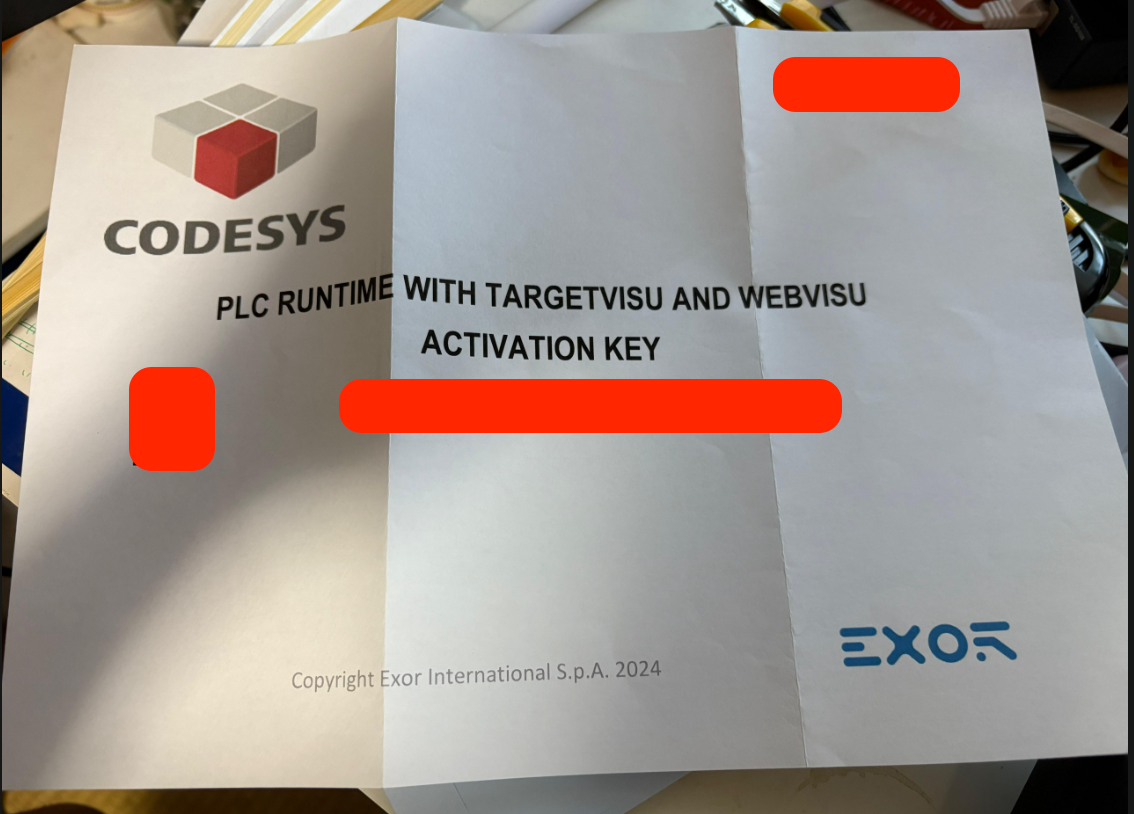
Next, activate the Codesys license. If it comes with a Target and WebVISU license, it will say “PLC RUNTIME WITH TARGET AND WEBVISU” on the Codesys paper.
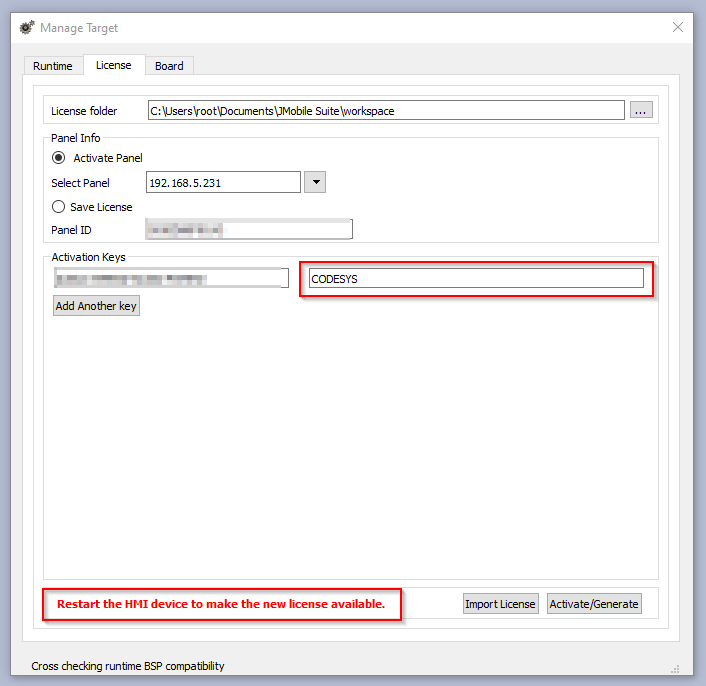
Next, enable the Codesys license. Open the License Tab, select Panel Info > Activate Panel, and let’s select JSMART from the Drop List.
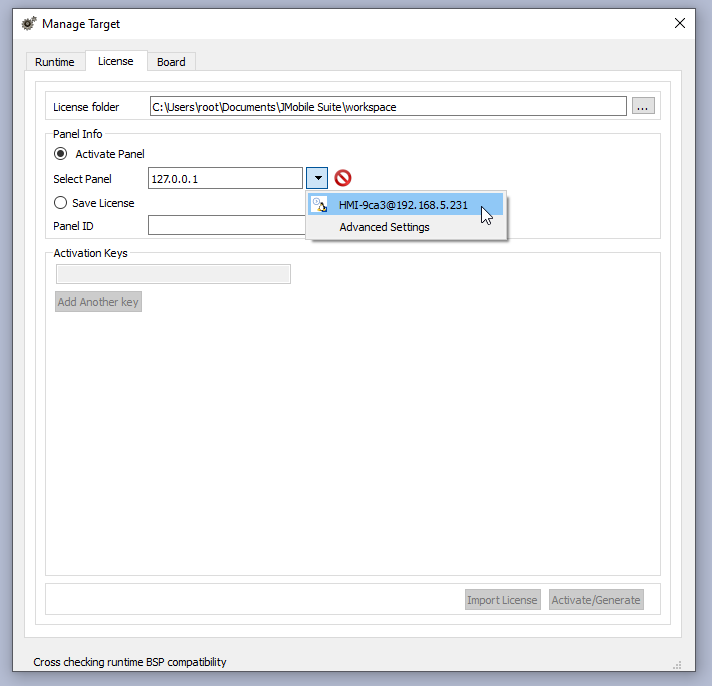
The Panel ID should be displayed.
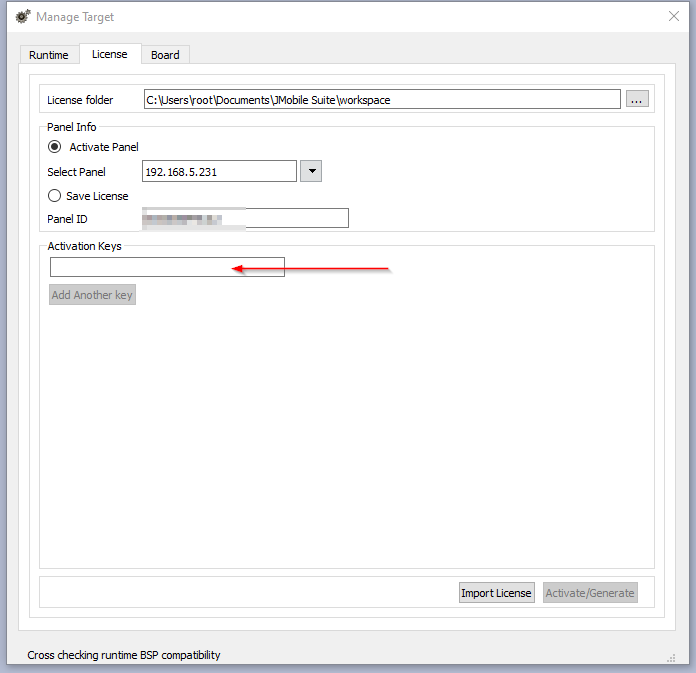
Next, please enter the Activation Keys.
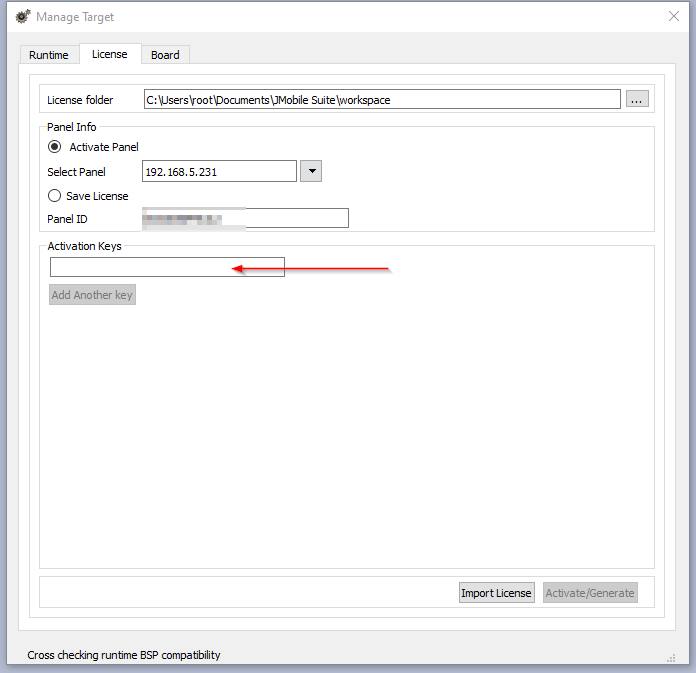
Enter the Activation Keys and proceed with Activate/Generate.
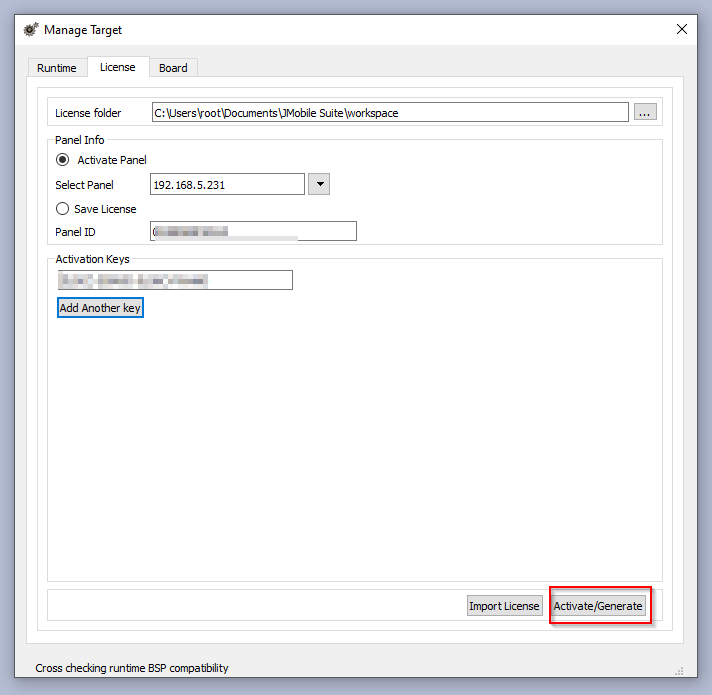
DONE! The Codesys text will be displayed along with the message “Restart the HMI device to make the new license available”. Let’s restart the panel.
Delete Runtime
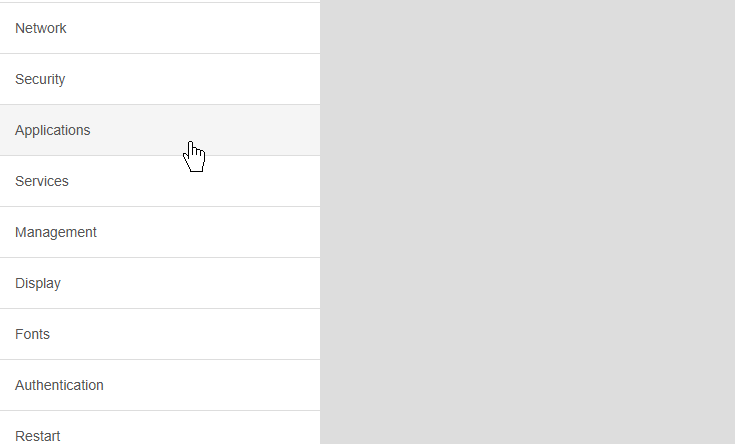
Now that the Codesys license is enabled, next we delete the JMOBILE RUNTIME. Access the EXOR panel’s Web Server and click Applications.
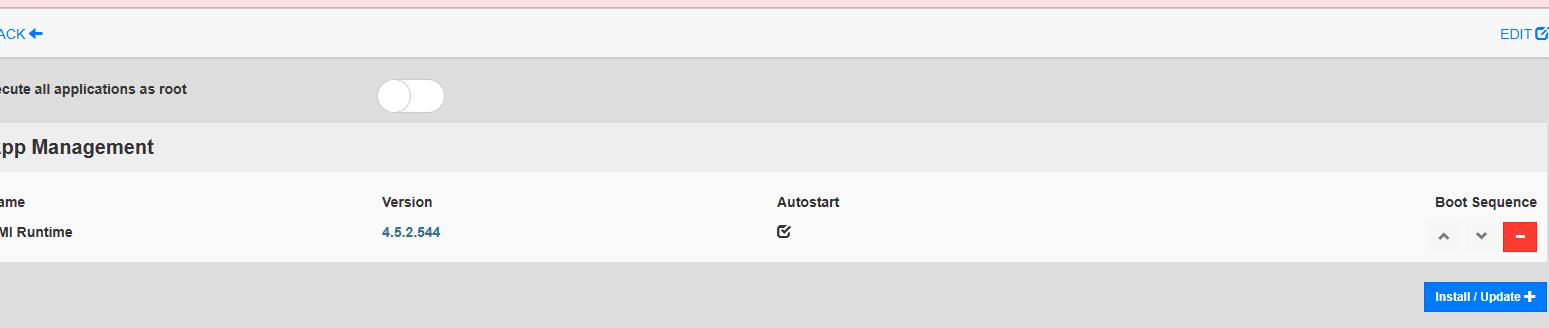
Click the App Management button on the right.

Click the red minus button under HMI Runtime to delete the HMI Runtime.
Proceed with OK.
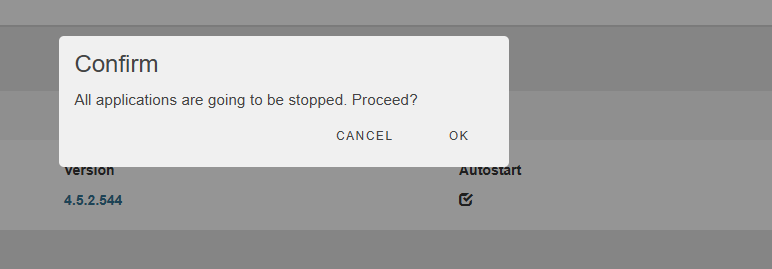
Proceed with OK.
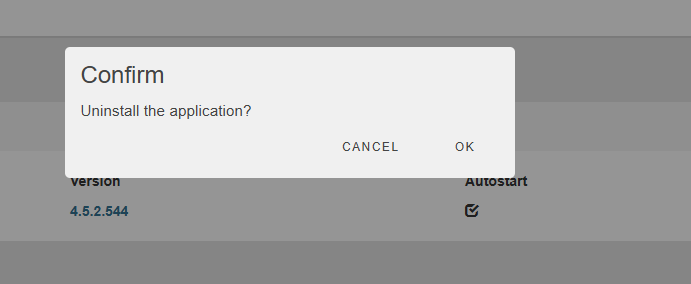
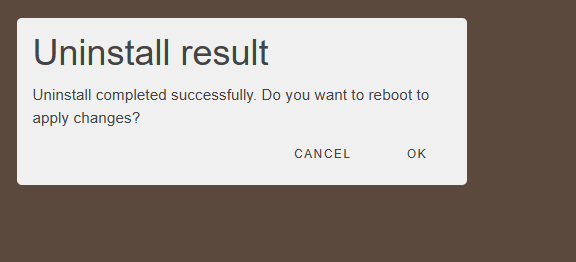
It takes about 2 to 3 minutes, and finally restart the HMI by clicking OK.
Codesys→USB
Next, obtain the Codesys SETUP FILE from EXOR and save the ZIP FILE to a USB drive. Then insert the USB drive into the HMI and restart it.
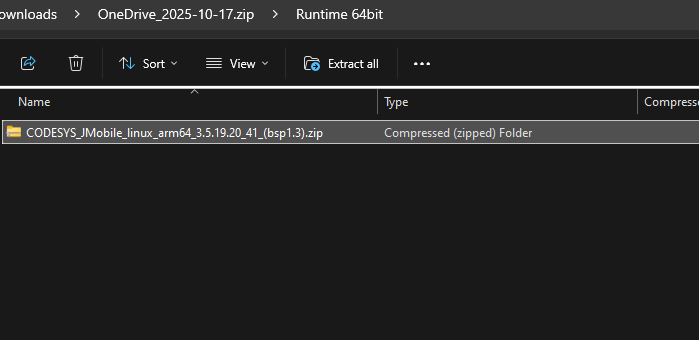
Install Codesys Runtime
Access the settings screen directly from the HMI and click App Management.
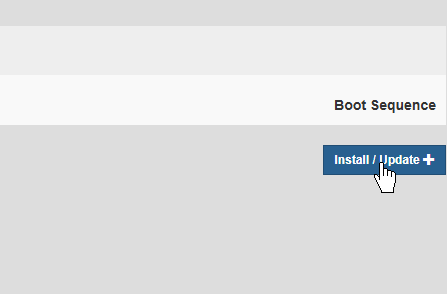
Click Install/Update.
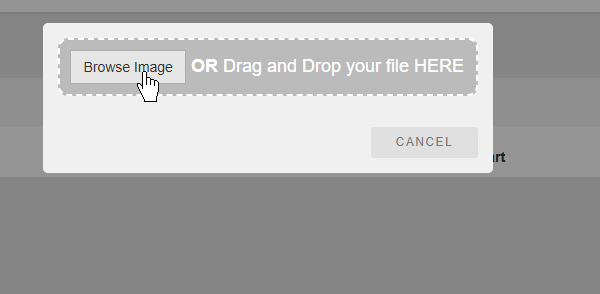
Click Browse Image.
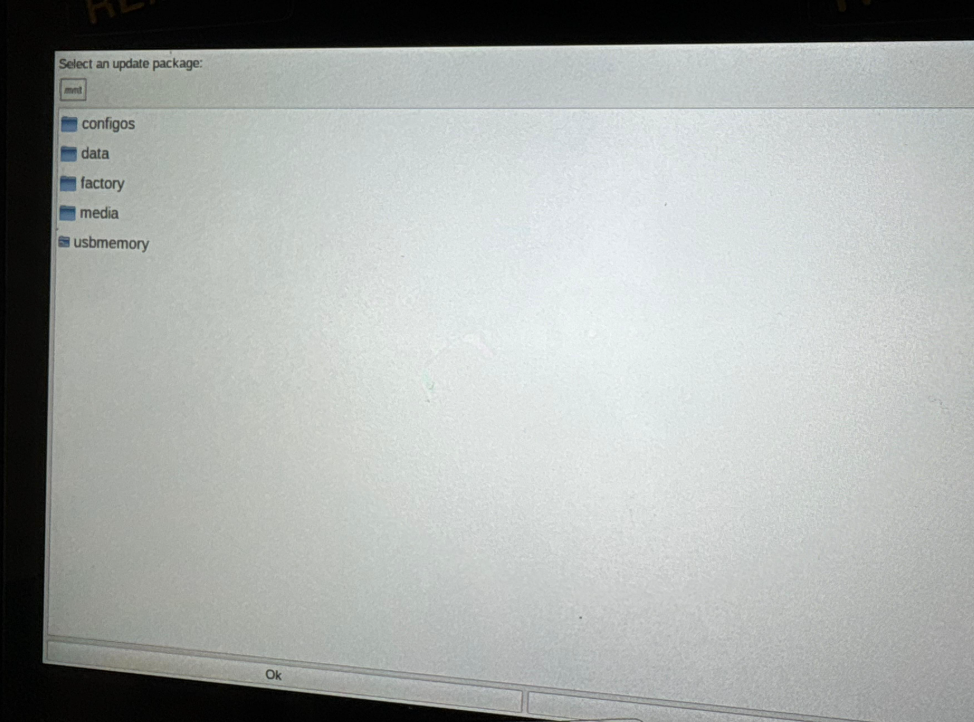
Select usbmemory.
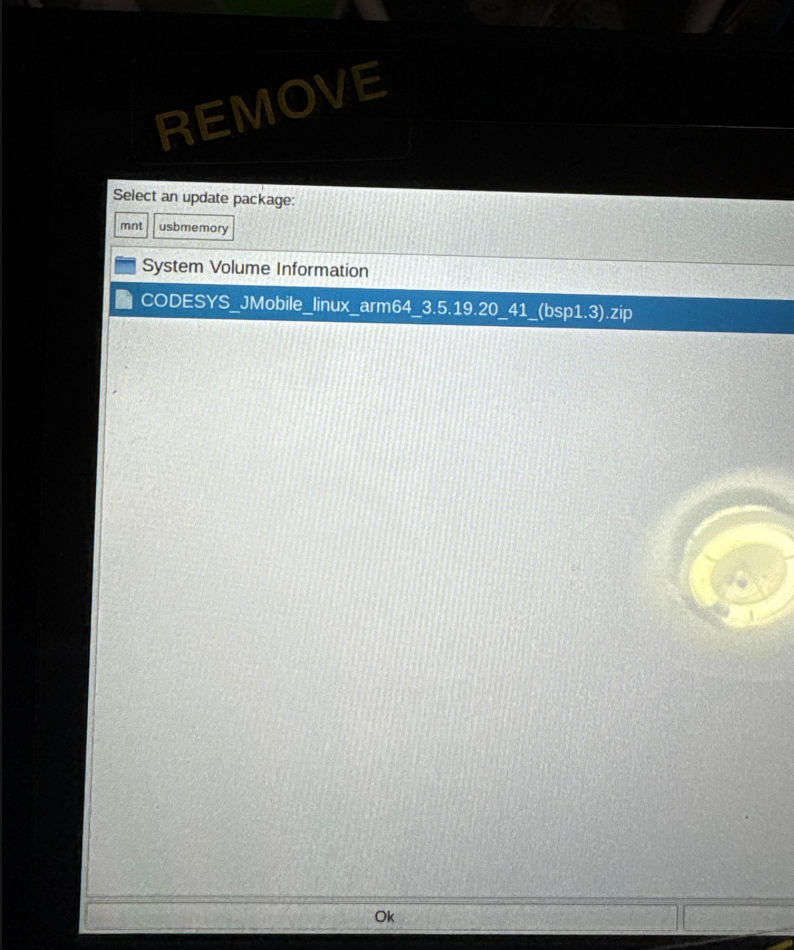
Then select the CODESYS setup FILE you previously put in the USB drive, and proceed with OK.
Click Proceed to start the CODESYS installation.
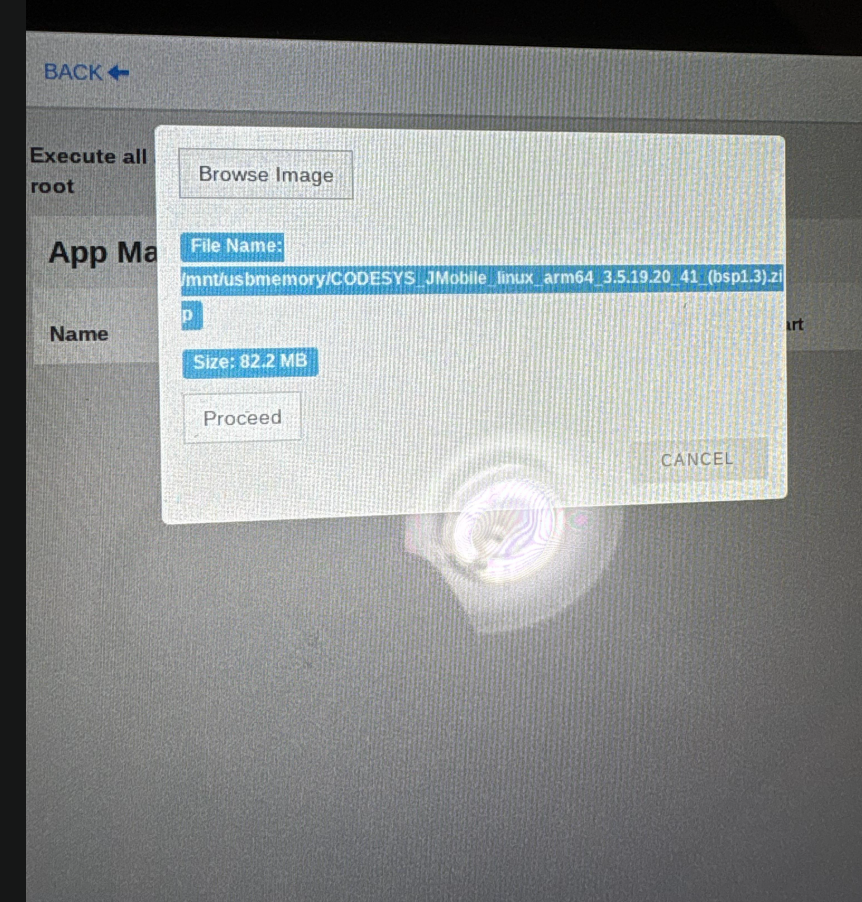
It takes about 2 to 3 minutes…
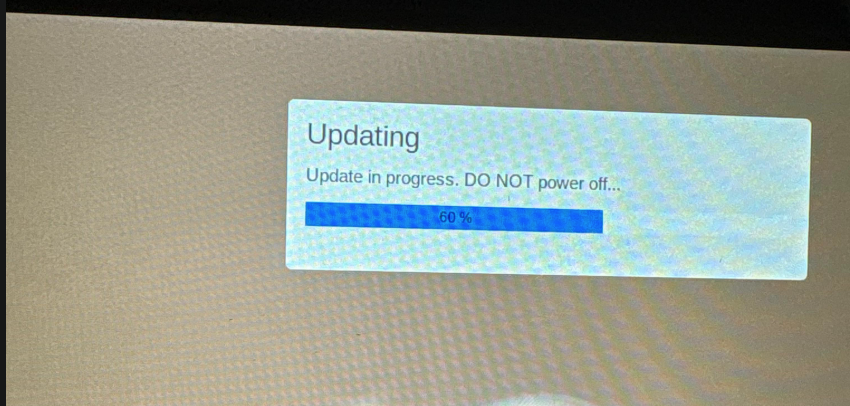
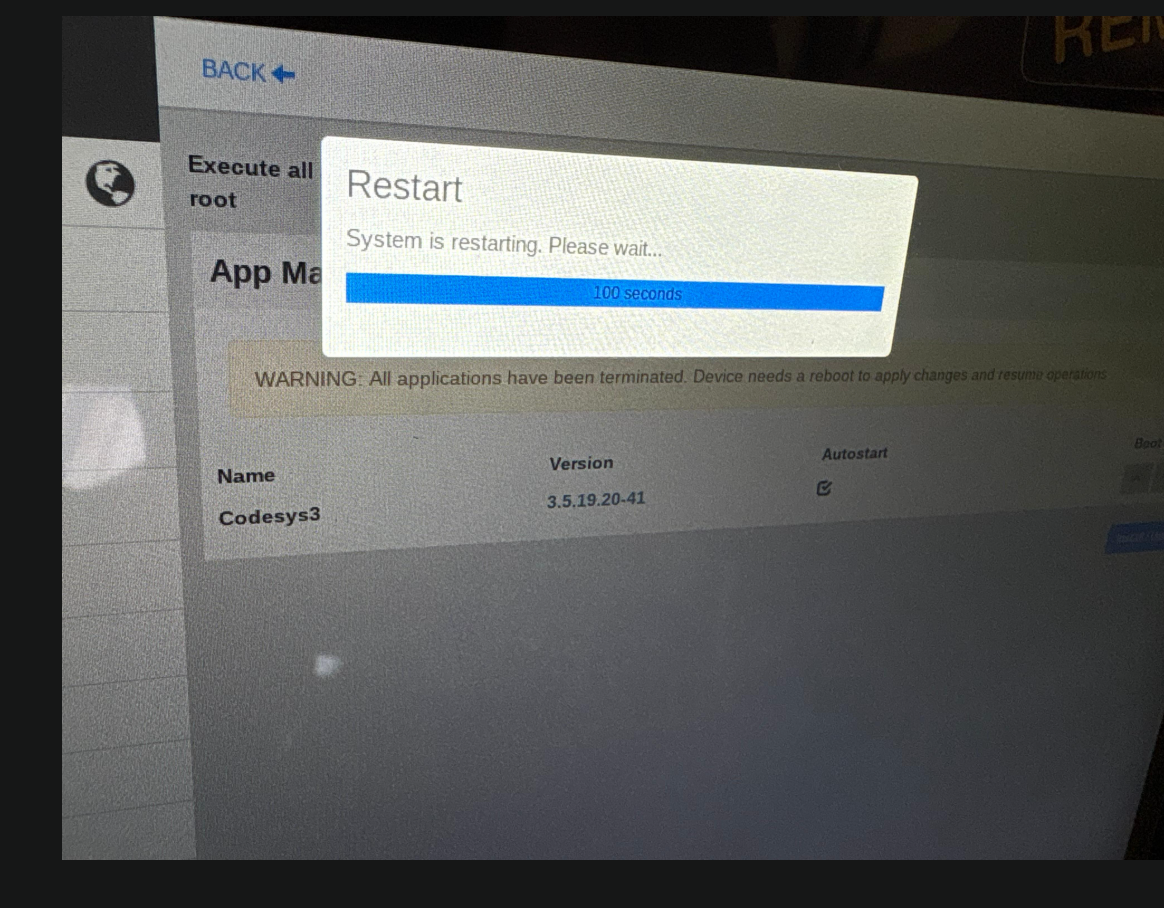
Done! The HMI will automatically restart.
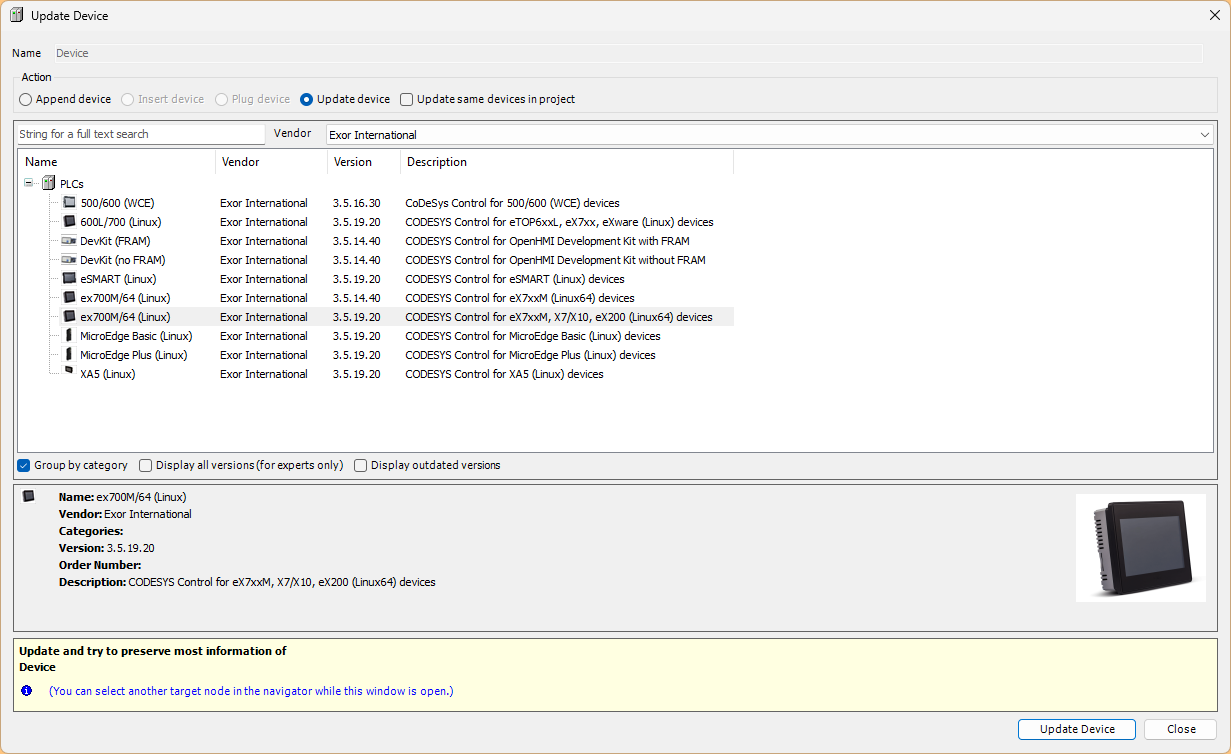
Select Target
Finally, when creating a project in Codesys, set the appropriate Target matching the model type.
Result
Done! If a screen like the figure below is displayed on EXOR’s HMI, the installation is successful.
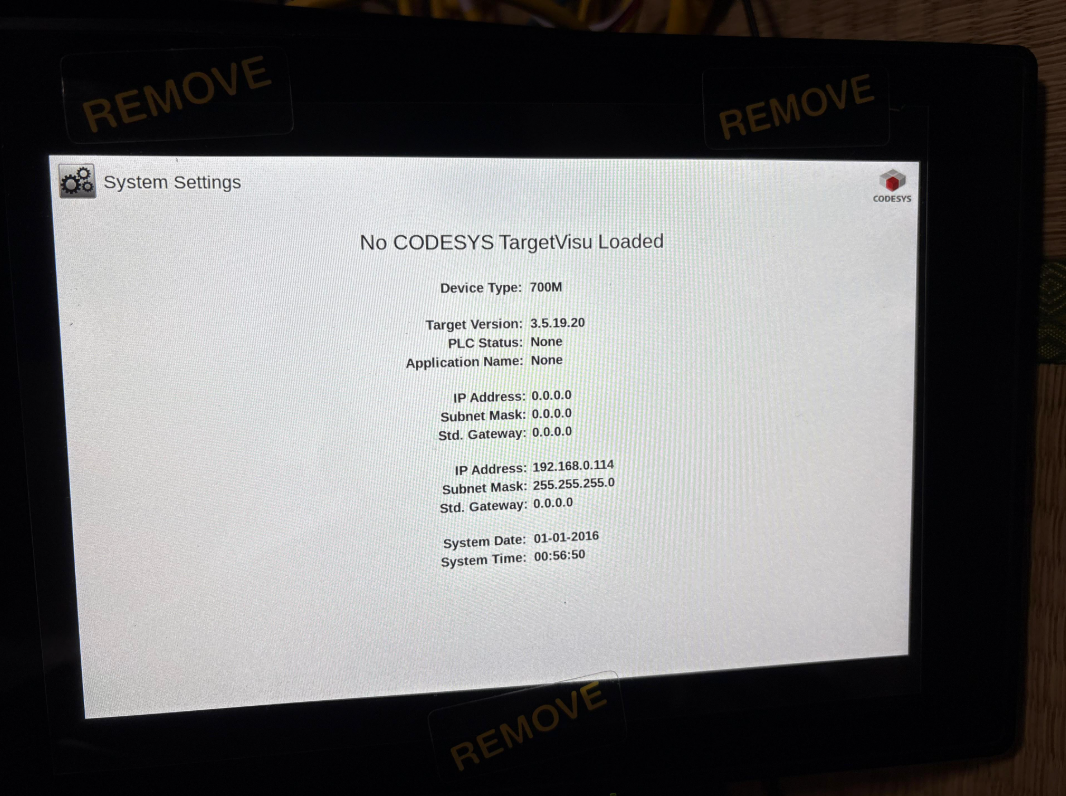
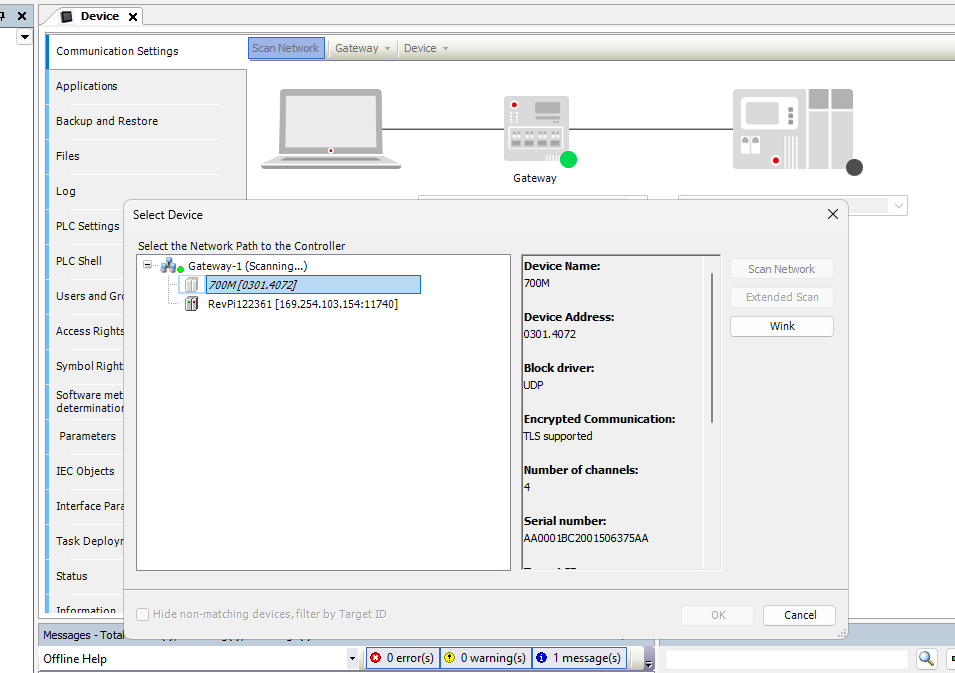
EXOR’s HMI could also be found using Codesys’s Scan network function.