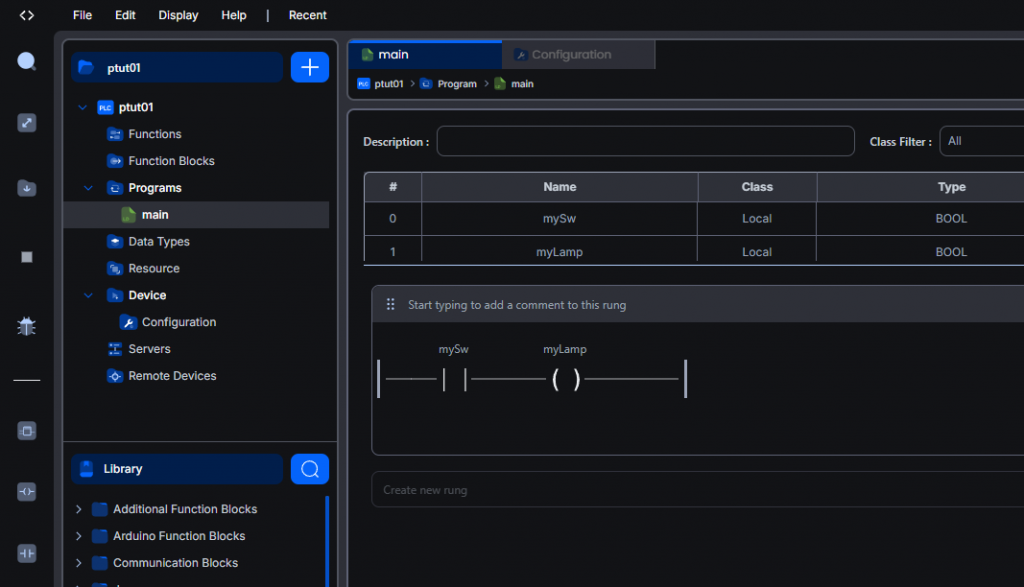
In 2026, AUTONDMY’s OPENPLC V4 underwent a major update, with both the Editor and Runtime officially releasing V4! This series will conduct various tests using OPENPLC V4 in practice. We’ll start by explaining everything from basic operations to debugging.
Additionally, the Open PLC Runtime will be installed in a Docker container on Advantech’s AMAX-7580 100D5A.
Let’s enjoy FA!
Foreword
Thank you from the bottom of my heart for visiting my technical blog and YouTube channel.
We are currently running the “Takahashi Chris” radio show with Full-san (full@桜 八重 (@fulhause) / X) which I deliver every Wednesday night.
Sharing, not hoarding, technical knowledge
We publish technical information related to factory production technology and control systems for free, through blogs and videos.
With the belief that “knowledge should be accessible to everyone,” we share practical know-how and real-world troubleshooting cases from our own field experience.
The reason we keep it all free is simple: to help reduce the number of people who struggle because they simply didn’t know.
If you’ve ever thought:
- “Will this PLC and device combination actually work?”
- “I’m having trouble with EtherCAT communication—can someone test it?”
- “I want to try this remote I/O, but we don’t have the testing environment in-house…”
Feel free to reach out!If lending equipment or sharing your configuration is possible, we’re happy to verify it and share the results through articles and videos.
(We can keep company/product names anonymous if requested.)
How can you support us?
Currently, our activities are nearly all unpaid, but creating articles and videos takes time and a proper testing environment.If you’d like to support us in continuing and expanding this content, your kind help would mean a lot.
Membership (Support our radio show)
This support plan is designed to enhance radio with Mr Full.
https://note.com/fulhause/membership/join
Amazon Gift List (equipment & books for content production)
Lists equipment and books required for content creation.
https://www.amazon.co.jp/hz/wishlist/ls/H7W3RRD7C5QG?ref_=wl_share
Patreon (Support articles & video creation)
Your small monthly support will help to improve the environment for writing and verifying articles.
https://www.patreon.com/user?u=84249391
Paypal
A little help goes a long way.
https://paypal.me/soup01threes?country.x=JP&locale.x=ja_JP
Just trying to share things that could’ve helped someone—if only they’d known.
Your support helps make knowledge sharing more open and sustainable.
Thank you for being with us.
soup01threes*gmail.com
Technical knowledge shouldn’t be kept to ourselves.
OPENPLC V4
Starting in January 2026, OpenPLC will undergo a complete overhaul, featuring a modern interface, cloud orchestration, and powerful capabilities for programming PLCs from anywhere.
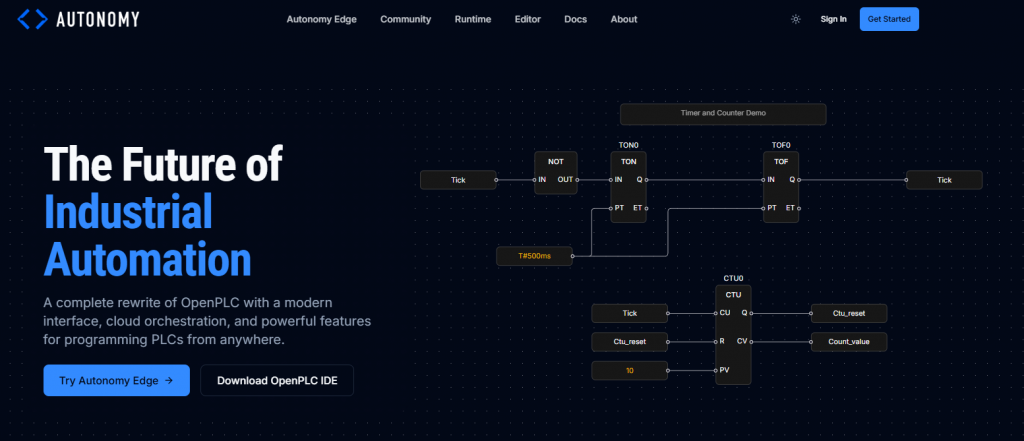
Compared to OPENPLCv3, it leans much more toward a full-fledged industrial PLC, featuring a design that emphasizes Autonomy Edge (cloud management) and security.
- Autonomy Edge — Cloud-based management and deployment of vPLCs
- Virtual PLCs — Run anywhere from embedded systems to cloud servers
- IEC 61131-3 — Fully supports LD, ST, FBD, IL, SFC
- Multi-Platform — Windows, macOS, Linux, Raspberry Pi, Arduino
- Secure by Design — Industrial-grade security
- Real-time Performance — Deterministic real-time control
- Open Source — Free and freely usable
- Modular Architecture — Extendable with plugins and custom FBs
OpenPLC Runtime v4 has significantly evolved beyond v3, becoming a headless industrial programmable logic controller (PLC) runtime that transforms standard computing hardware into a powerful automation controller.
Execute IEC 61131-3 programs created in OpenPLC Editor. In addition to IEC 61131-3 languages (Ladder Logic, Structured Text, Function Block Diagram, etc.), it also supports Python, C, and C++.
- Modern Architecture
An architecture completely redesigned from the ground up to meet the demands of modern industrial automation.
- Real-time Execution
SCHED_FIFO priority scheduling enables deterministic scan cycles for reliable control.。 - WebSocket Debug
The highly secure WebSocket debugging interface enables real-time variable monitoring and forced writing. - Plugin System
An extensible plugin system supporting Python and C/C++ plugins for hardware I/O and ICS protocols. - Multi-architecture
OpenPLC Runtime can be executed on any Linux-compatible environment. Fully multi-architecture compatible. - Security Built-in
All communications employ TLS encryption, with JWT (JSON Web Token)-based authentication built into the foundation.
Implementation
Now let’s actually start creating the program.
Runtime Installation
Execute this command to pull the Openplc Docker image.
| docker pull ghcr.io/autonomy-logic/openplc-runtime:latest |
Please wait a moment…
Done!
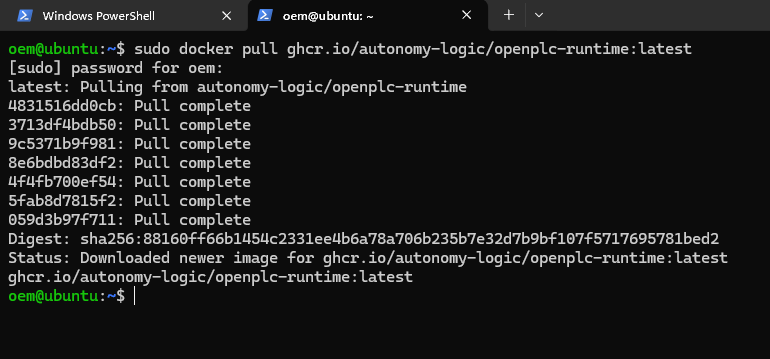
Trouble
Here are the troubleshooting steps I used when setting it up.
ping 8.8.8.8 が Destination Net Unreachable
First, traffic is reaching 192.168.0.100. This means it’s passing through the wireless access point.However, since your default gateway is 192.168.0.100, to go outside, you need “192.168.0.100 to forward it as a router.”
| oem@ubuntu:~$ ping -c 3 192.168.0.100 PING 192.168.0.100 (192.168.0.100) 56(84) bytes of data. 64 bytes from 192.168.0.100: icmp_seq=1 ttl=64 time=0.374 ms |
My IPC also has enp5s0: 192.168.0.200/24. And since there’s a “router to the real internet” on the 192.168.5.0/24 side, I’ll set that as the default.
| sudo ip route replace default via 192.168.5.1 dev enp5s0 ping -c 3 8.8.8.8 |
docker ps Cannot connect to the Docker daemon
This is when there is an error when you cannot connect to Docker.
| oem@ubuntu:~$ docker ps Cannot connect to the Docker daemon at unix:///var/run/docker.sock. Is the docker daemon running? |
Check the status of Docker.
| oem@ubuntu:~$ systemctl status docker –no-pager ● docker.service – Docker Application Container Engine Loaded: loaded (/lib/systemd/system/docker.service; enabled; vendor preset: enabled) Active: active (running) since Sun 2026-02-08 20:20:27 UTC; 5s ago TriggeredBy: ● docker.socket |
Start Docker and enable it.
| sudo systemctl start docker sudo systemctl enable docker |
sudo docker run hello-world Unable to find imag
This is less a Docker issue and more a result of DNS (name resolution) being broken.
| oem@ubuntu:~$ sudo docker run hello-world Unable to find image ‘hello-world:latest’ locally docker: Error response from daemon: Get “https://registry-1.docker.io/v2/”: dial tcp: lookup registry-1.docker.io on 127.0.0.53:53: server misbehaving lookup registry-1.docker.io on 127.0.0.53:53: server misbehaving |
Let’s just fix the DNS.
| sudo resolvectl dns enp4s0 1.1.1.1 8.8.8.8 sudo resolvectl domain enp4s0 “~.” sudo resolvectl default-route enp4s0 yes sudo resolvectl flush-caches sudo docker run hello-world oem@ubuntu:~$ sudo docker run hello-world Unable to find image ‘hello-world:latest’ locally latest: Pulling from library/hello-world 17eec7bbc9d7: Pull complete Digest: sha256:05813aedc15fb7b4d732e1be879d3252c1c9c25d885824f6295cab4538cb85cd Status: Downloaded newer image for hello-world:latest Hello from Docker! This message shows that your installation appears to be working correctly. |
Runtime launch
Next, start the container using the following command.
| docker run -d \ –name openplc-runtime \ -p 8443:8443 \ –cap-add=SYS_NICE \ –cap-add=SYS_RESOURCE \ -v openplc-runtime-data:/var/run/runtime \ ghcr.io/autonomy-logic/openplc-runtime:latest |
Done!
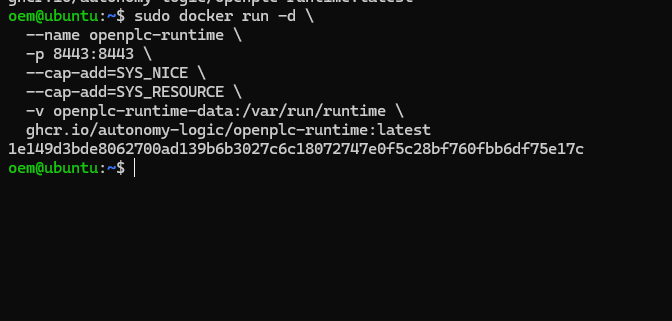
Download the new IDE
This time, download the latest Openplc Editor from the link below and launch it.
Done!
The First Ladder Program
Now let’s create a ladder diagram in Openplc.
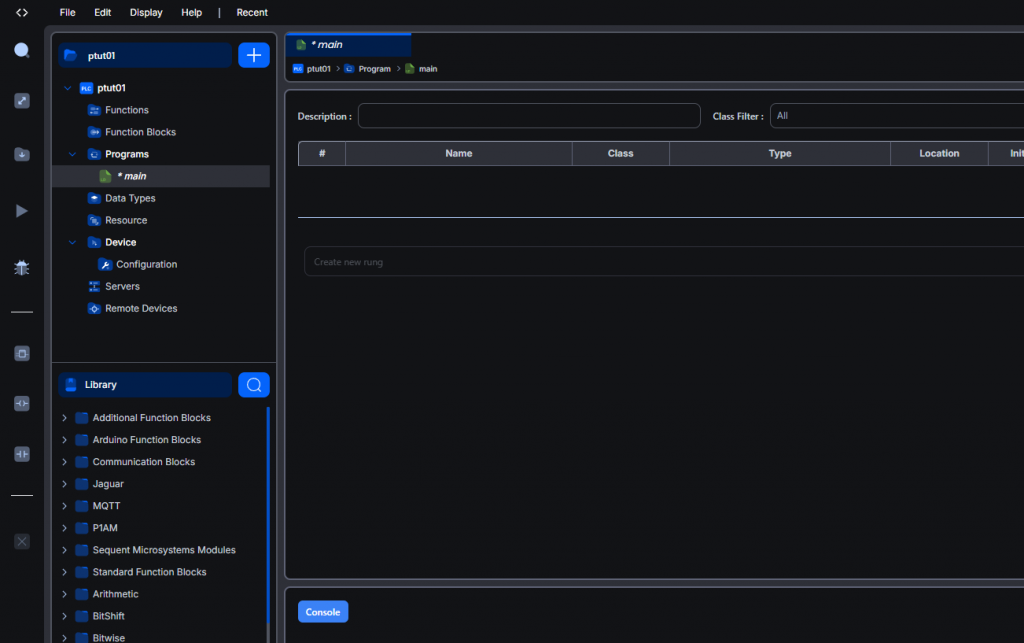
Variable definition
The variable definition section is located at the top of the new Openplc Editor.
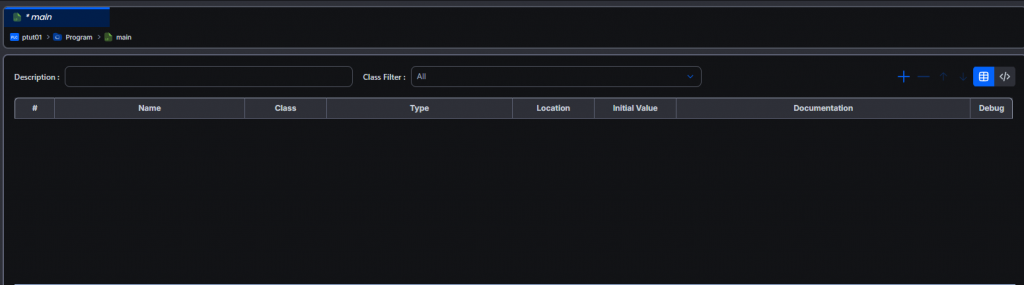
Click the red box below to switch to text-based variable definition.
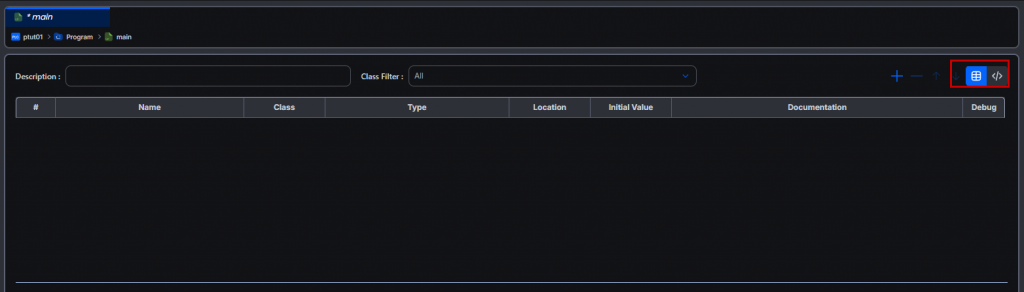
Done!
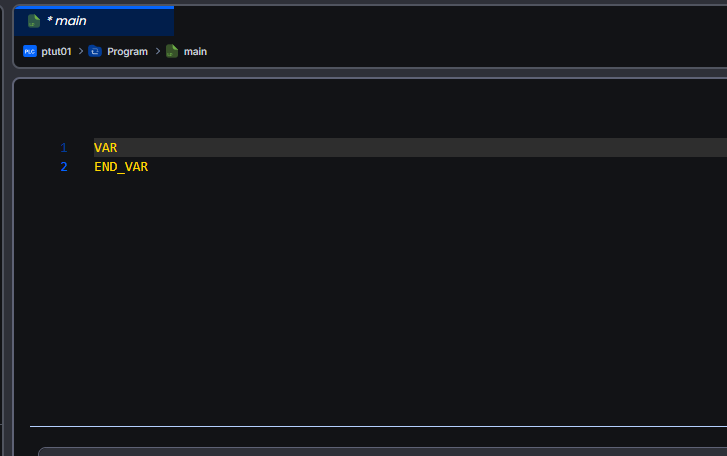
Next, let’s define variables just like in Codesys.
Create a new RUNG
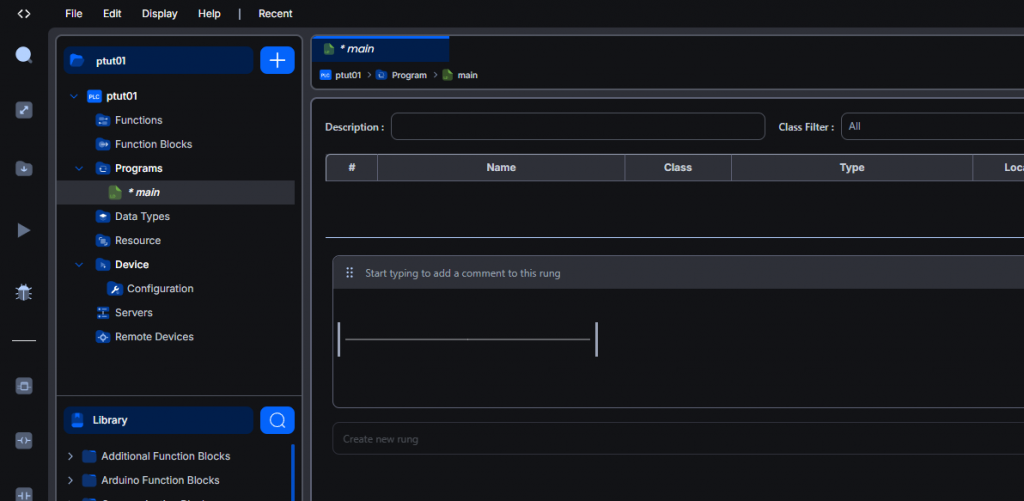
To add a new ladder circuit, click the + button in the red box shown below.
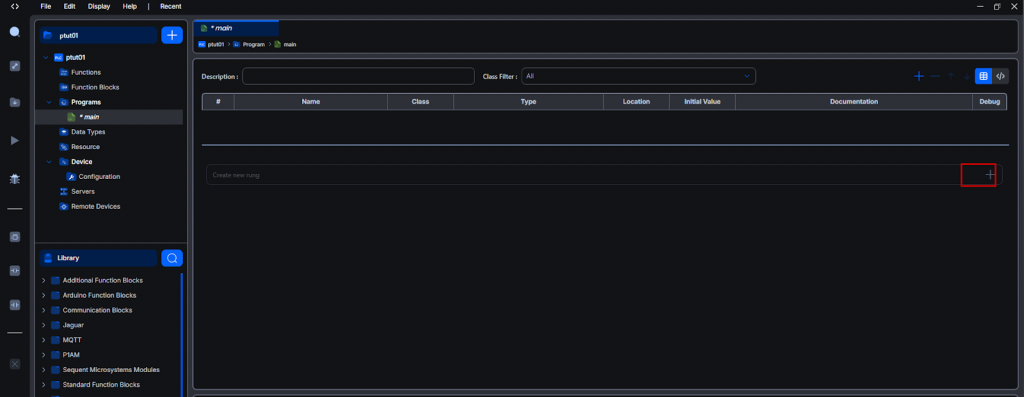
Done!A new rung has been added.
Add A contact
Next, let’s add the A contact.
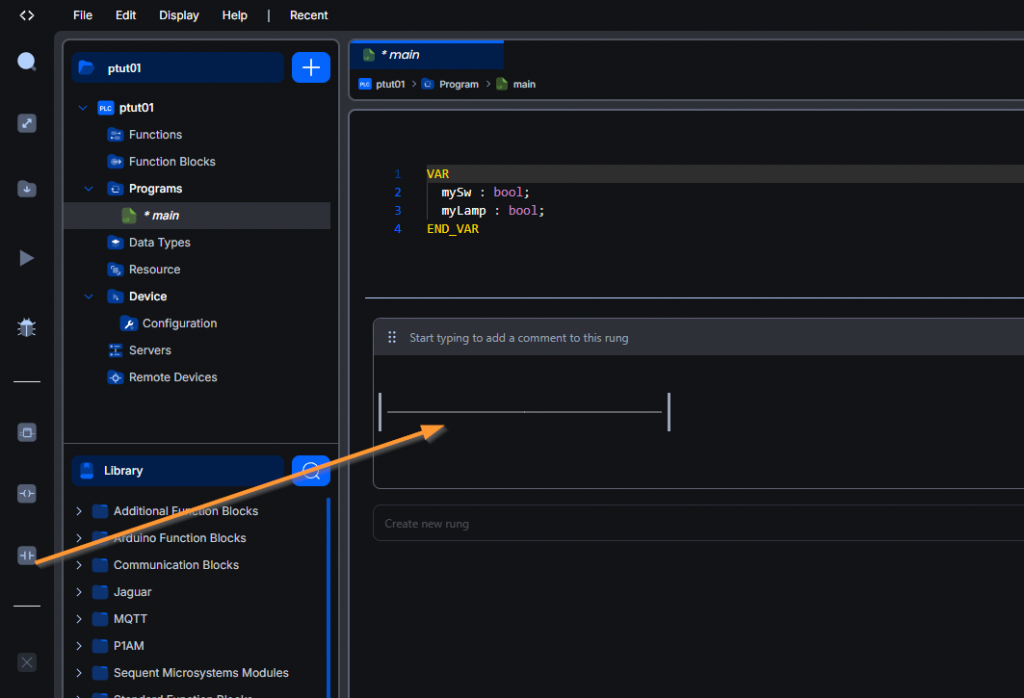
Done!
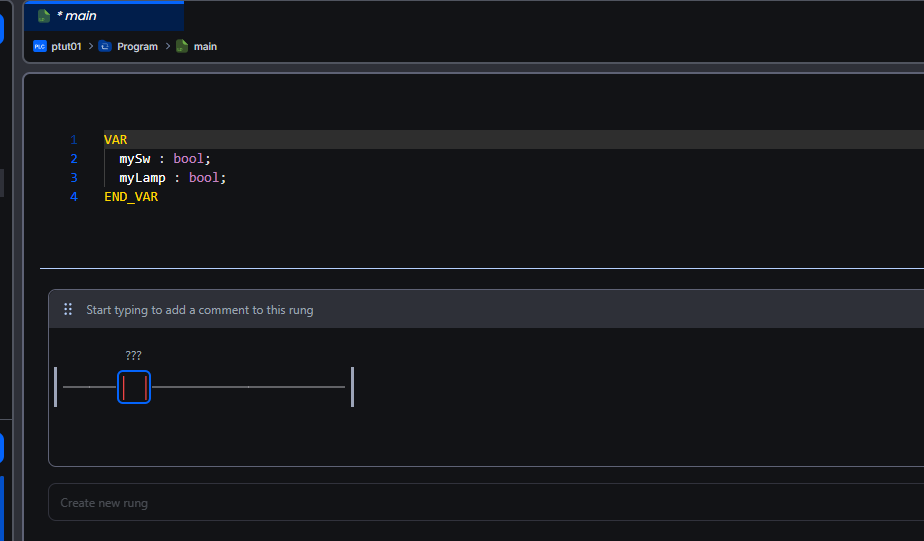
Double-click the contact to change its type.
- A contact
- B contact
- Rise detection contact
- Fall detection contact
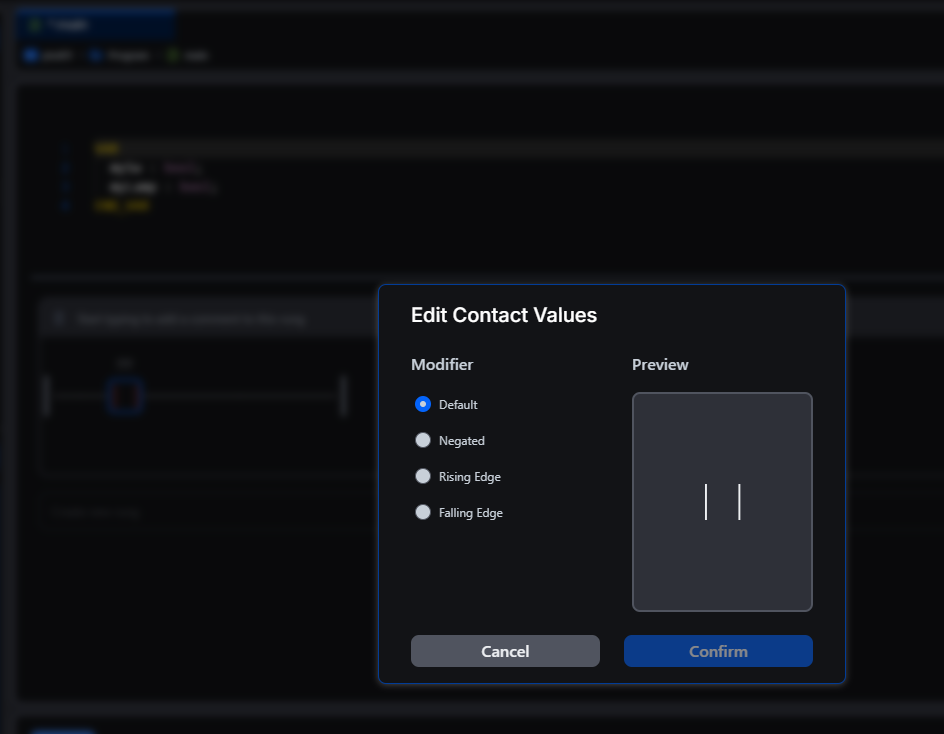
In this example, we’ll use a standard normally open contact. Next, let’s assign a variable to the contact.
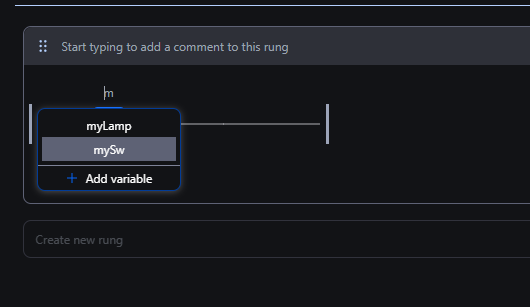
Done!
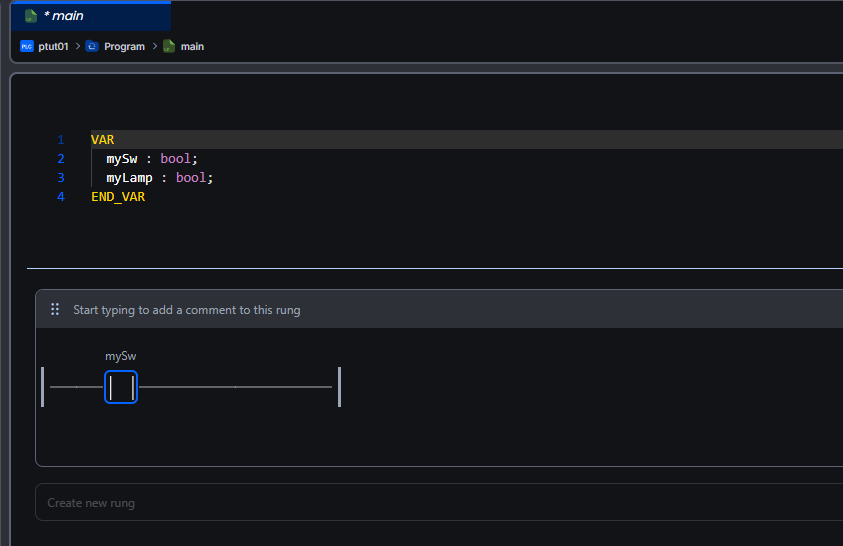
Add coil
This time, let’s add a coil from the ladder circuit.
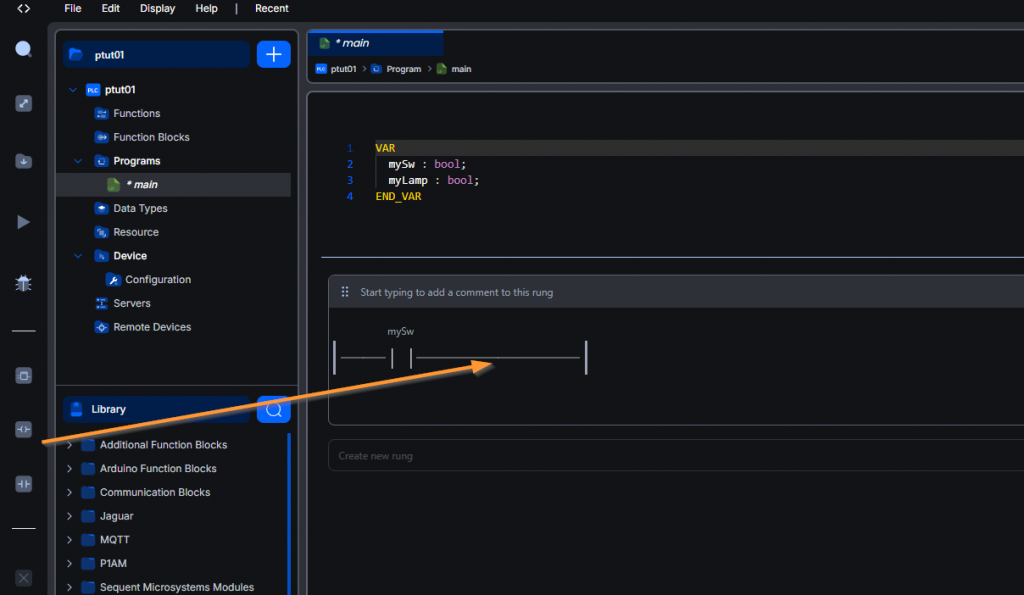
Done!
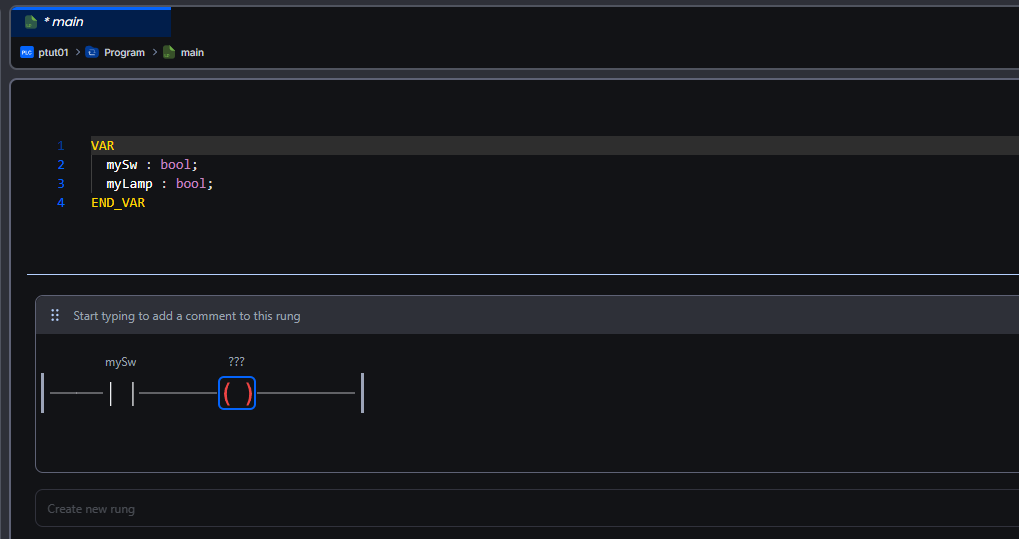
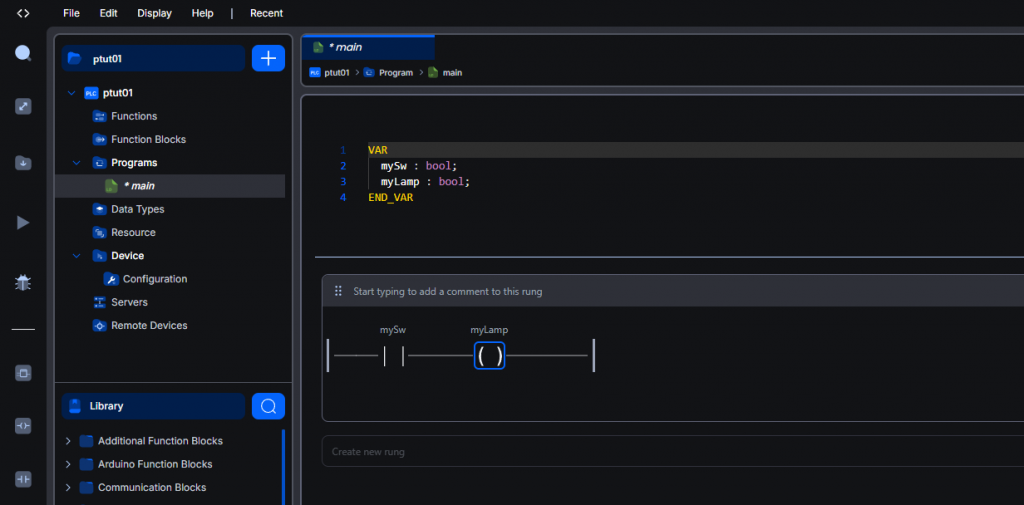
Let’s assign variables to the coil using the same procedure as before.
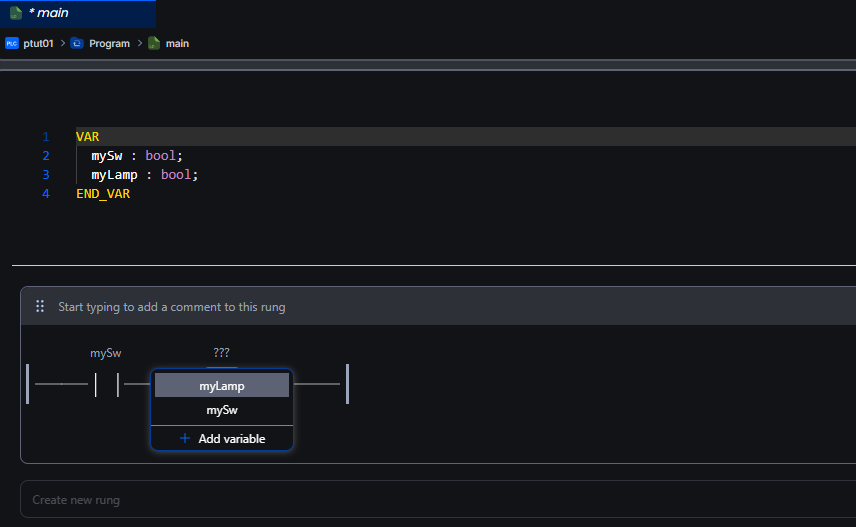
Done!
Connecting to Runtime
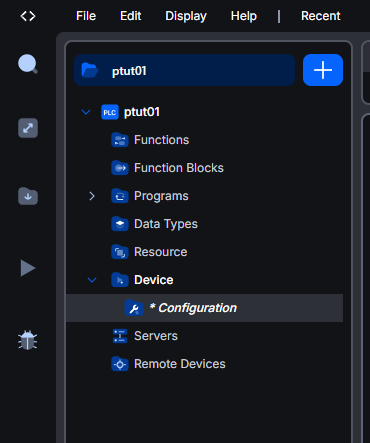
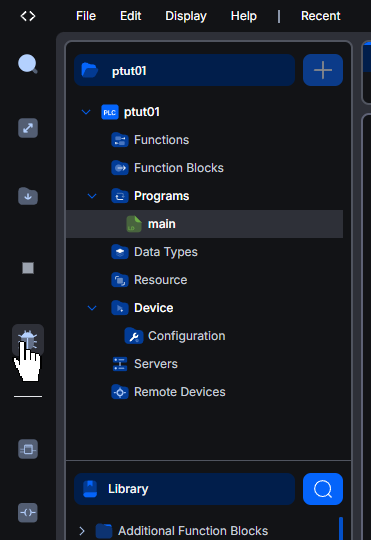
Next, connect the Openplc Editor to the OPENPLC V4 Runtime installed on the Advantech IPC. Click Project → Device → Configuration.
Select the device in Open PLC Runtime V4, set the IP address, and click Connect.
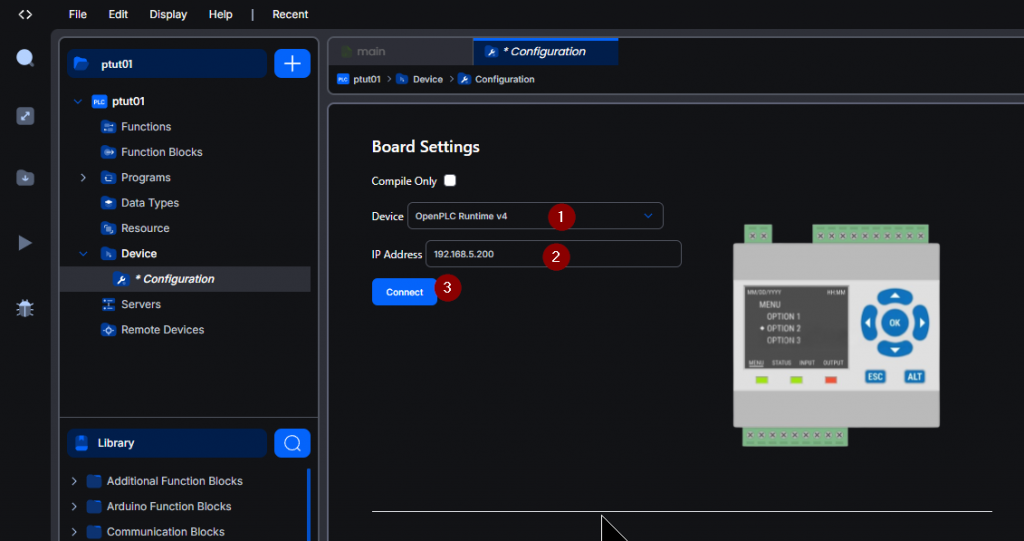
The first time you log in, you will need to set your username and password.
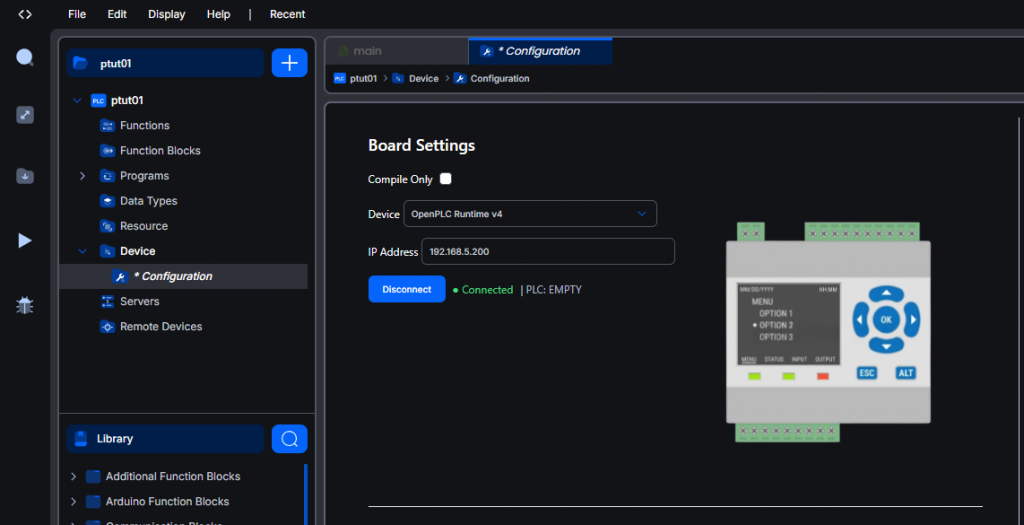
Done!Open PLC Runtime V4 has been successfully connected.
Download
Then download the project to Runtime using the button below.
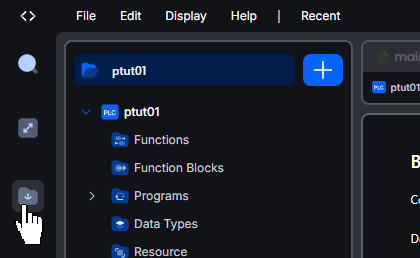
Start debugging
Finally, click the Debug button shown below to monitor the circuit.
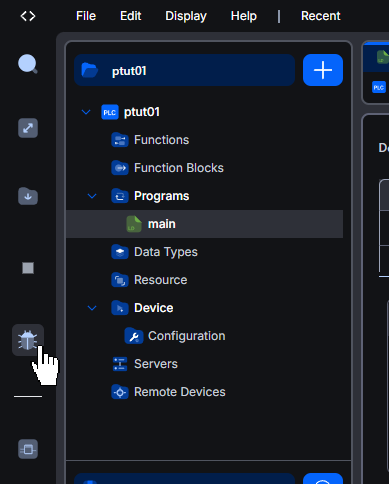
Done!
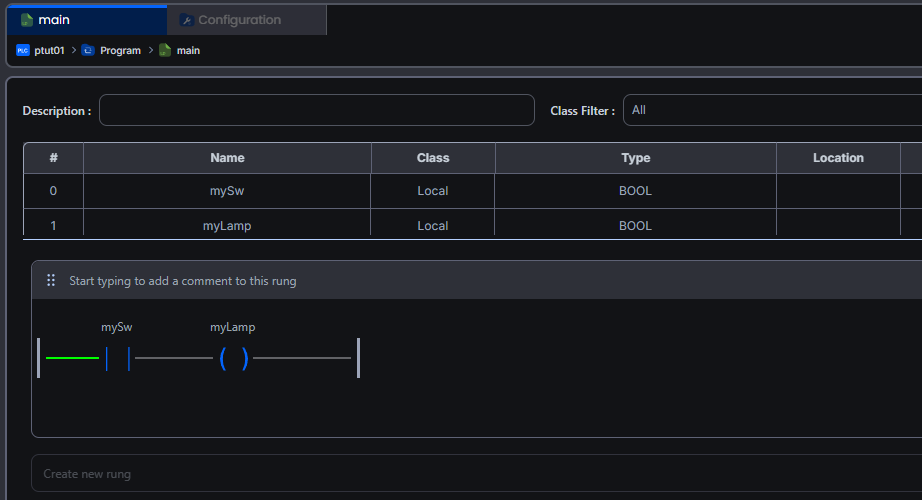
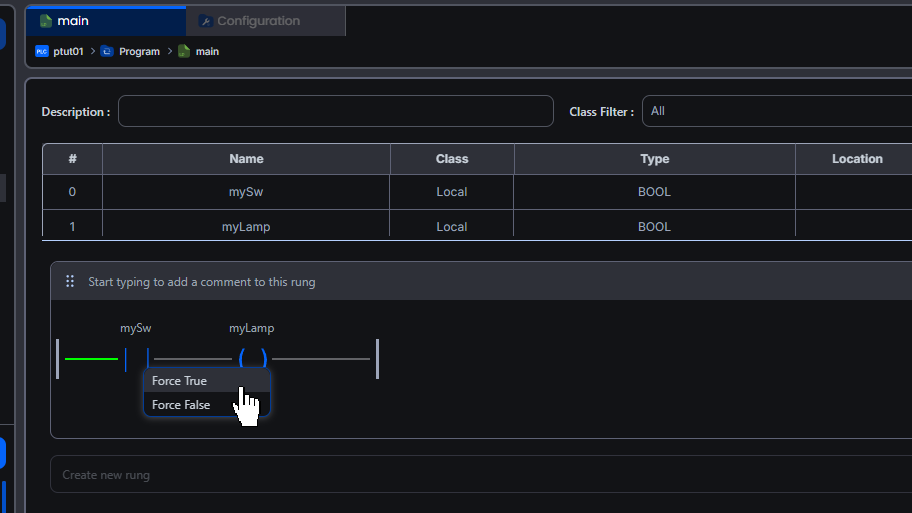
To toggle a circuit contact ON/OFF, double-click the corresponding contact.
Force True = ON, Force False = OFF.
Done!
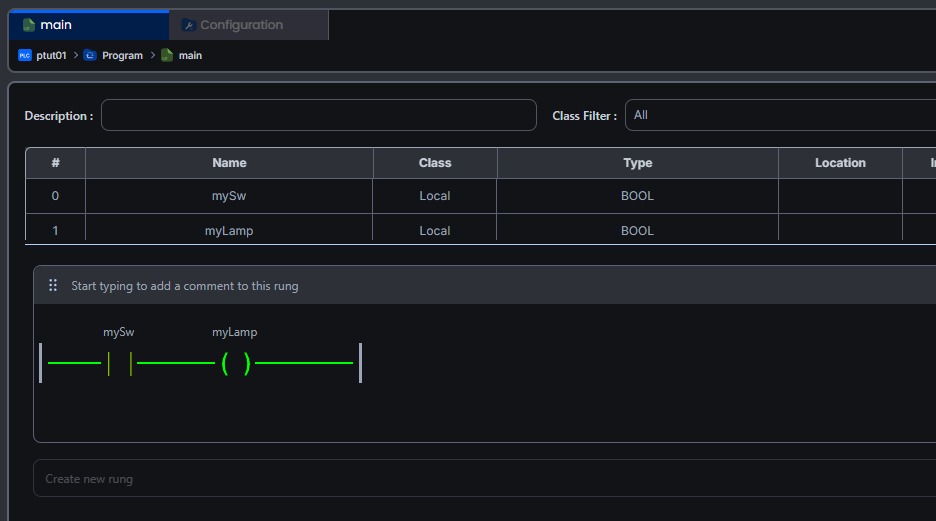
Debugging complete
Finally, click Debug once more to turn off circuit monitoring.
Done!