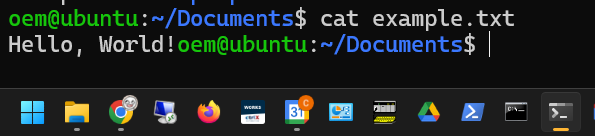
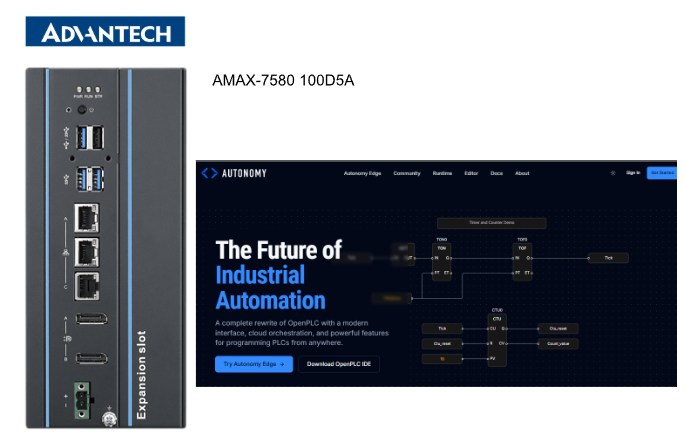
In 2026, AUTONDMY’s OPENPLC V4 underwent a major update, with both the Editor and Runtime officially releasing V4! This series will conduct various tests using OPENPLC V4 in practice. Episode 3 introduces creating a Python FB.
Additionally, install the Open PLC Runtime on the Docker container of Advantech’s AMAX-7580 100D5A.
Let’s enjoy the FA!
Foreword
Thank you from the bottom of my heart for visiting my technical blog and YouTube channel.
We are currently running the “Takahashi Chris” radio show with Full-san (full@桜 八重 (@fulhause) / X) which I deliver every Wednesday night.
Sharing, not hoarding, technical knowledge
We publish technical information related to factory production technology and control systems for free, through blogs and videos.
With the belief that “knowledge should be accessible to everyone,” we share practical know-how and real-world troubleshooting cases from our own field experience.
The reason we keep it all free is simple: to help reduce the number of people who struggle because they simply didn’t know.
If you’ve ever thought:
- “Will this PLC and device combination actually work?”
- “I’m having trouble with EtherCAT communication—can someone test it?”
- “I want to try this remote I/O, but we don’t have the testing environment in-house…”
Feel free to reach out!If lending equipment or sharing your configuration is possible, we’re happy to verify it and share the results through articles and videos.
(We can keep company/product names anonymous if requested.)
How can you support us?
Currently, our activities are nearly all unpaid, but creating articles and videos takes time and a proper testing environment.If you’d like to support us in continuing and expanding this content, your kind help would mean a lot.
Membership (Support our radio show)
This support plan is designed to enhance radio with Mr Full.
https://note.com/fulhause/membership/join
Amazon Gift List (equipment & books for content production)
Lists equipment and books required for content creation.
https://www.amazon.co.jp/hz/wishlist/ls/H7W3RRD7C5QG?ref_=wl_share
Patreon (Support articles & video creation)
Your small monthly support will help to improve the environment for writing and verifying articles.
https://www.patreon.com/user?u=84249391
Paypal
A little help goes a long way.
https://paypal.me/soup01threes?country.x=JP&locale.x=ja_JP
Just trying to share things that could’ve helped someone—if only they’d known.
Your support helps make knowledge sharing more open and sustainable.
Thank you for being with us.
soup01threes*gmail.com
Technical knowledge shouldn’t be kept to ourselves.
Reference Link
http://soup01.com/en/category/openplc_en/
Implementation
Now let’s actually start creating the program.
Editor Version
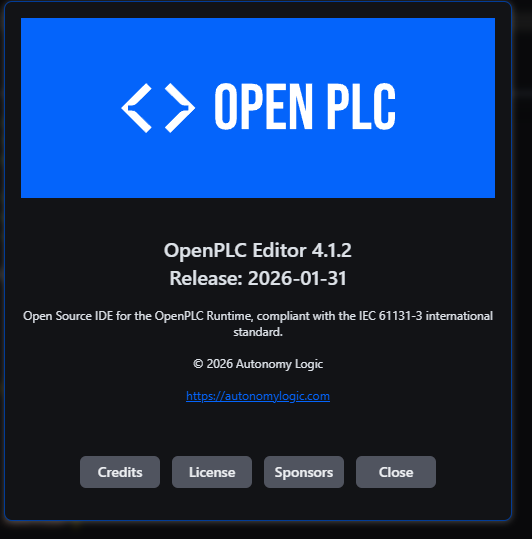
To use Python FB with OpenPLCV4, you must use version 4.1.2 or later.
Runtime Installation
Next, install Runtime directly to IPC using the following command.
git clone https://github.com/Autonomy-Logic/openplc-runtime.git
|
|---|
Please wait a moment…
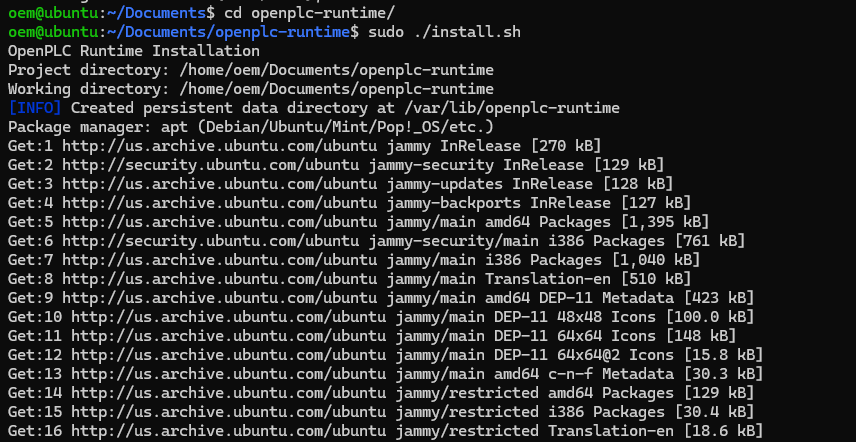
Done!
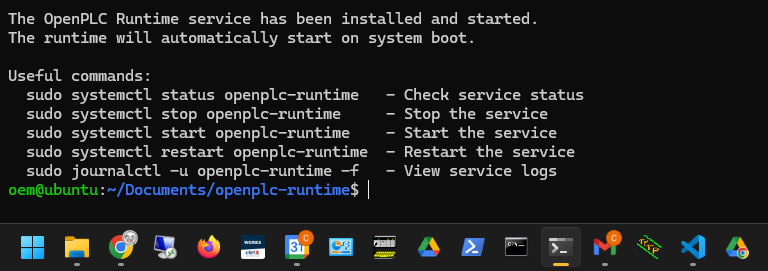
Next, use the following command to check the runtime status of OPENPLC V4.
sudo systemctl status openplc-runtime.service |
|---|
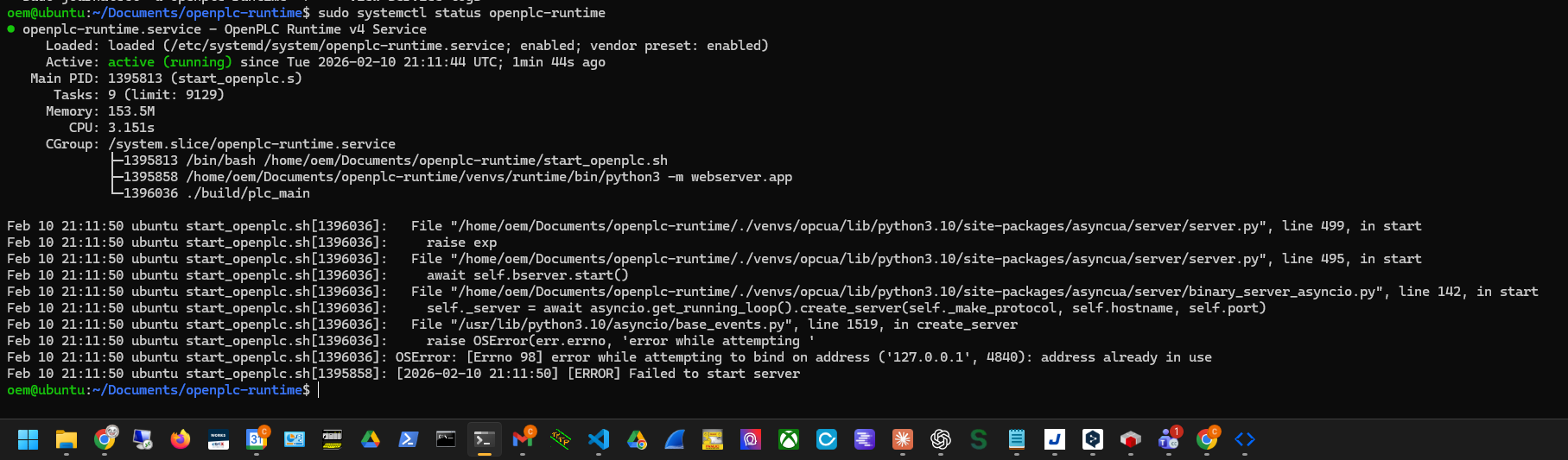
Trouble
Next, I’ll explain the error I encountered when installing Runtime directly on IPC and how I resolved it.
fatal: unable to access
The first error encountered was an inability to access github.com.
fatal: unable to access ‘https://github.com/Autonomy-Logic/openplc-runtime.git/’: Could not resolve host: github.com |
|---|
Verify Internet Connection
First, check if you are connected to the Internet.
ping 8.8.8.8 |
|---|
DNS Resolution Verification
Next, we’ll verify if it can communicate with github.com.
ping github.com |
|---|
DNS Settings Correction
In my case, it was a DNS configuration issue, so fixing it as shown below should work.
sudo nano /etc/resolv.conf
|
|---|
Add Python FB
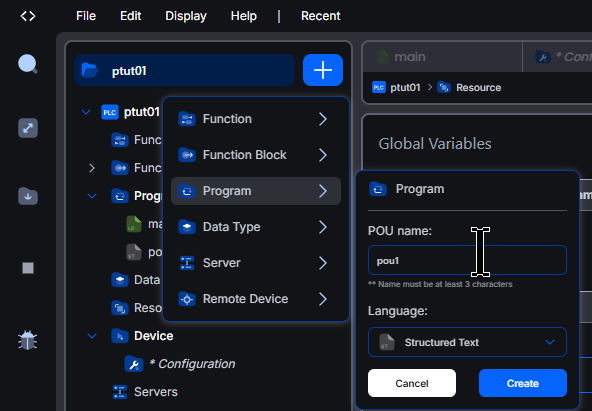
Next, add a Python function block. Click the + button in the project tree → Function Blocks → Set the Language to Python, then enter the POU name.
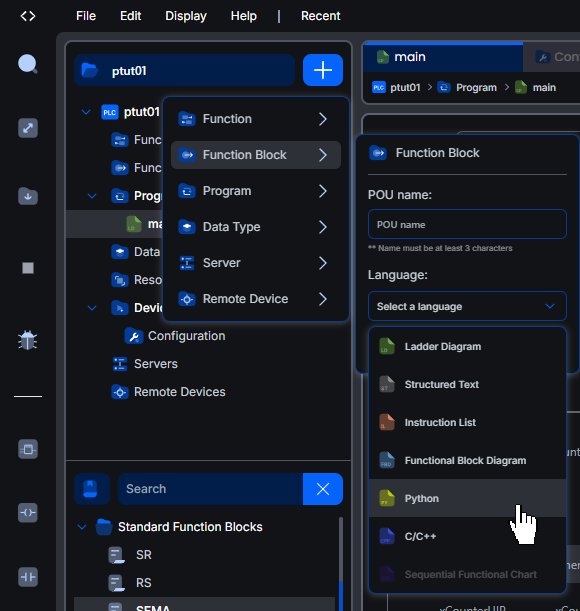
Done!So the Python FB template was generated.
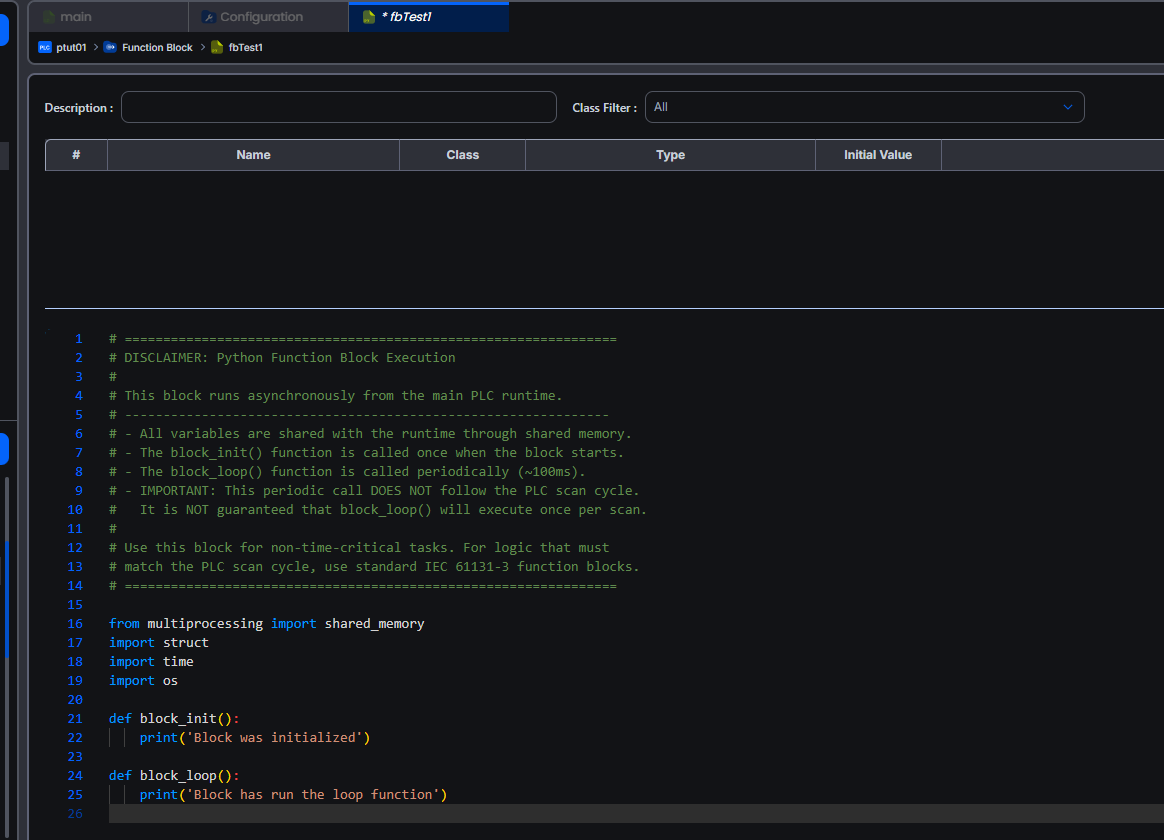
Warning!
Using Python Function Blocks in OPENPLC V4 Runtime:
- Python FB runs asynchronously from the PLC main runtime.
- All variables are shared with the runtime via shared memory.
- The block_init() function is called only once when the block starts.
- The block_loop() function is called periodically (approximately every 100ms).
- This periodic call does not follow the PLC scan cycle.
- There is no guarantee that block_loop() will execute once per scan.
- Use this block for tasks without time constraints.
- For logic that must align with the PLC scan cycle, use standard IEC 61131-3 function blocks.
Code
Here is the Python FB code for this session.
This program creates a text file and continuously increments a variable within a block_loop.
from multiprocessing import shared_memory
|
|---|
Add ST POU
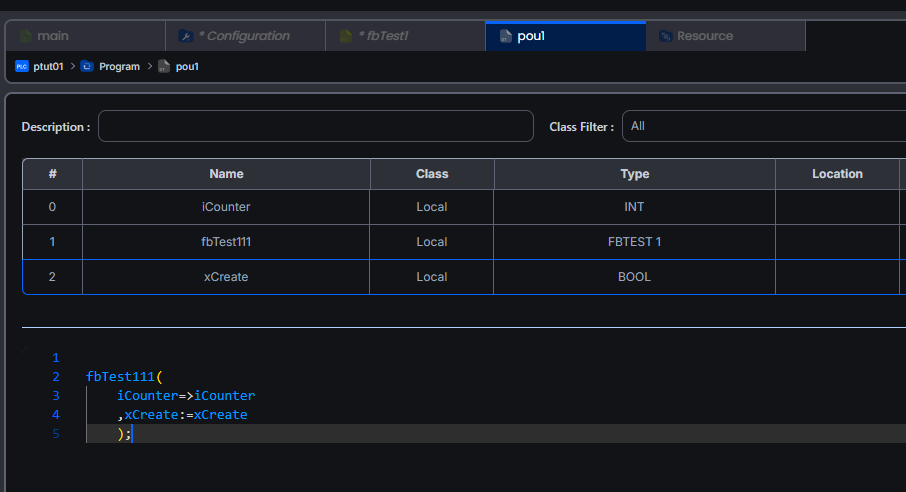
Next, we’ll create a POU that calls Python FB. The example below uses ST, but ladder logic is also acceptable.
The Python FB call uses the same IEC 61311-3 method as usual.
Add Task
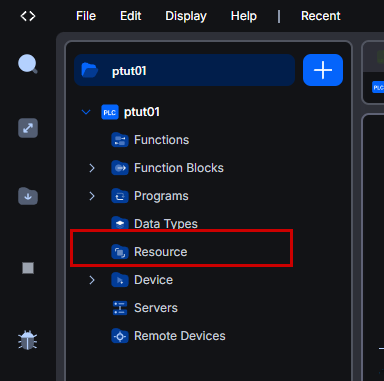
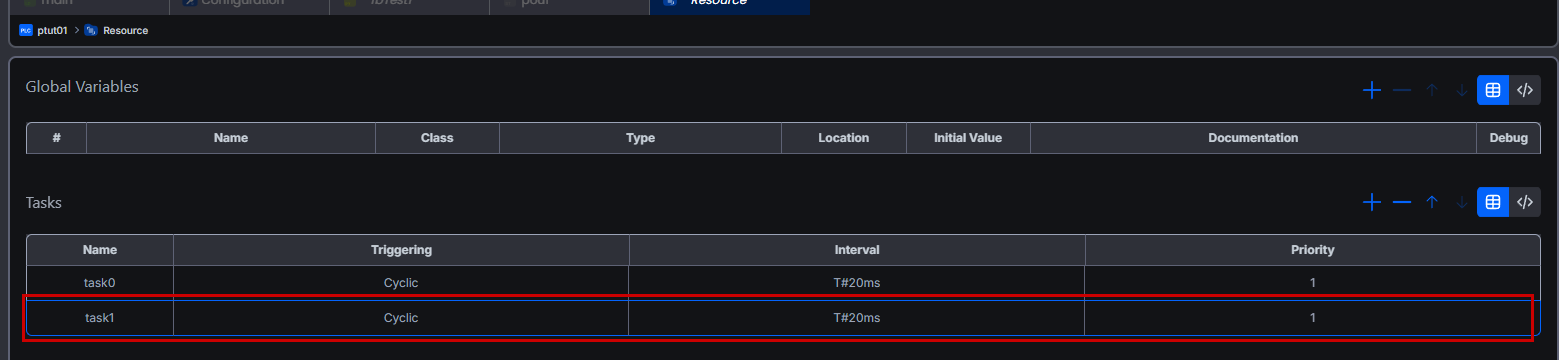
Finally, click Resource to add a task that calls ST POU.
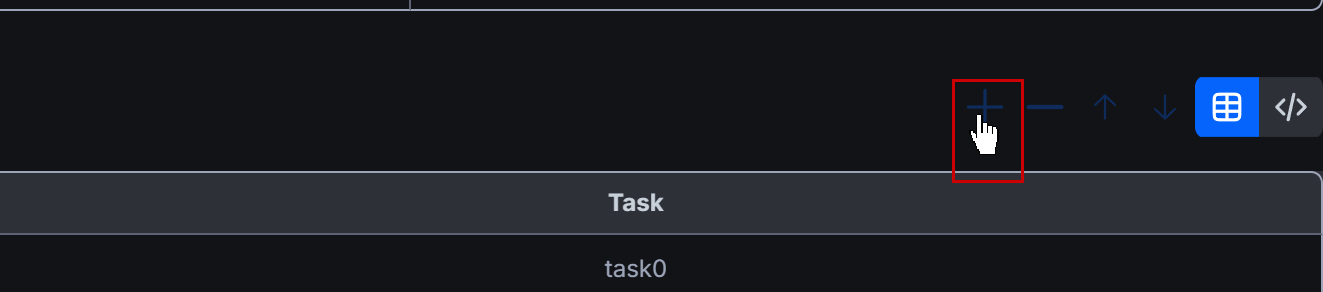
Click the + button below to add a new task.
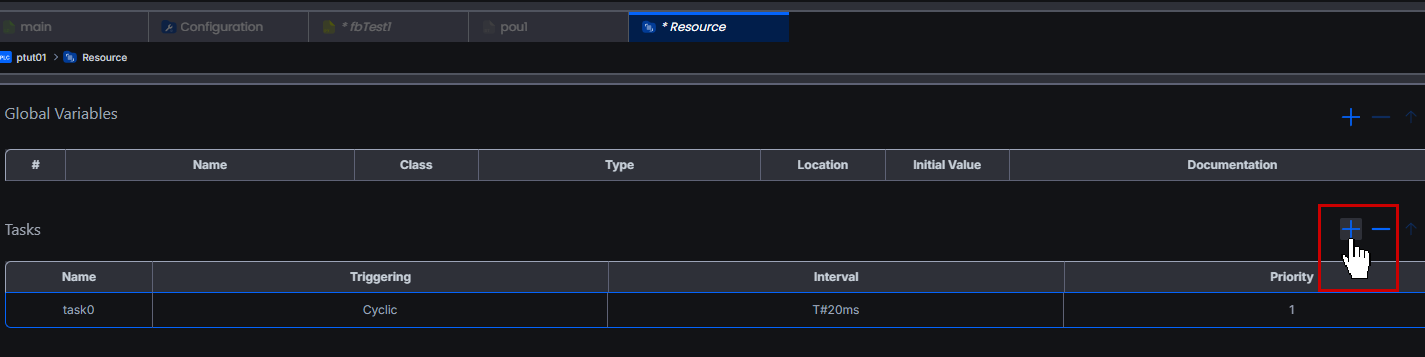
Done!A new task has been added.
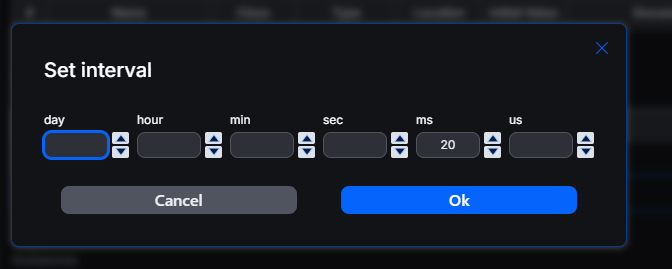
Set the task interval in the Interval field.
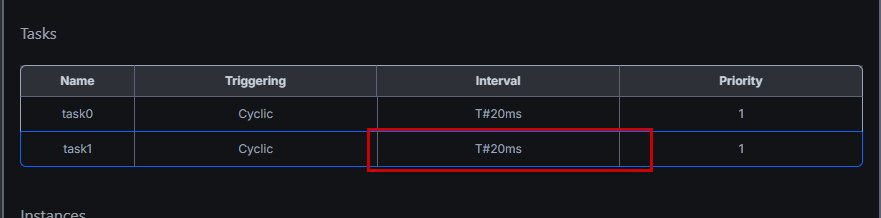
Configure it according to your actual application.
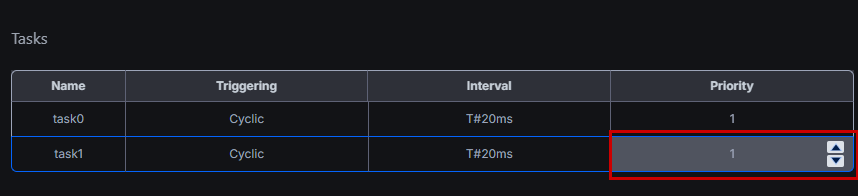
Next, set the task priority.
Add Instance
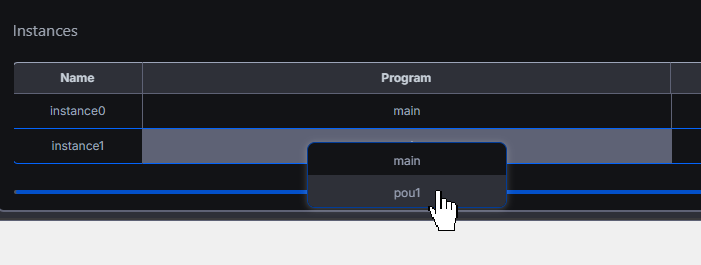
Next, call the ST code you just added. Click the + button in the Instance field.
A new instance is added, and select the ST code in the Program field.
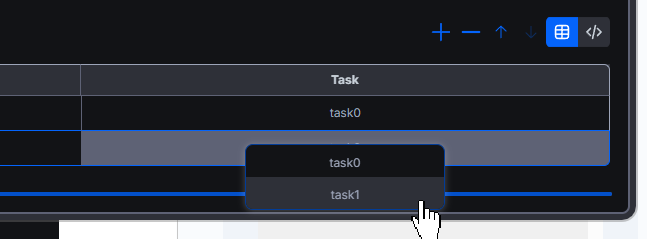
Next, just configure the task you added earlier in the Task panel.
Result
Monitoring the ST program, the output iCounter of the Python FB is incremented.
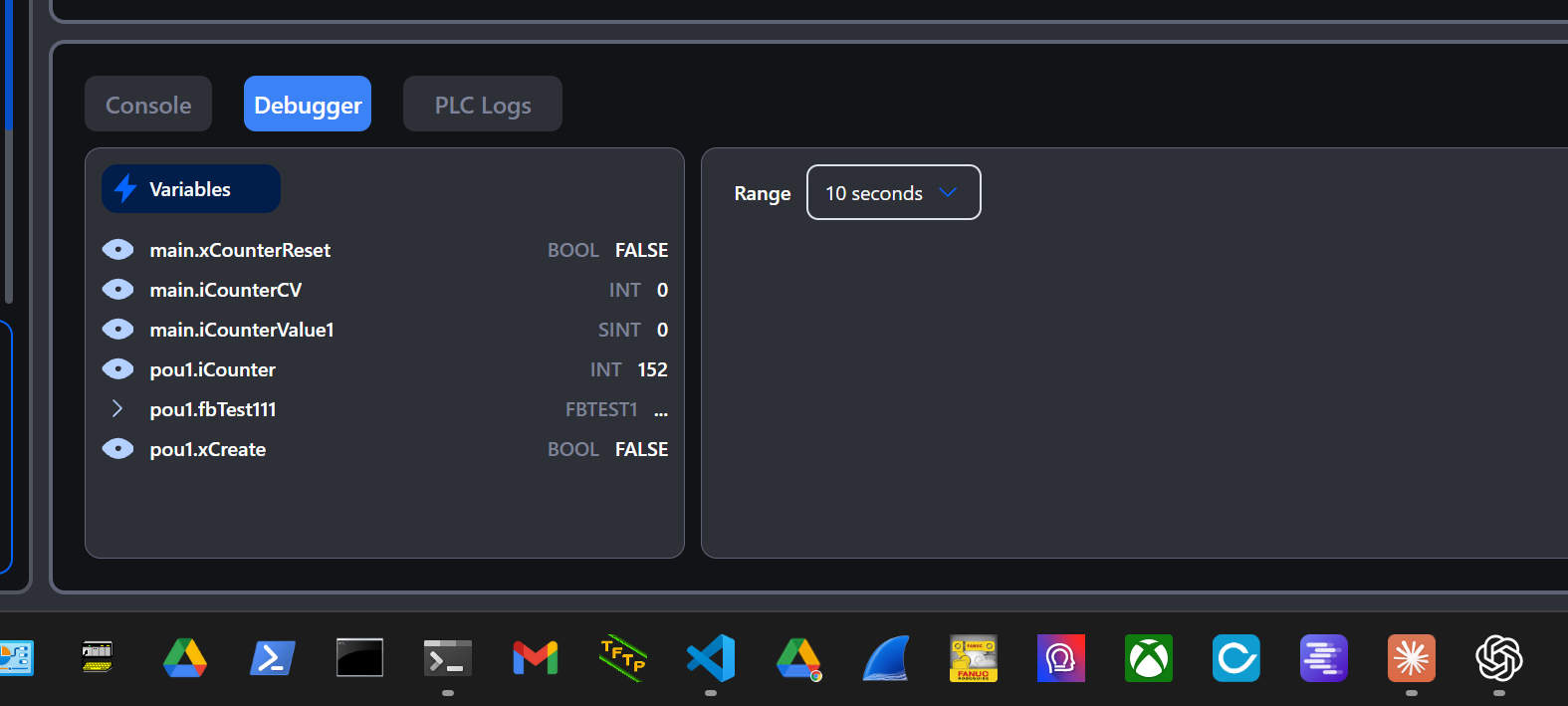
xCreate=True was used to create a text file.