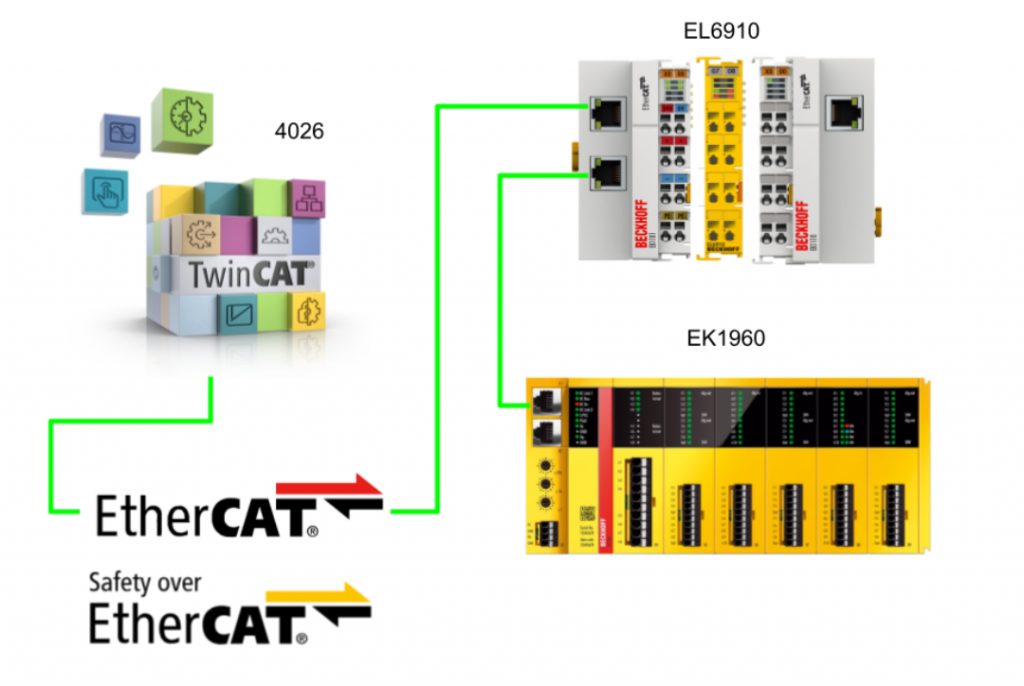
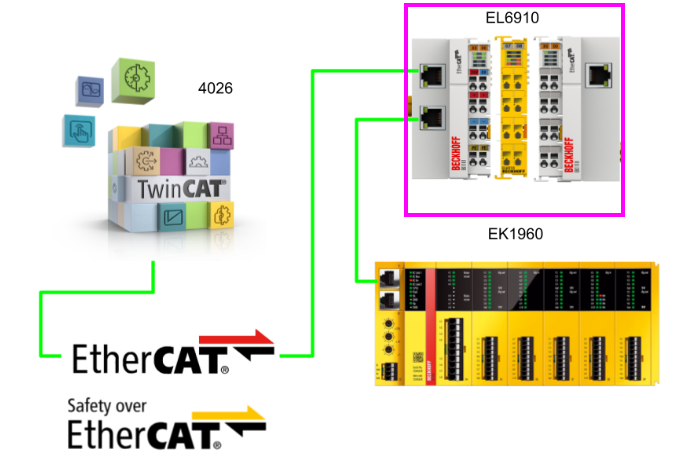
This article explains how to set up a custom FSOE connection between the EL6910 (FSOE master) and EK1960 (FSOE slave) using TwinCAT.
Let’s enjoy FA.
Foreword
Thank you from the bottom of my heart for visiting my technical blog and YouTube channel.
We are currently running the “Takahashi Chris” radio show with Full-san (full@桜 八重 (@fulhause) / X) which I deliver every Wednesday night.
Sharing, not hoarding, technical knowledge
We publish technical information related to factory production technology and control systems for free, through blogs and videos.
With the belief that “knowledge should be accessible to everyone,” we share practical know-how and real-world troubleshooting cases from our own field experience.
The reason we keep it all free is simple: to help reduce the number of people who struggle because they simply didn’t know.
If you’ve ever thought:
- “Will this PLC and device combination actually work?”
- “I’m having trouble with EtherCAT communication—can someone test it?”
- “I want to try this remote I/O, but we don’t have the testing environment in-house…”
Feel free to reach out!If lending equipment or sharing your configuration is possible, we’re happy to verify it and share the results through articles and videos.
(We can keep company/product names anonymous if requested.)
How can you support us?
Currently, our activities are nearly all unpaid, but creating articles and videos takes time and a proper testing environment.If you’d like to support us in continuing and expanding this content, your kind help would mean a lot.
Membership (Support our radio show)
This support plan is designed to enhance radio with Mr Full.
https://note.com/fulhause/membership/join
Amazon Gift List (equipment & books for content production)
Lists equipment and books required for content creation.
https://www.amazon.co.jp/hz/wishlist/ls/H7W3RRD7C5QG?ref_=wl_share
Patreon (Support articles & video creation)
Your small monthly support will help to improve the environment for writing and verifying articles.
https://www.patreon.com/user?u=84249391
Paypal
A little help goes a long way.
https://paypal.me/soup01threes?country.x=JP&locale.x=ja_JP
Just trying to share things that could’ve helped someone—if only they’d known.
Your support helps make knowledge sharing more open and sustainable.
Thank you for being with us.
soup01threes*gmail.com
Technical knowledge shouldn’t be kept to ourselves.
Reference Link
Custom FSoE Connection?
Custom FSoE connections can be created to connect to EL69x0, EJ6910, KL6904, or third-party devices. If an ESI file exists specifically for a third-party device, that device will be listed as a selectable safety device, and the custom FSoE connection option will not be required.
Implementation
TwinCAT Runtime
First, we will configure the TwinCAT Runtime.
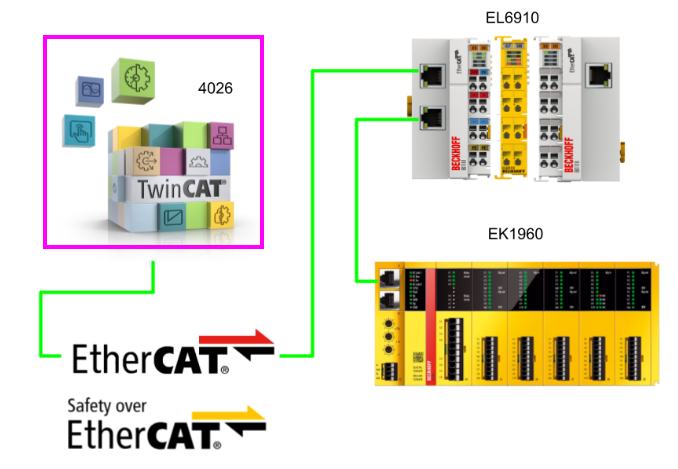
Add a GVL (Global Variable List) for the EL6910 to the project. This GVL defines the variables required for data exchange with the EL6910 (safety master), enabling seamless connection with the PLC program and the group ports on the TwinSAFE side.
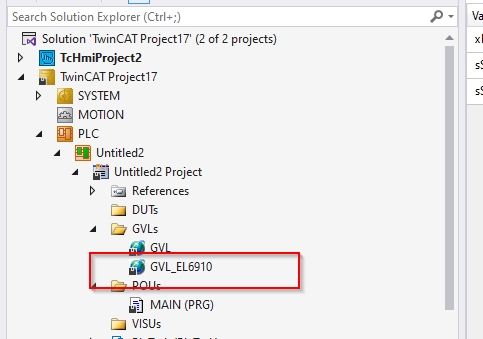
EL6910
Next, configure the EL6910 side.
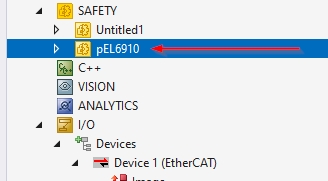
Add the safety project for EL6910 (pEL6910) to the TwinCAT project.
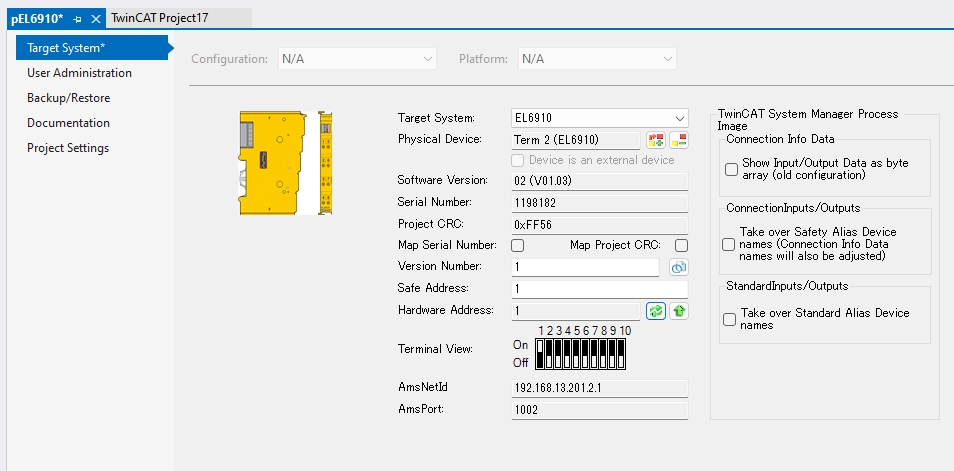
The configuration screen for EL6910 will be displayed.
Add FSOE Custom Connection
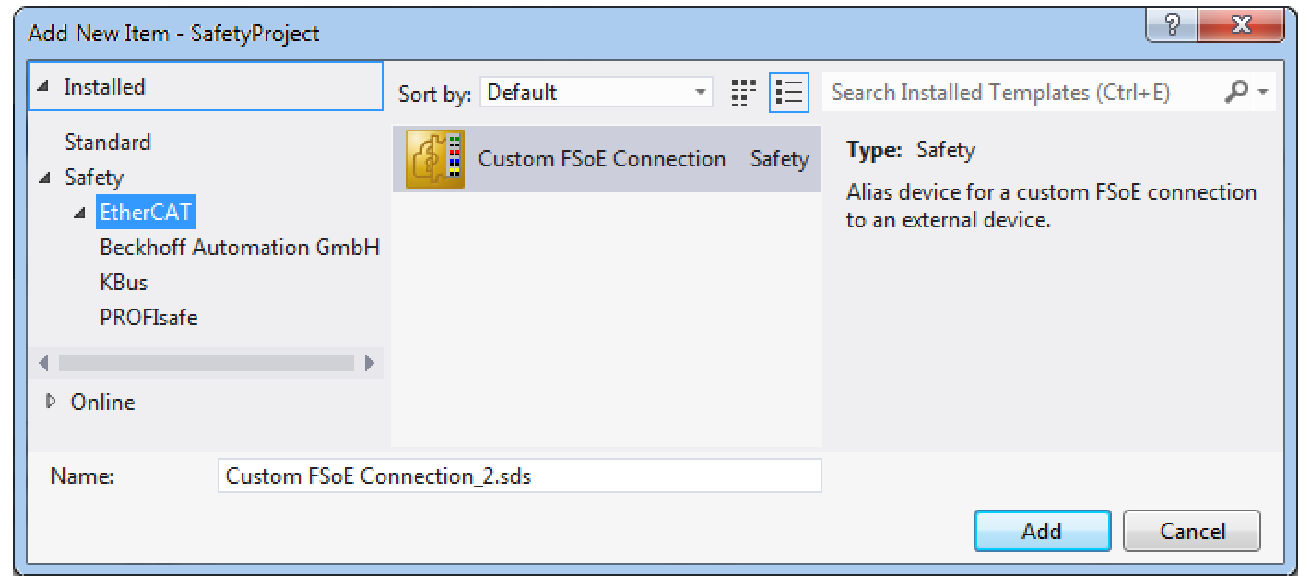
To add a new alias device to the “Alias Devices” folder within the EL6910 project structure, right-click “Alias Devices” → select Add → New Item….
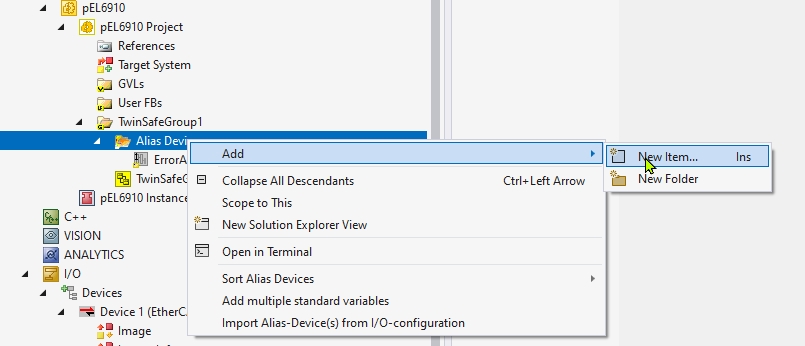
Select “Alias Devices” → “Add” → “New Item…” to open this alias device template list screen. Here, select the category on the left: “Safety” > “EtherCAT” > then select “Custom FSoE Connection” displayed on the right. Verify the “Name” below and press the “Add” button.
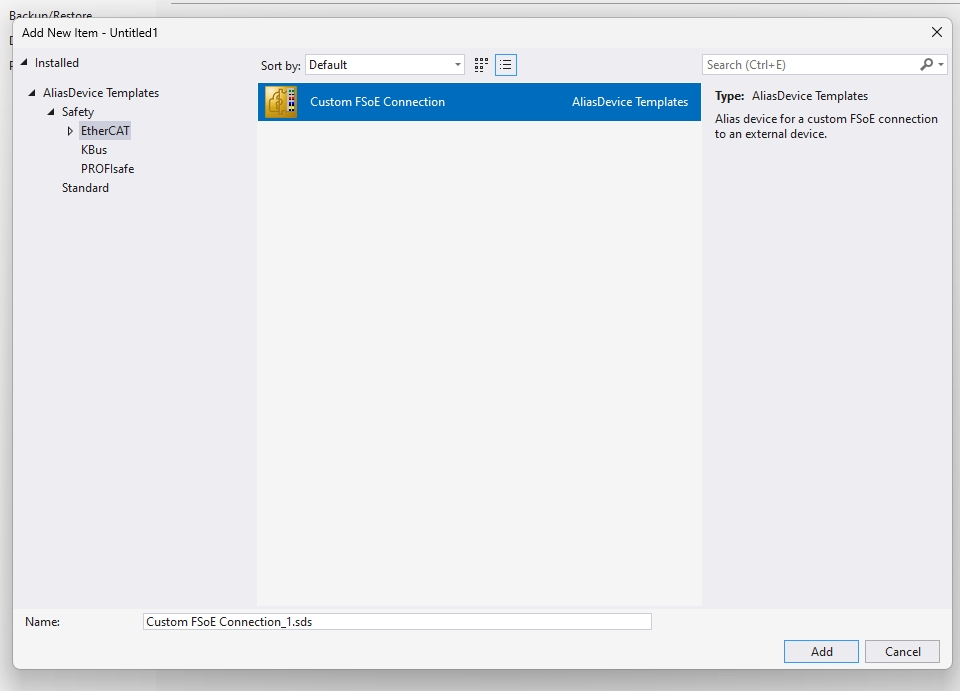
Rename to MasterFSOE.sds. The added FSoE Alias Device (custom connection) is stored in the pEL6910 Project > TwinSafeGroup1 > Alias Devices folder within the project. This alias is initially added with a default name (e.g., Custom FSoE Connection_1.sds), but for clarity and easier identification, rename it to “MasterFSOE.sds”.
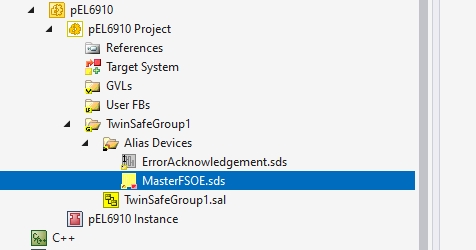
Click the MasterFSOE from earlier and configure the connection settings with the FSoE connection counterpart (slave).
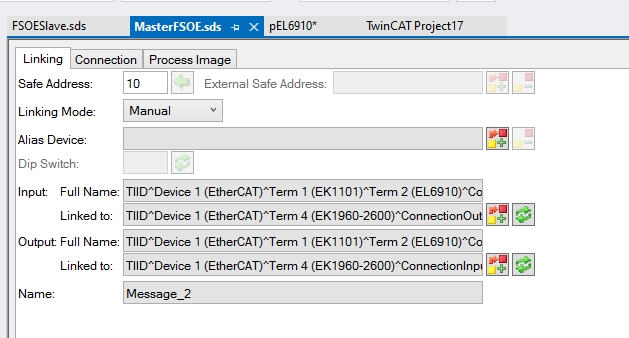
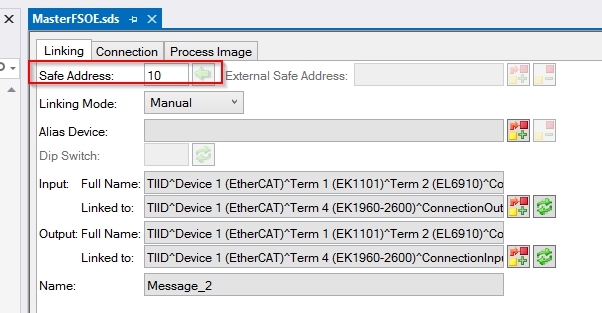
Safe Address
Next, set the address of the FSoE Slave to connect to. This is the address number assigned to the target FSoE Slave (in this case, EK1960).
Connection Setup
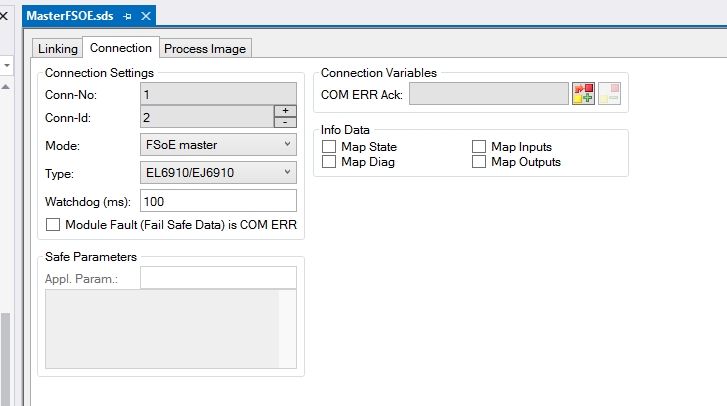
Next, move to the Connection settings screen.
Mode
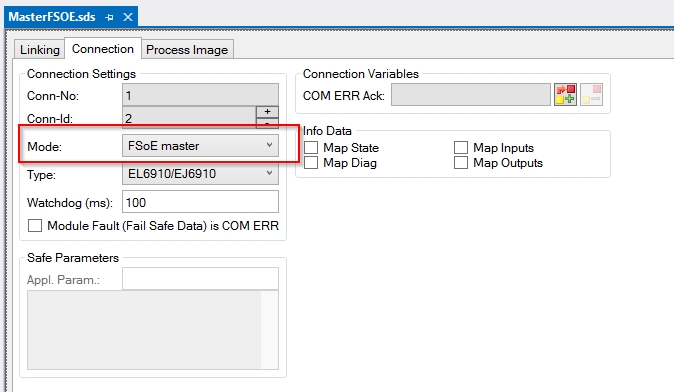
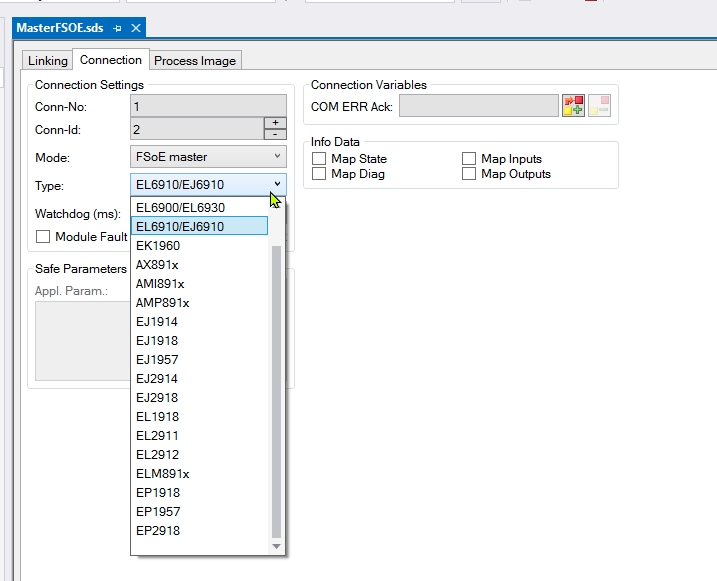
Set Mode to FSoE Master.
Type
Since EL6910 was used here, please set the Type to EL6910/EJ6910.
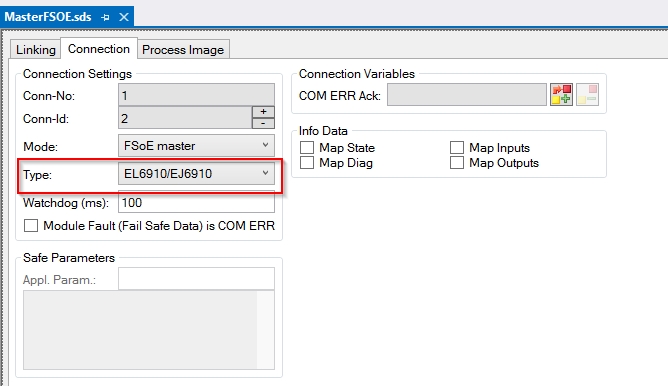
You can also configure other device types from the drop-down list.
Message Size
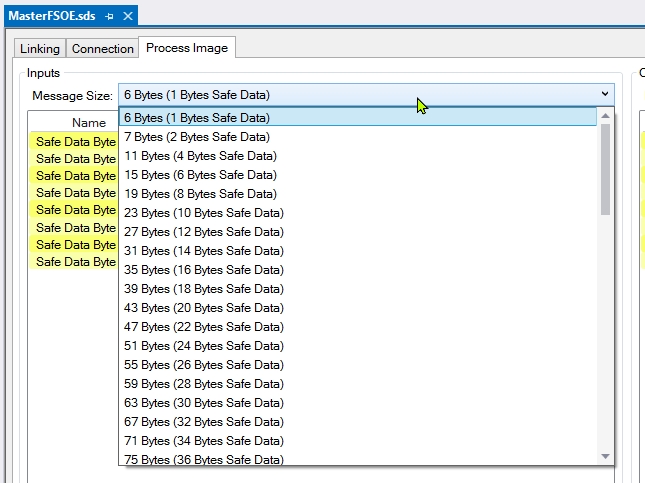
Open the Process Image tab and configure the input and output data sizes for the FSoE connection.
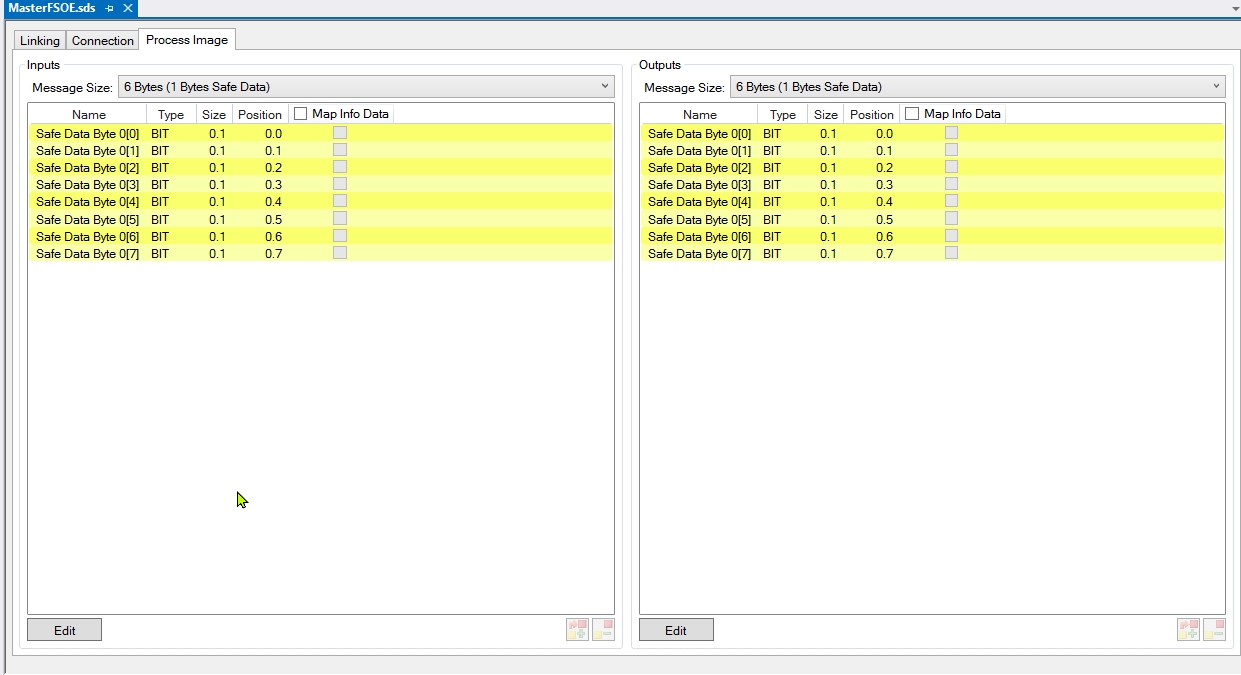
In this article, we set it to the default 6 bytes, but you can change the size depending on the application.
Error Ack Mapping
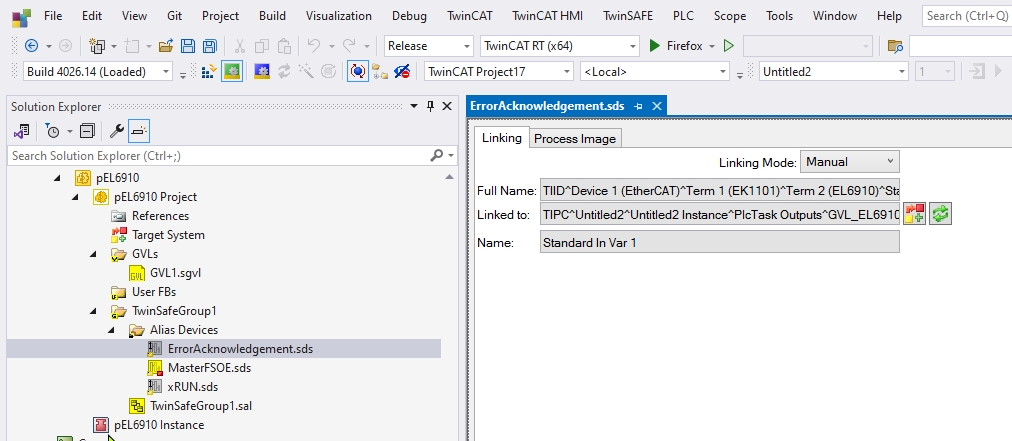
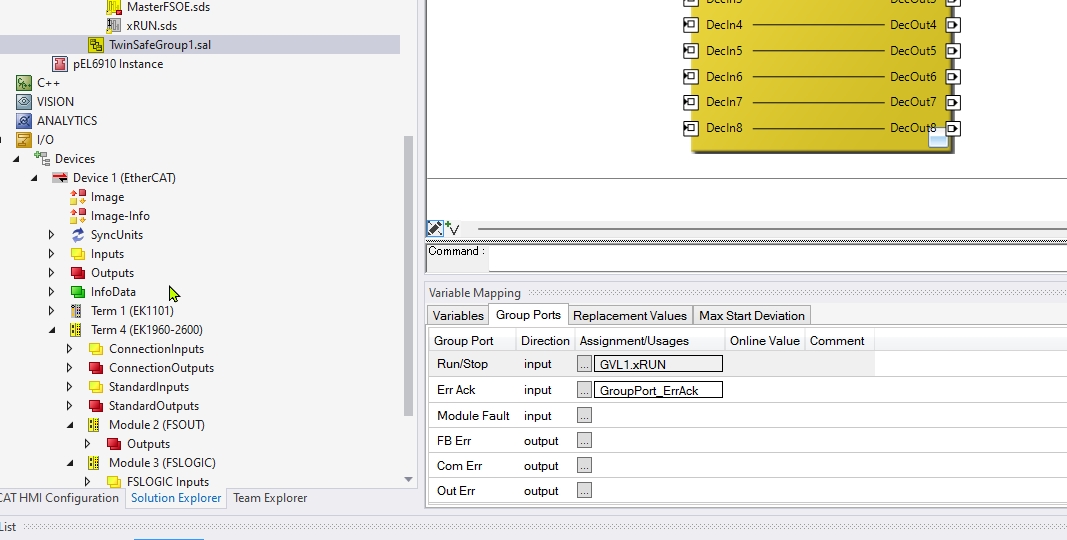
Map it to the Safety Group reset signal of EL6910 as well.
Run Mapping
Do not forget to map the Run signal for EL6910.
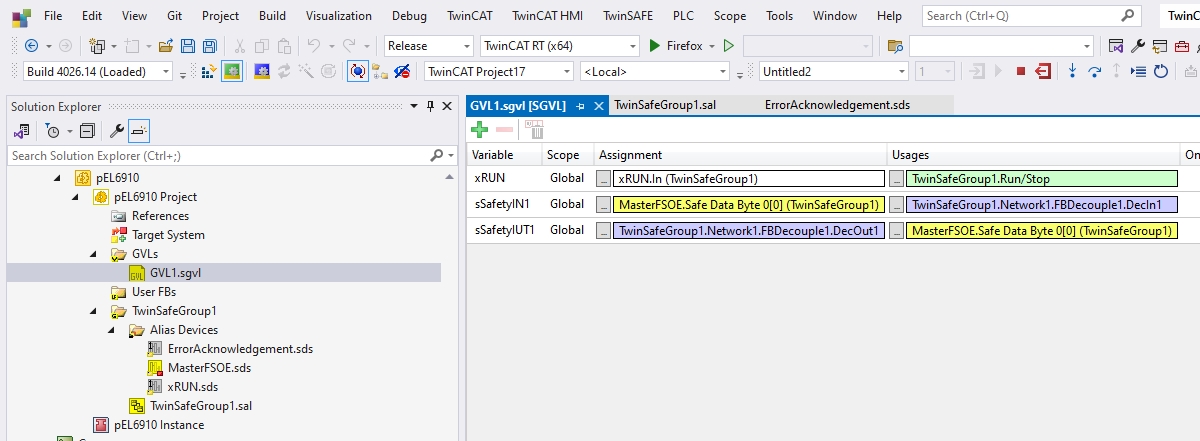
Safety GVL
In Safety GVL, we will add variables to be used in the safety program this time.
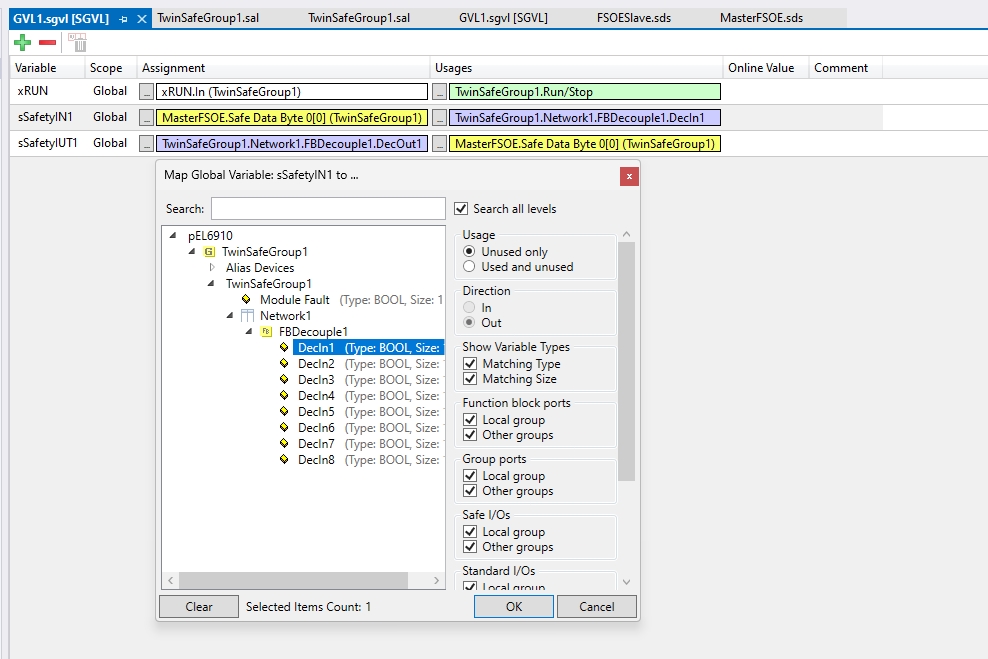
This corresponds to the first input bit of the FSoE slave (EK1960).
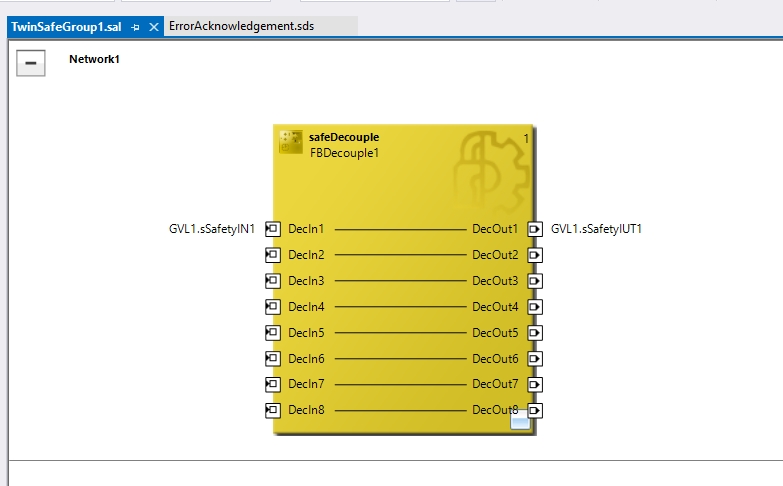
Safety Program
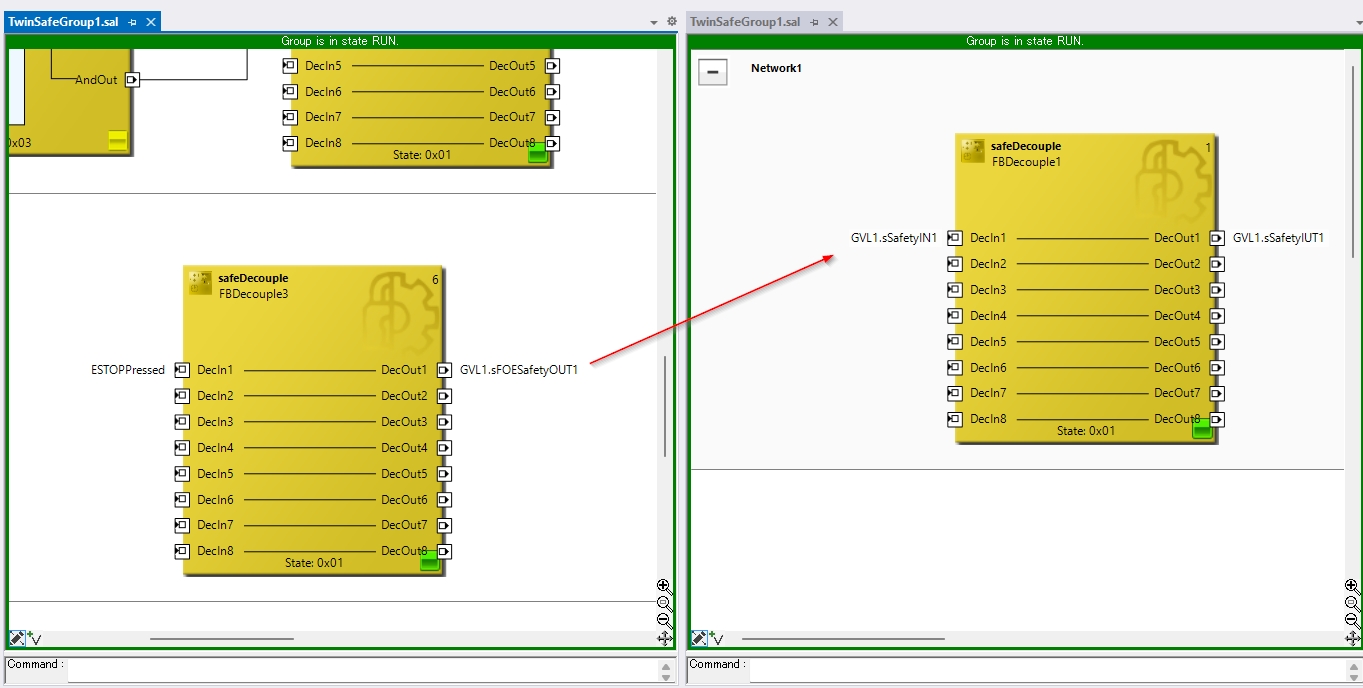
This is a simple communication verification program on the EL6910 side. It takes the safety data received from the EK1960 at bit 0 and sends it back to the EK1960 unchanged.
EK1960 Side
Next, install the EK1960 side.
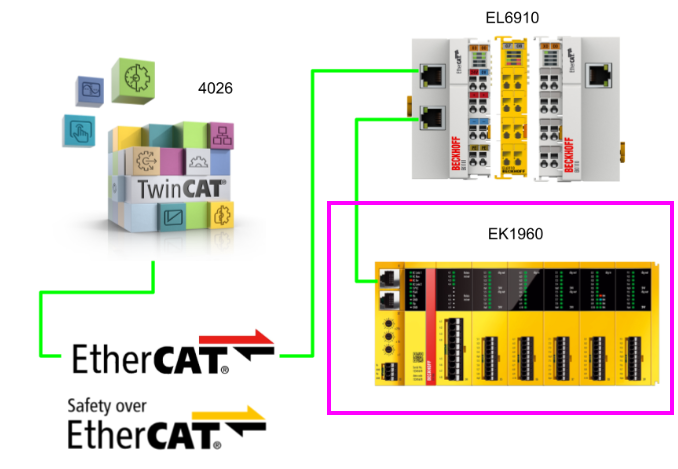
Add FSOE Custom Connection
Add an FSoE Custom connection using the same steps as before, and change the connection name to something clear like FSOESlave.
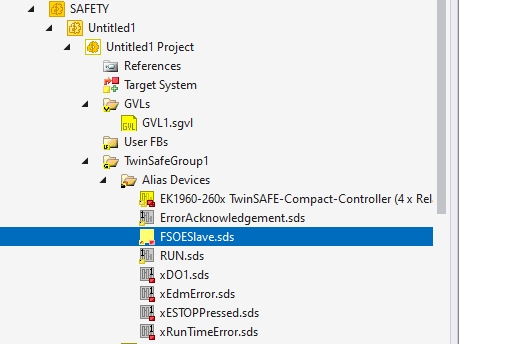
Safe Address
Open the FSOESlave connection you just added and set the Safe Address. In the figure below, it is set to 10. Therefore, when EK1960 operates as an FSOESlave, the Safe Address for that FSOE Custom Connection will be 10.
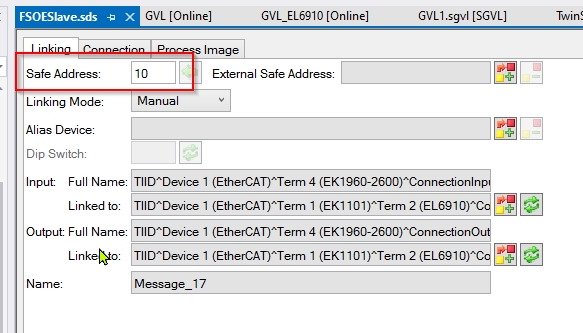
Connection Setup
Configure the connection settings for EK1960.
Mode
Configure the EK1960 as an FSOE slave on TwinCAT.
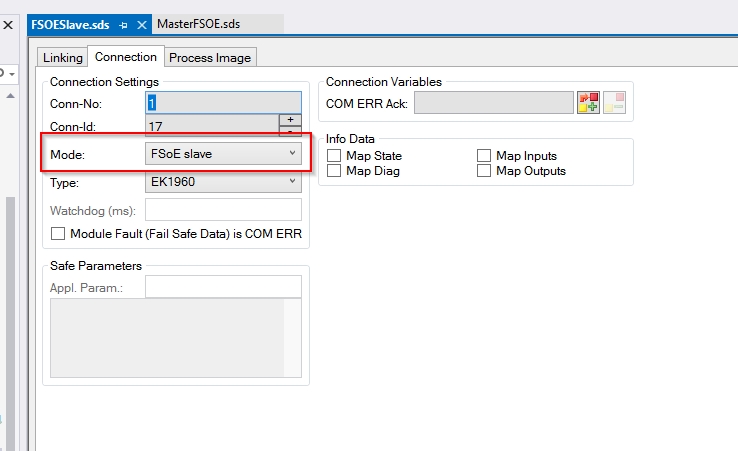
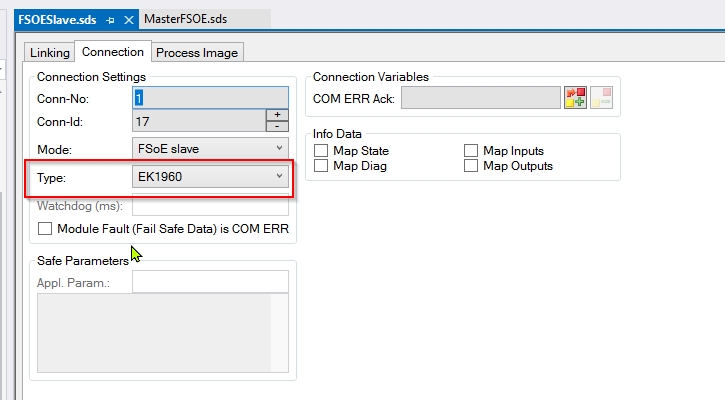
Type
Set the “Type” for the SOE slave device (EK1960). In other words, what you are setting here is the “type of slave device.”
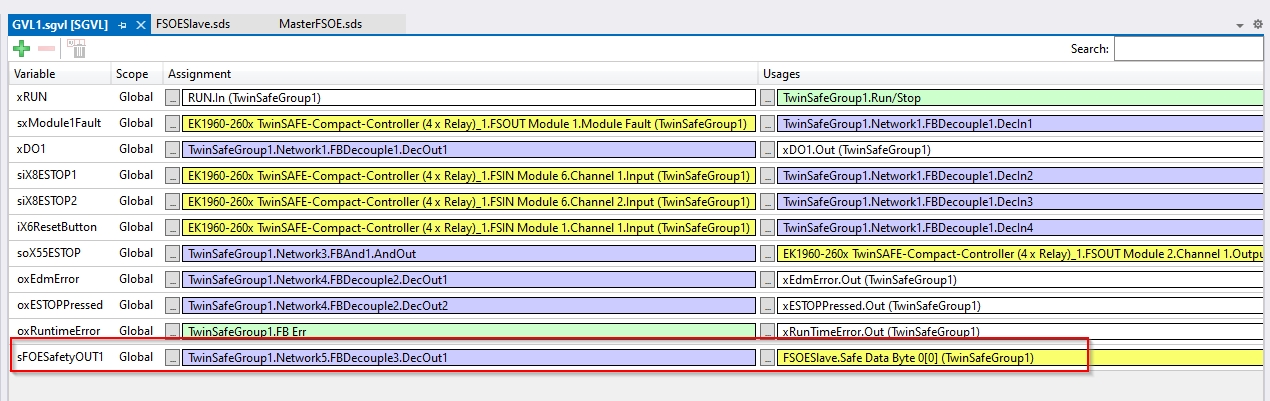
Safety GVL
Define safety variables in GVL. ofsSafetyOut1 is the variable corresponding to a specific bit (Byte0.Bit0) of the safety output data for the FSoE slave device (in this case, EK1960).
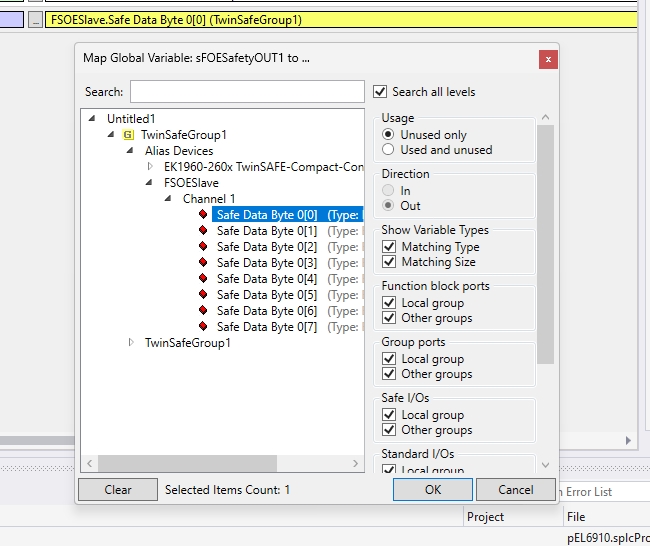
This corresponds to the first output bit of the FSoE slave (EK1960) in TwinSAFE Group 1.
Safety Program
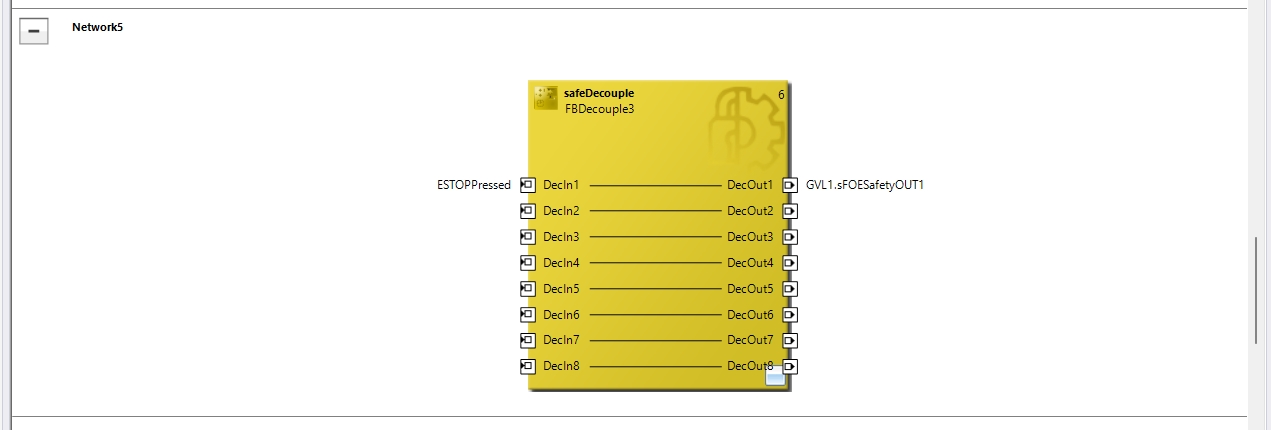
Define an additional emergency stop signal for Network4.
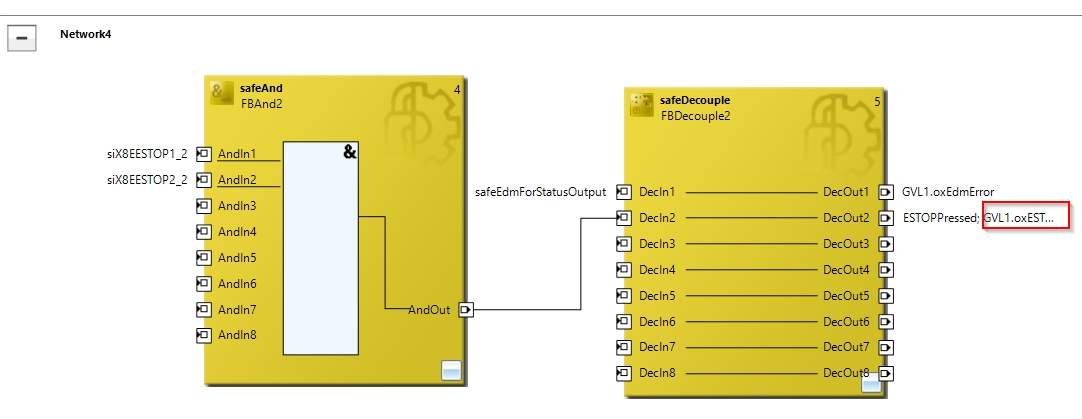
Then, the emergency stop signal is returned to the EL6910 via the FSOE Custom Connection.
Mapping-EL6910
Map the FSOE input/output data between EL6910 and EK1960.
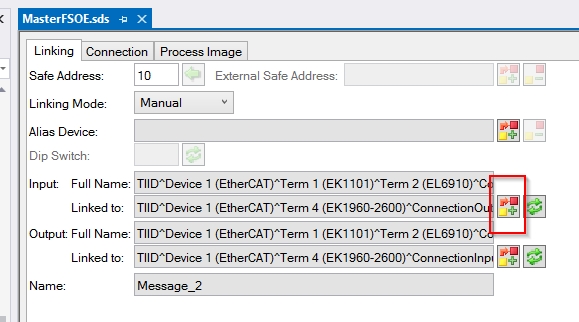
Please configure Show Variables as follows.
- Exclude other Devices
- Matching Types
Then connect the output of EK1960 to the input of EL6910.
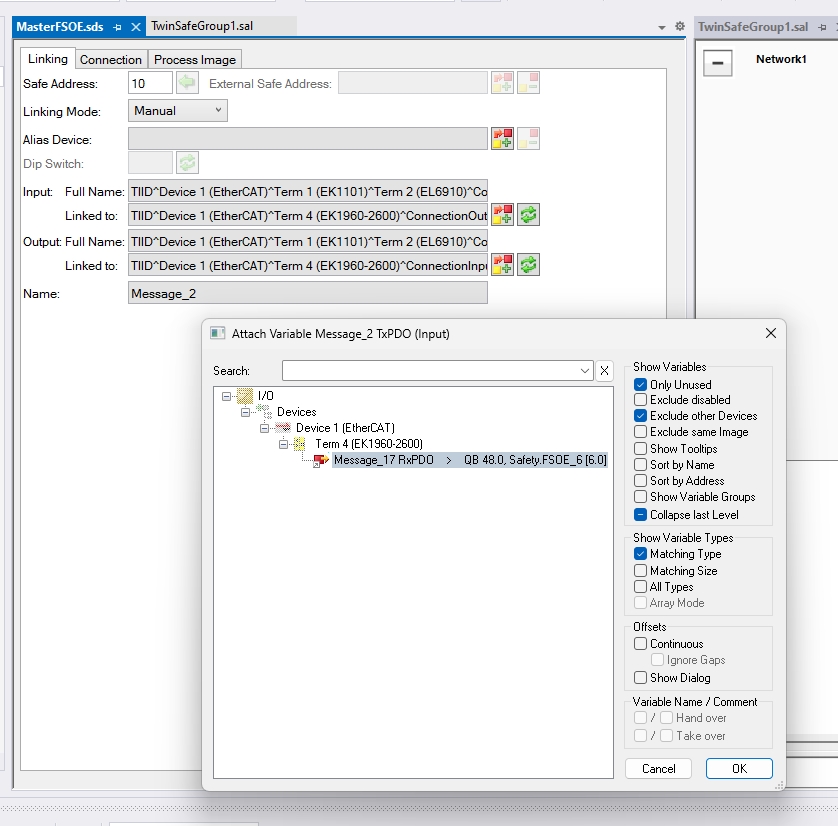
Please configure Show Variables as follows.
- Exclude other Devices
- Matching Types
Then connect the input of EK1960 to the output of EL6910.
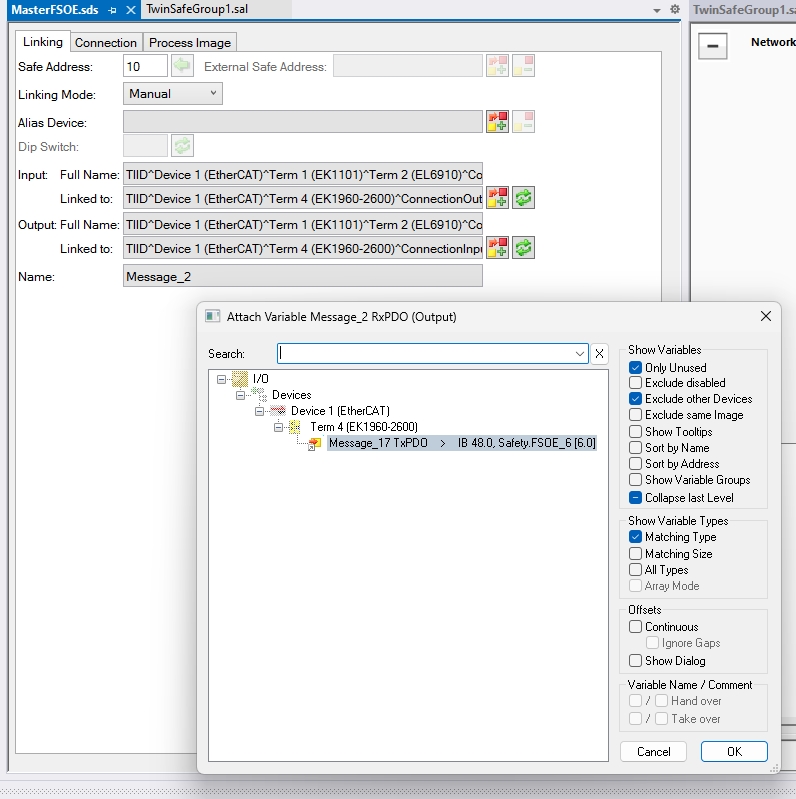
Mapping-EK1960
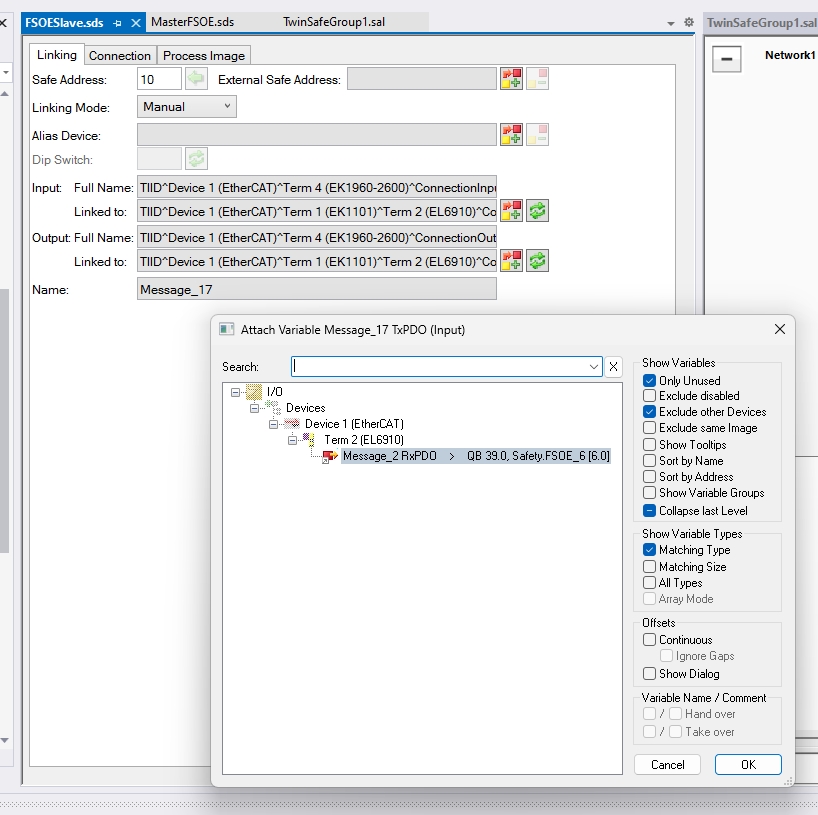
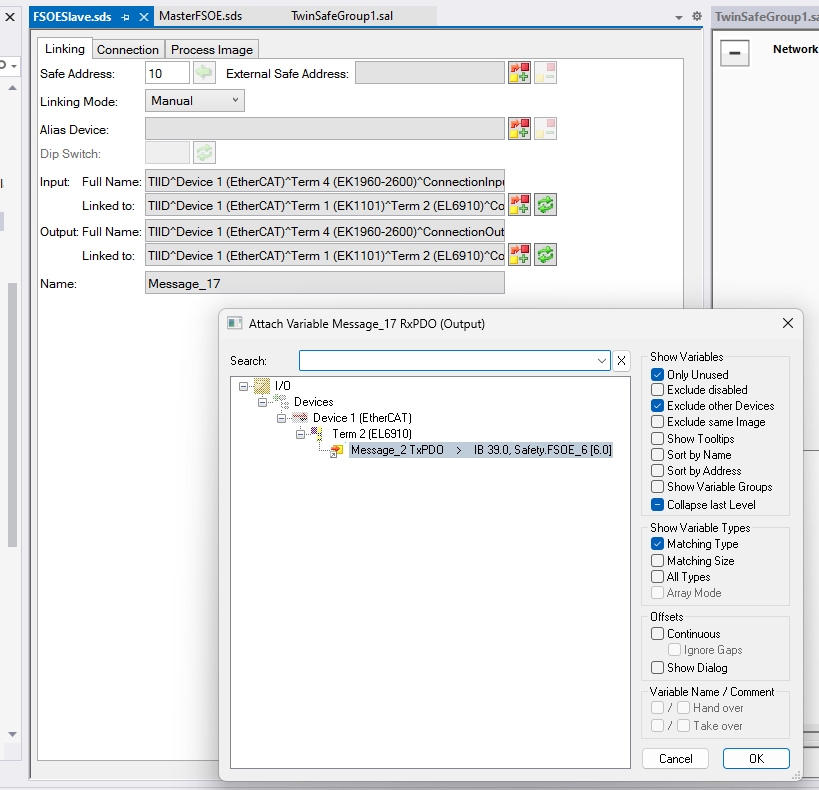
Finally, map the FSOE input/output data for EK1960.
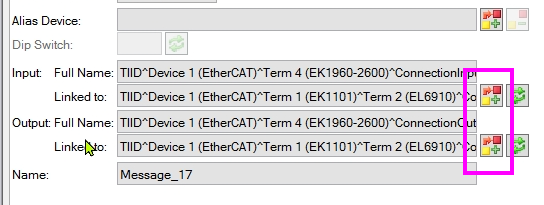
Please configure Show Variables as follows.
- Exclude other Devices
- Matching Types
Then connect the input of EK1960 to the output of EL6910.
Please configure Show Variables as follows.
- Exclude other Devices
- Matching Types
Then connect the output of EK1960 to the input of EL6910.
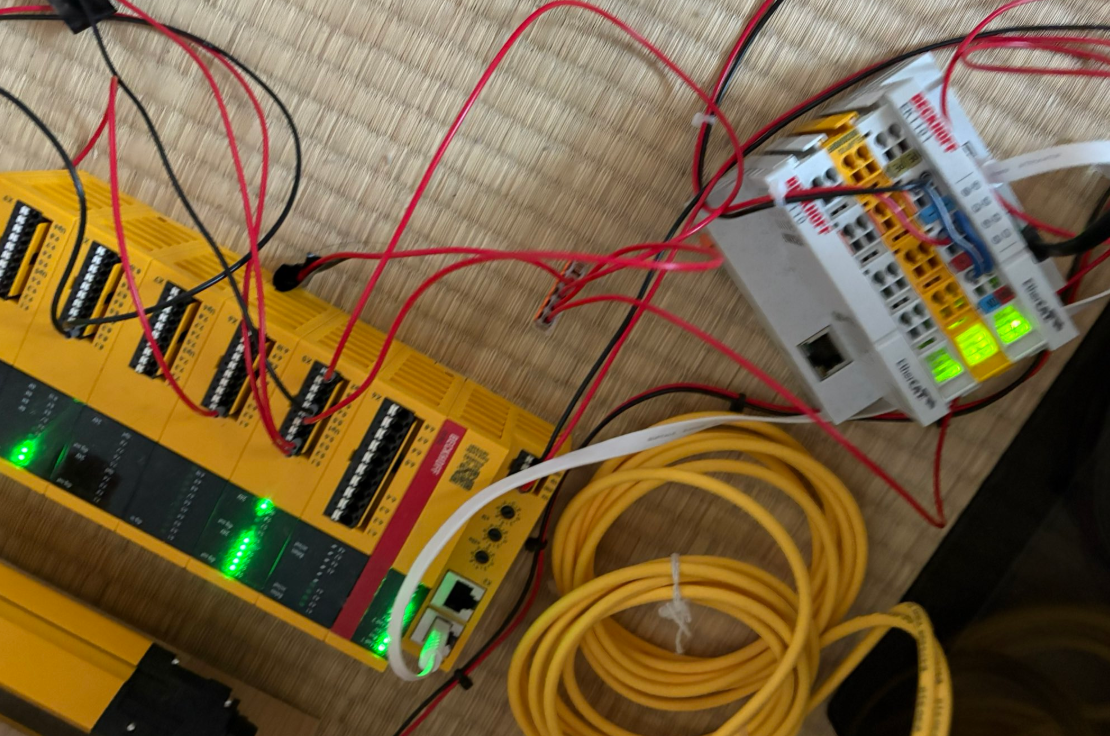
結果
Neither the EL6910 nor the EK1960 has an error lamp lit.
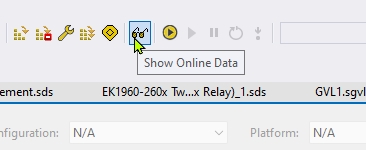
Press the Show Online Data button to monitor the status of FB and alias devices in real time. This is used for debugging and verifying that the safety project is functioning correctly.
When the emergency stop on EK1960 is not pressed, send TRUE to EL6910 via the FSOE Custom Connection.
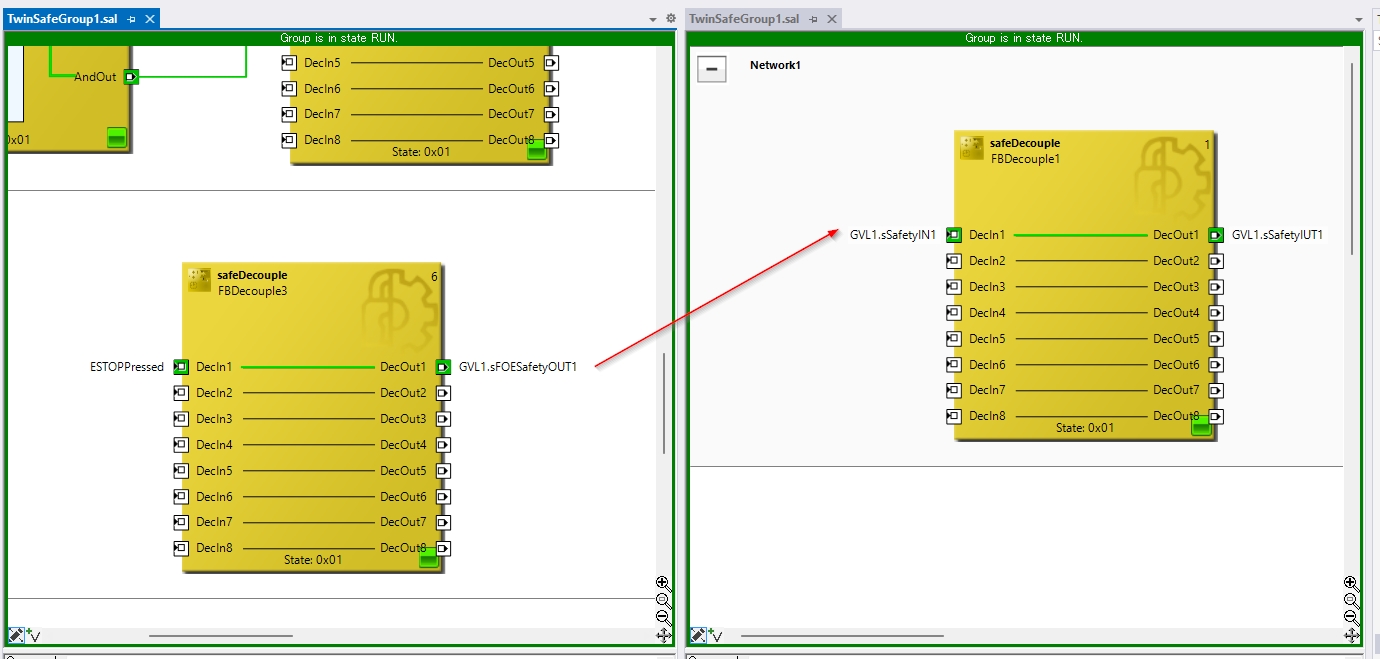
When the emergency stop on EK1960 is pressed, it sends FALSE to EL6910 via the FSOE Custom Connection.