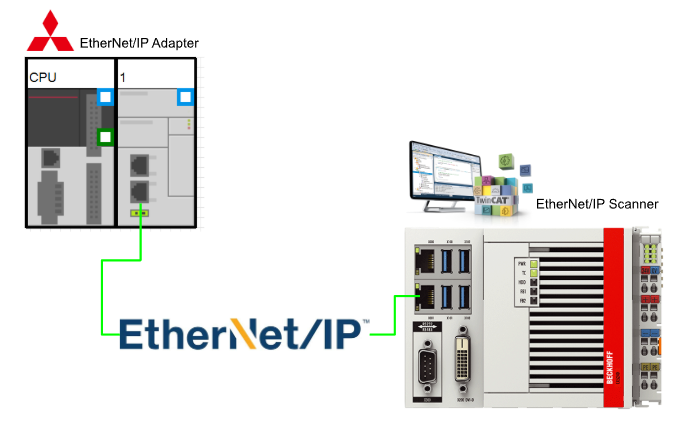
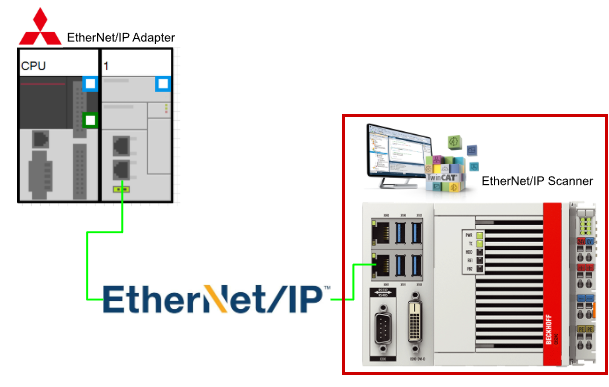
In this article, we will explain the configuration and programming required to launch a Class 1 instance from the FX5U and FX5-ENET/IP and connect it to Beckhoff’s TwinCAT 3 Ethernet/IP Scanner (TF6281).
Let’s enjoy FA.
Foreword
Thank you from the bottom of my heart for visiting my technical blog and YouTube channel.
We are currently running the “Takahashi Chris” radio show with Full-san (full@桜 八重 (@fulhause) / X) which I deliver every Wednesday night.
Sharing, not hoarding, technical knowledge
We publish technical information related to factory production technology and control systems for free, through blogs and videos.
With the belief that “knowledge should be accessible to everyone,” we share practical know-how and real-world troubleshooting cases from our own field experience.
The reason we keep it all free is simple: to help reduce the number of people who struggle because they simply didn’t know.
If you’ve ever thought:
- “Will this PLC and device combination actually work?”
- “I’m having trouble with EtherCAT communication—can someone test it?”
- “I want to try this remote I/O, but we don’t have the testing environment in-house…”
Feel free to reach out!If lending equipment or sharing your configuration is possible, we’re happy to verify it and share the results through articles and videos.
(We can keep company/product names anonymous if requested.)
How can you support us?
Currently, our activities are nearly all unpaid, but creating articles and videos takes time and a proper testing environment.If you’d like to support us in continuing and expanding this content, your kind help would mean a lot.
Membership (Support our radio show)
This support plan is designed to enhance radio with Mr Full.
https://note.com/fulhause/membership/join
Amazon Gift List (equipment & books for content production)
Lists equipment and books required for content creation.
https://www.amazon.co.jp/hz/wishlist/ls/H7W3RRD7C5QG?ref_=wl_share
Patreon (Support articles & video creation)
Your small monthly support will help to improve the environment for writing and verifying articles.
https://www.patreon.com/user?u=84249391
Paypal
A little help goes a long way.
https://paypal.me/soup01threes?country.x=JP&locale.x=ja_JP
Just trying to share things that could’ve helped someone—if only they’d known.
Your support helps make knowledge sharing more open and sustainable.
Thank you for being with us.
soup01threes*gmail.com
Technical knowledge shouldn’t be kept to ourselves.
Reference Link
http://soup01.com/en/category/protocol-en/ethernet-ip-en/
Implementation
Mels Side
First, configure the FX5-ENET/IP side.
Download Tools
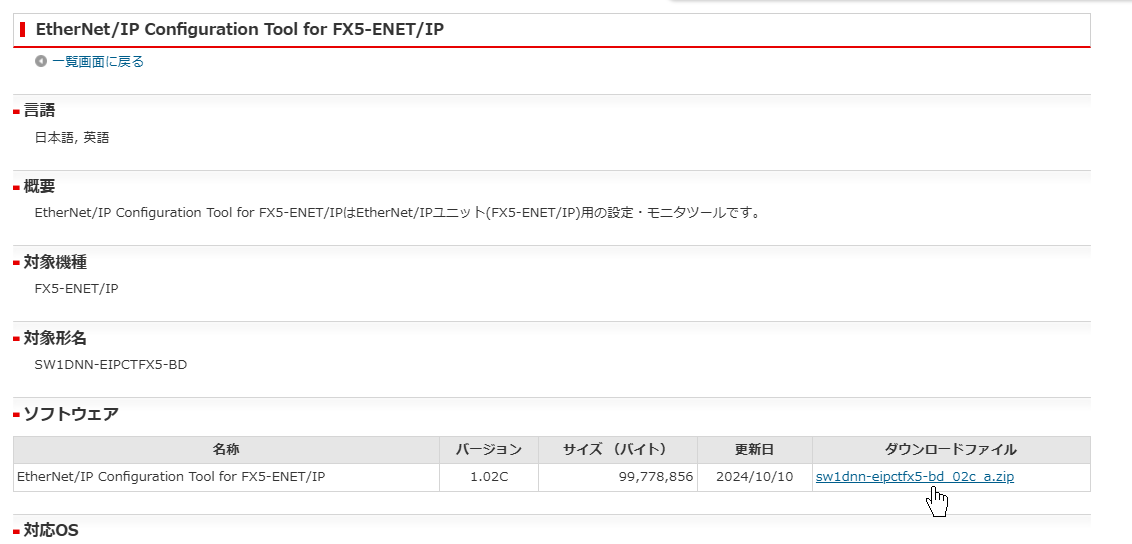
Please download the FX5-ENET/IP Configuration Tools from the link below.
Tool Installation
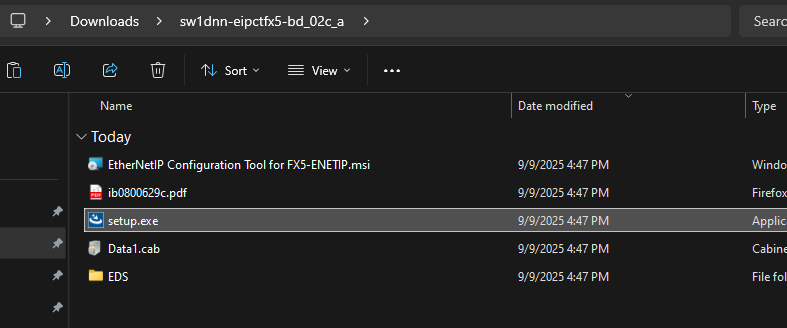
Next, install the tool you just downloaded.
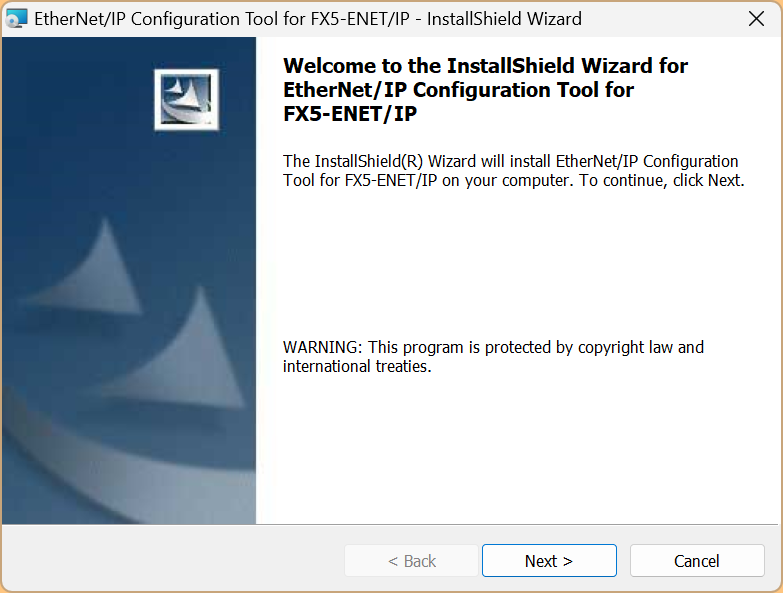
Click “Next>” to continue.
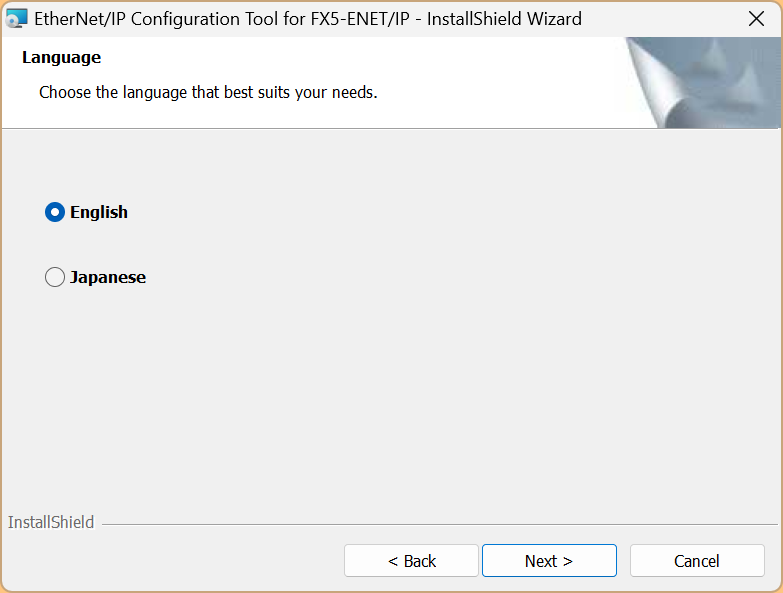
Select the installation language and click Next.
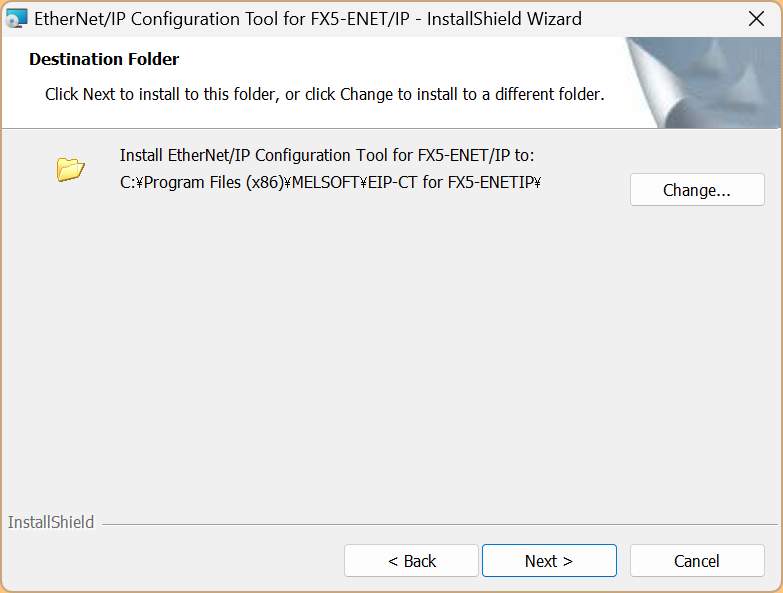
Set the installation location for the tool, then click Next> to continue.
Click “Install” to proceed.
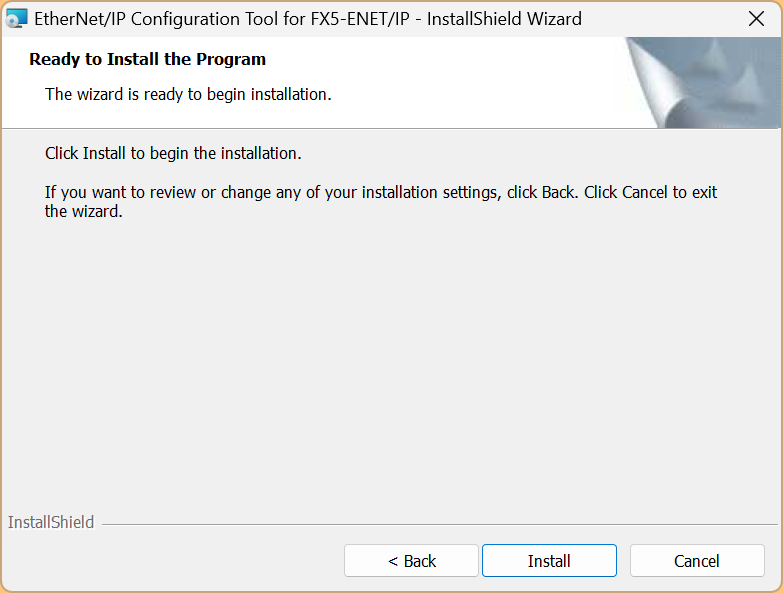
Wait a moment…
Done!
Module Configuration
Next, launch GXWORKS3 and add the FX5 ENET/IP module used in this article on the Module Configuration screen.
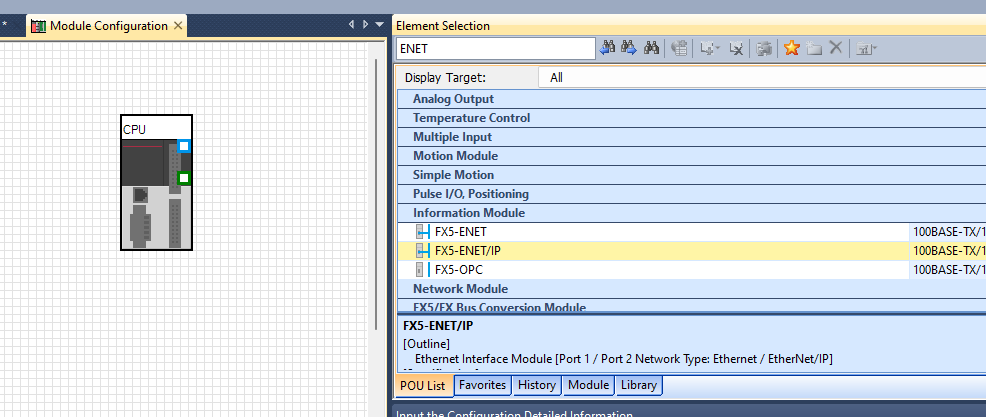
Done!
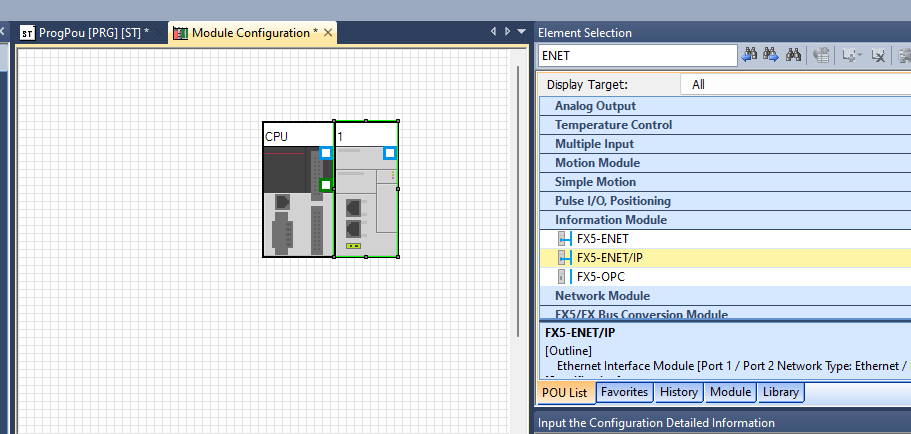
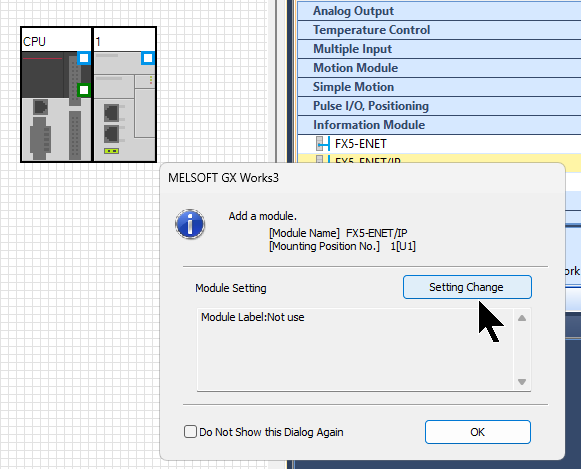
When you save the project, a pop-up window will appear; please click the “Setting Change” button.
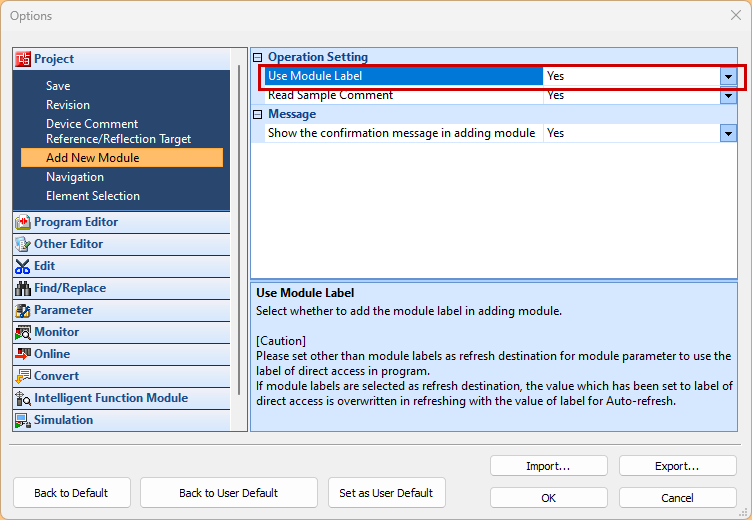
Since this article uses the FX5 ENET/IP module label, select “Add New Module” → set “Use Module Label” to “Yes,” and click “OK” to proceed.
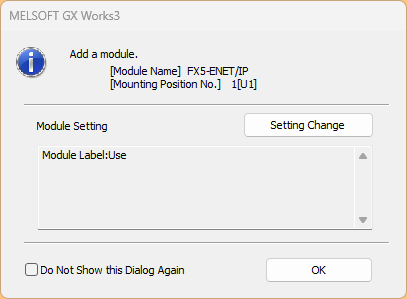
Click OK to continue.
Module Parameters
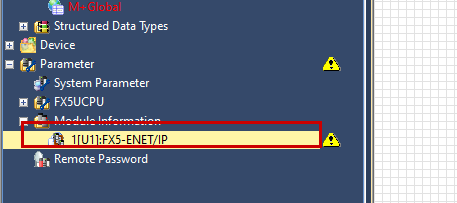
Next, click Parameters → Module Information → the FX5 ENET/IP you added earlier.
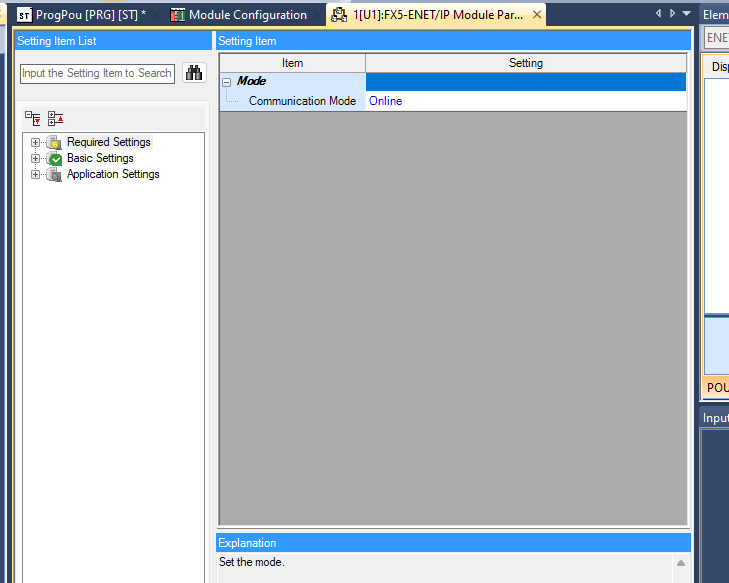
This is the module’s settings screen.
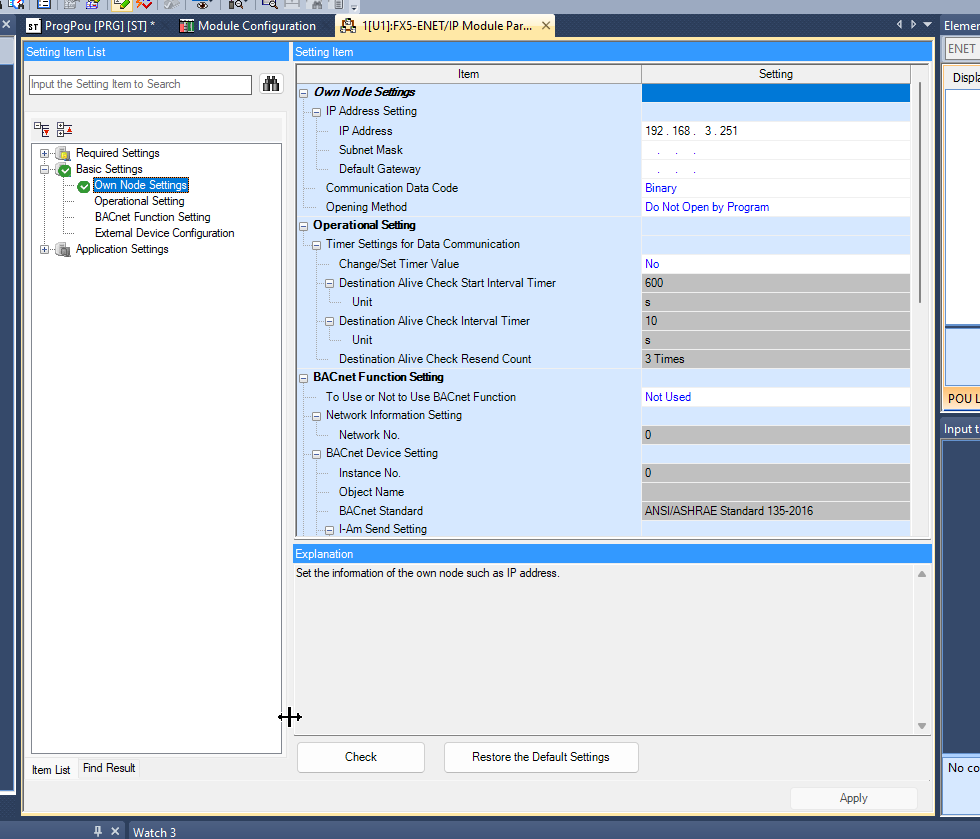
Open the “Own Node Settings” screen and configure the IP address for FX5-ENET/IP.
ENIP Configuration
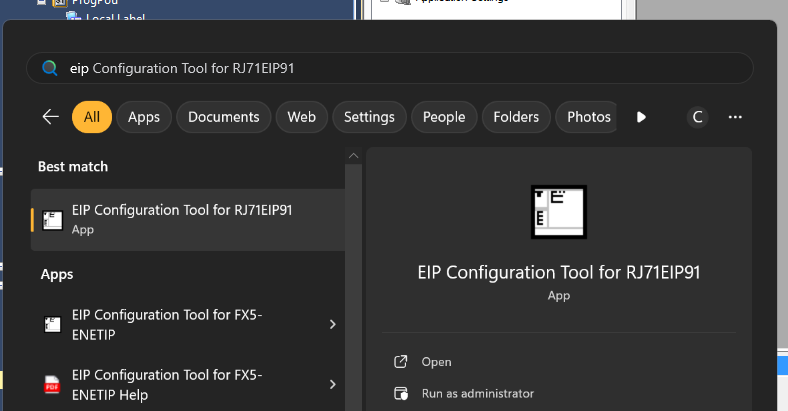
Next, launch the EIP Configuration tool you just installed.
Done!
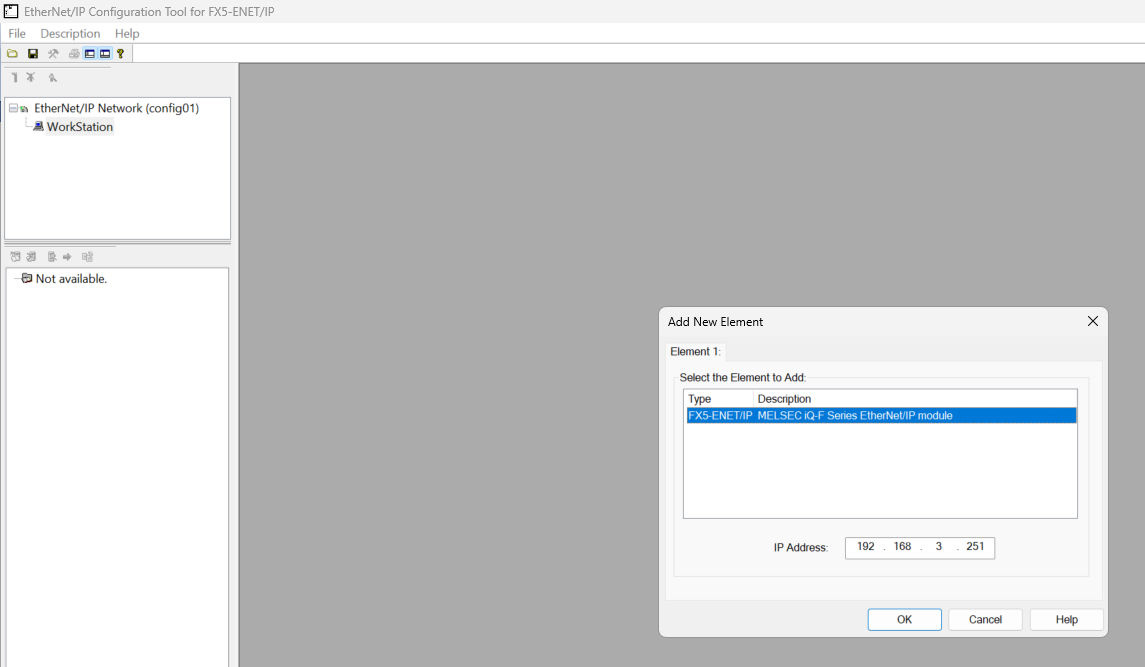
Set the IP address for FX5-ENET/IP from the “Add New Element” pop-up.
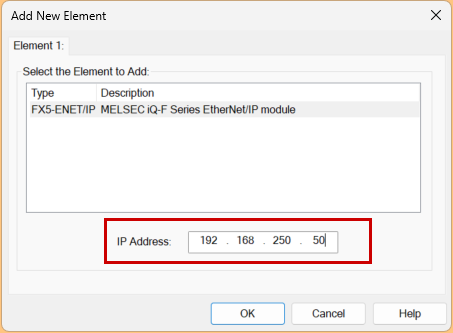
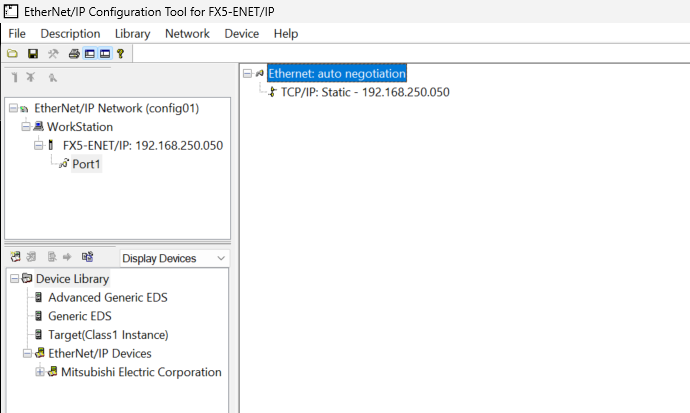
Done!
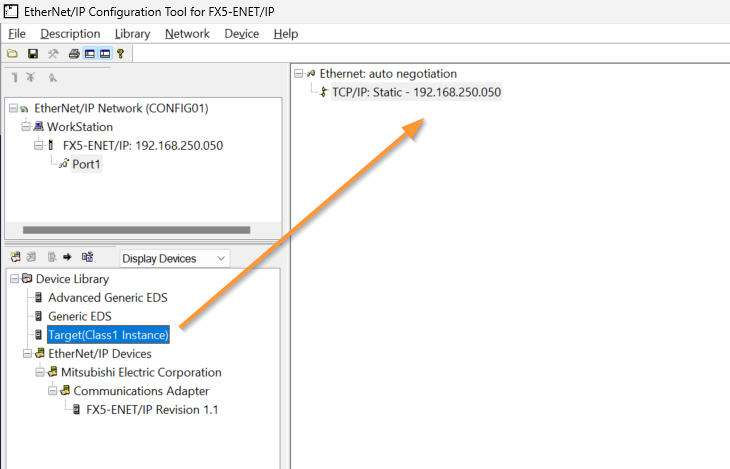
Add a connection
Next, we will add a new Class 1 instance to FX5-ENET/IP.
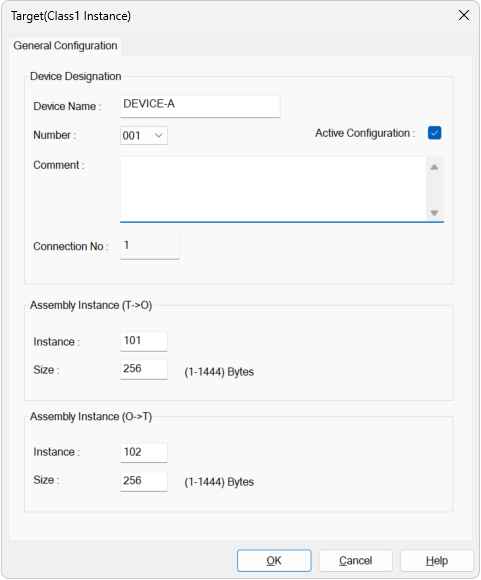
The Connection settings screen will appear. Basically, you just need to set the Number (connection number), as well as the instance numbers and byte sizes for T->O and O->T.
Results
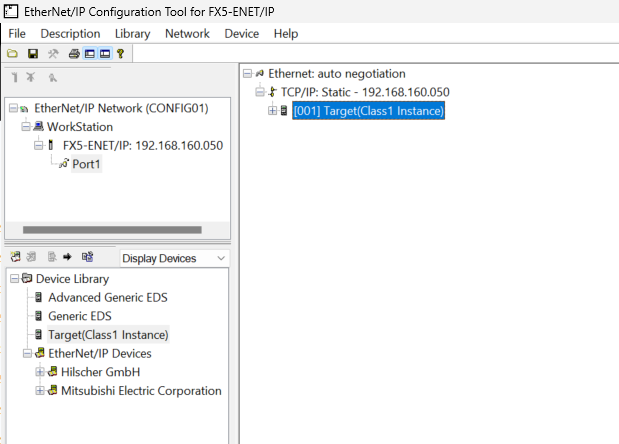
Done!
Download
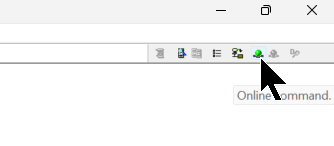
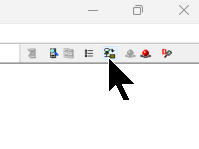
Finally, download the settings to the module. Click “Online Command” in the upper-right corner.
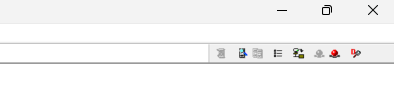
Then click the ICON below to download the project.
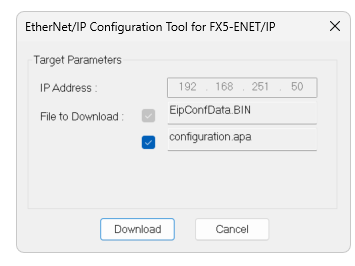
Click the Download button to proceed.
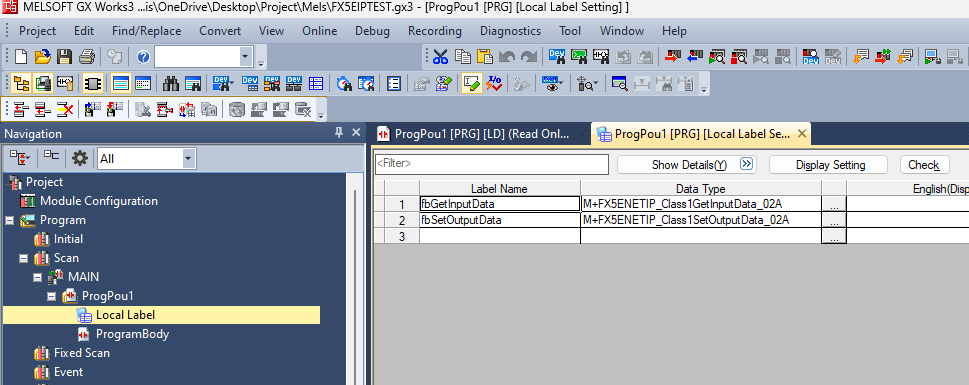
VAR
Define the FB Instance to be used in this program.
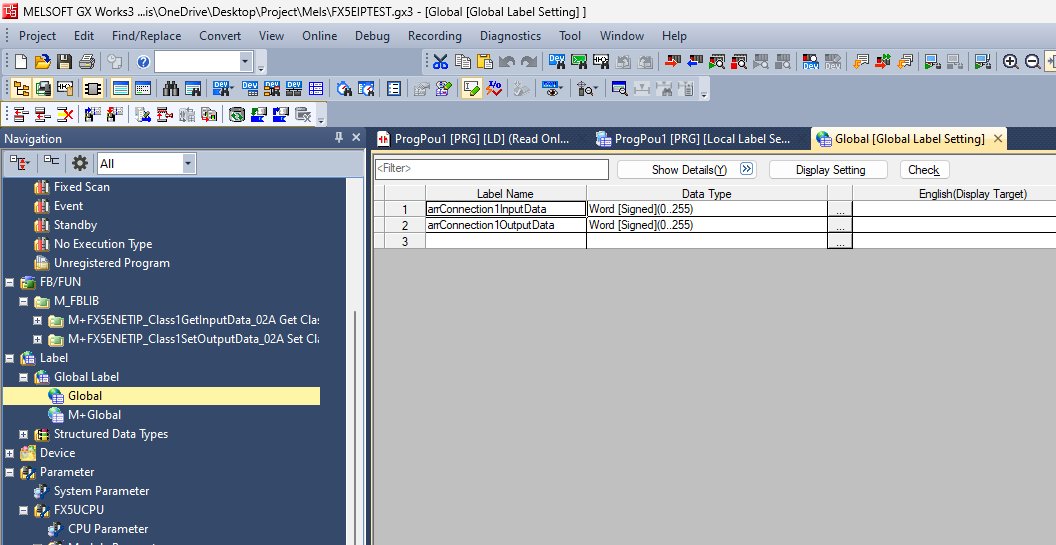
Next, declare an array of WORDs in the Global section.
Program
In this article, we will create a program using Ladder.
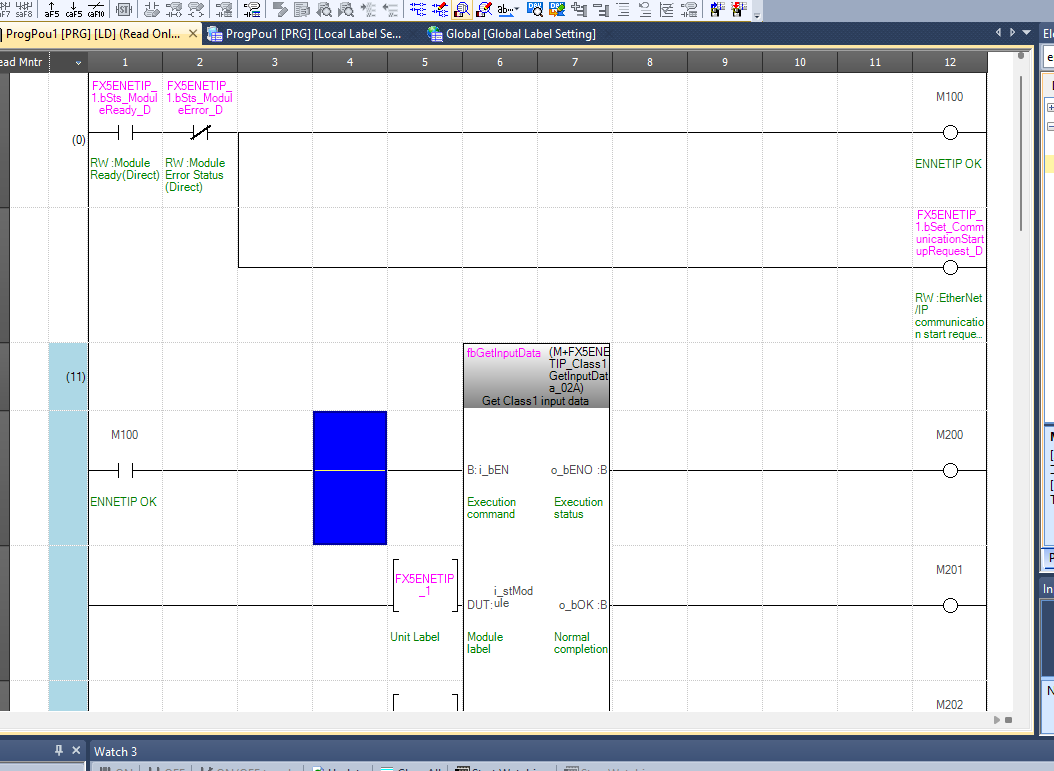
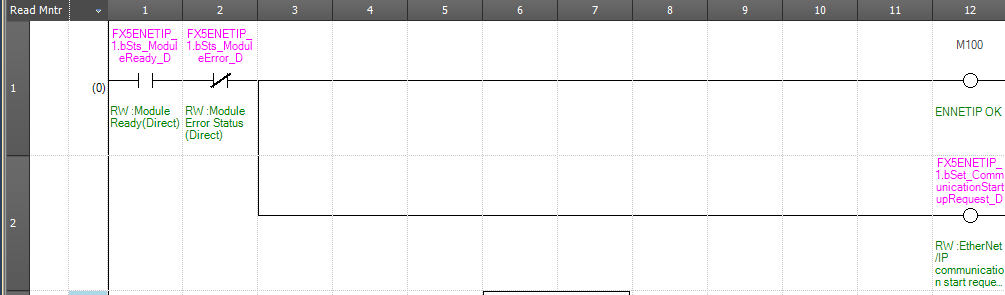
This network checks the module’s status and, if everything is OK, initiates the Ethernet/IP connection.
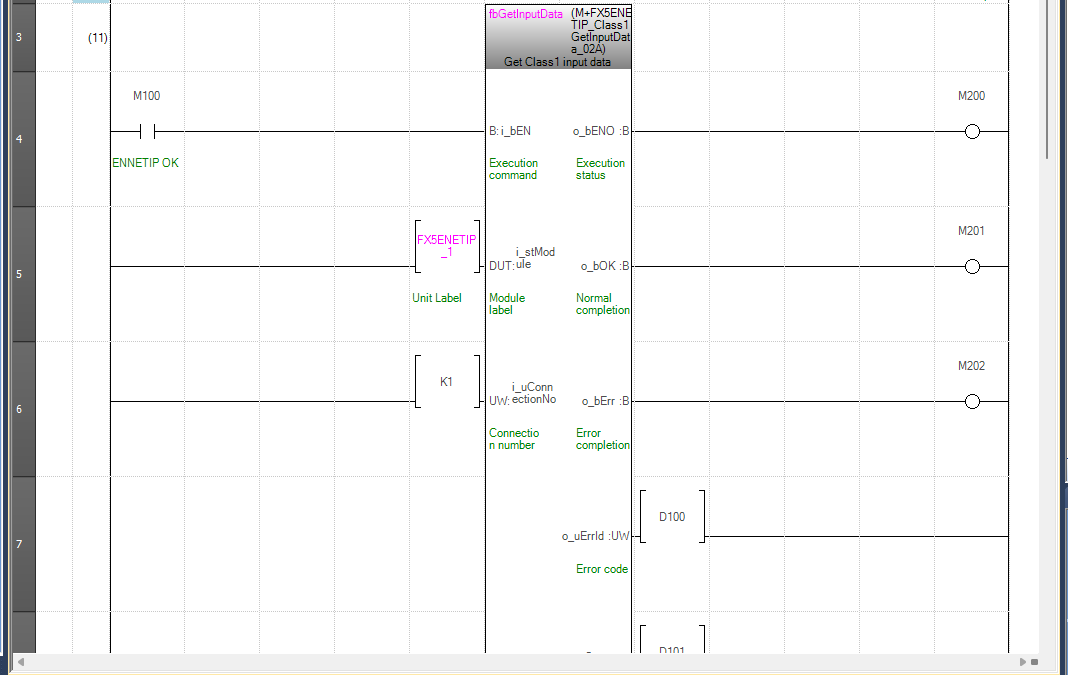
This network retrieves input data from Ethernet/IP connection number 1.
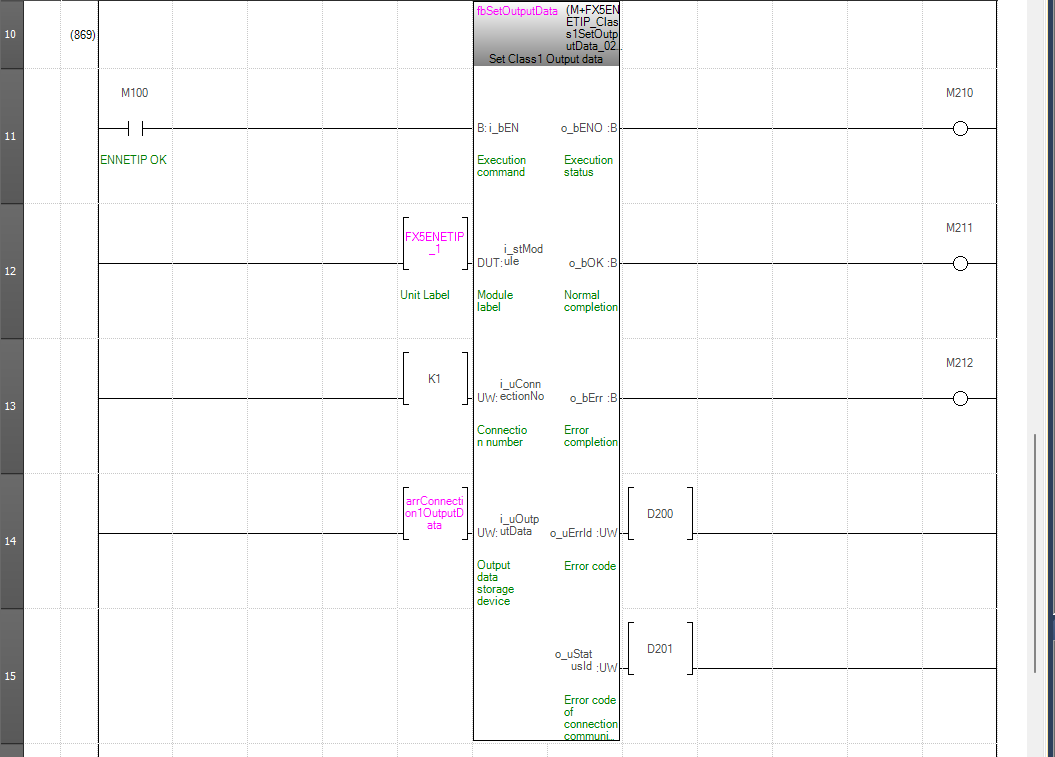
This network writes the output data for Ethernet/IP connection number 1.
Build All
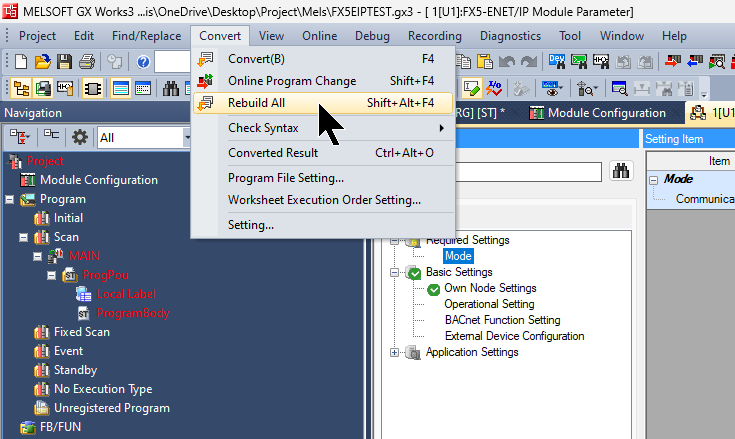
Compile the project by selecting “Convert→Build All.”
Download
Finally, download the project and reset the CPU. That should take care of the Mitsubishi side.
TwinCAT Side
Next is the TwinCAT 3 side.
EDS file
The setup file I just downloaded from the Mitsubishi website contains an EDS file.
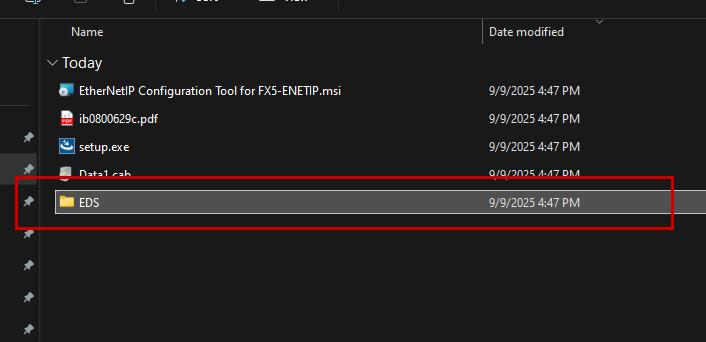
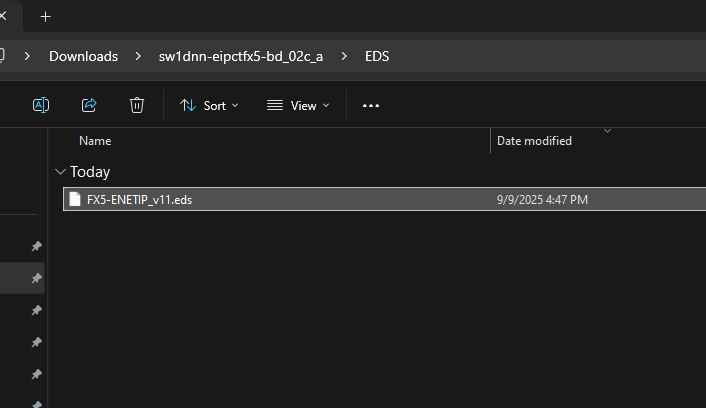
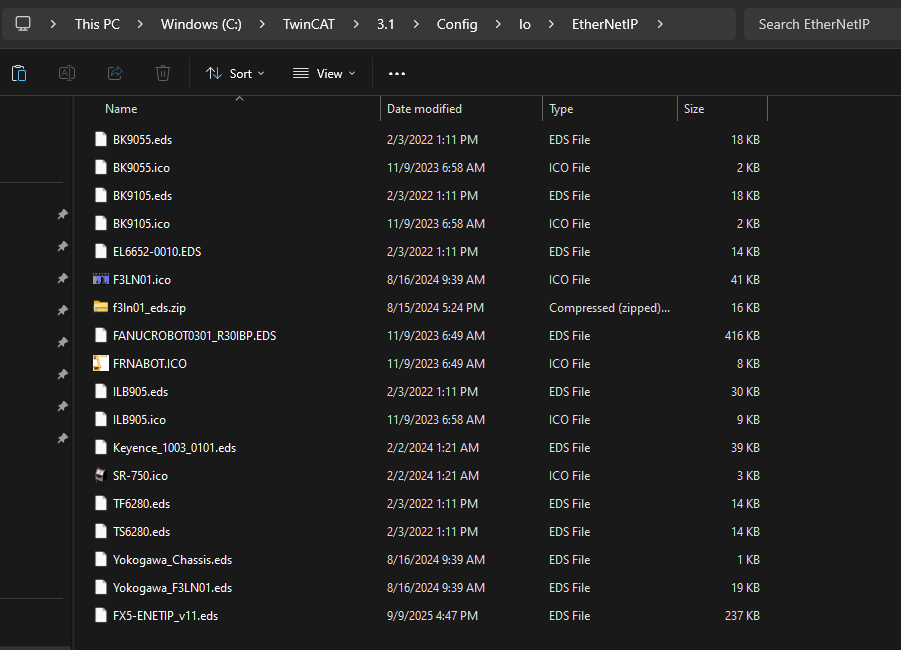
Save that EDS file in TwinCAT → 3.1 → Config → Io → EthernetIP.
Add an EIP Scanner
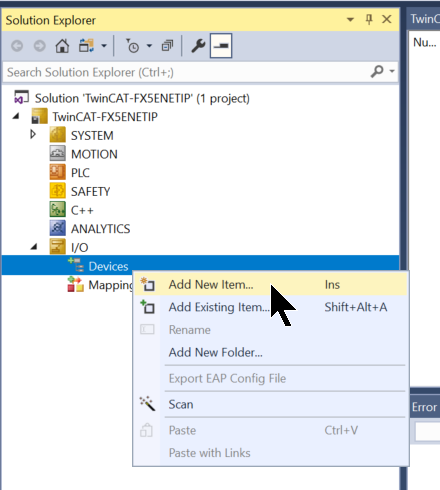
Next, to add an Ethernet/IP Scanner, go to I/O → Devices → Add New Item.
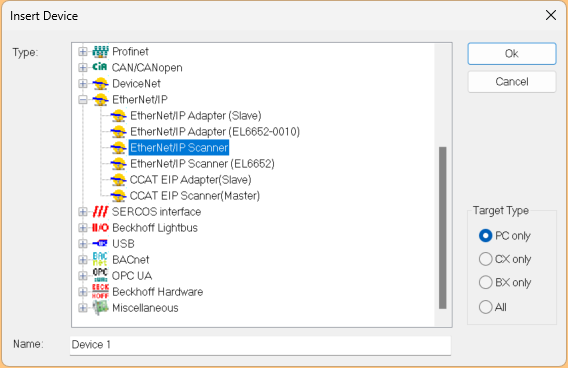
Select “Ethernet/IP → EtherNet/IP Scanner” and click OK to proceed.
Configure the network adapter you want to use as an Ethernet/IP Scanner.
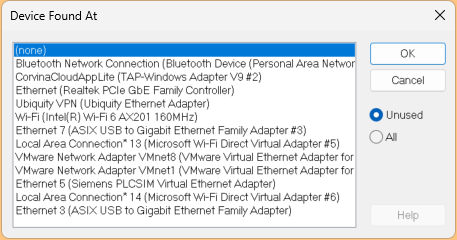
Ethernet adapter
Alternatively, click Adapter Tab → Search.
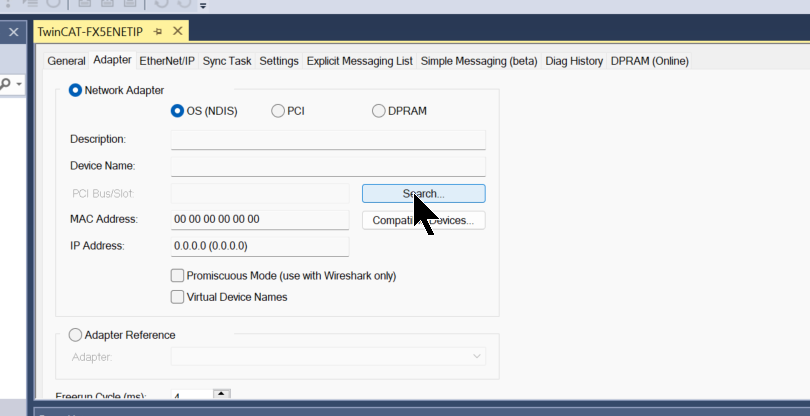
Let’s configure the adapter on the PC running TwinCAT 3 Runtime.
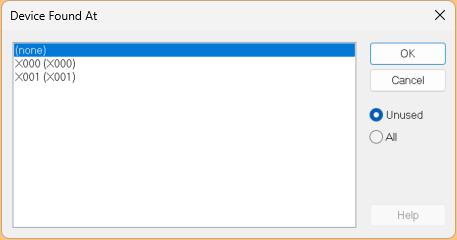
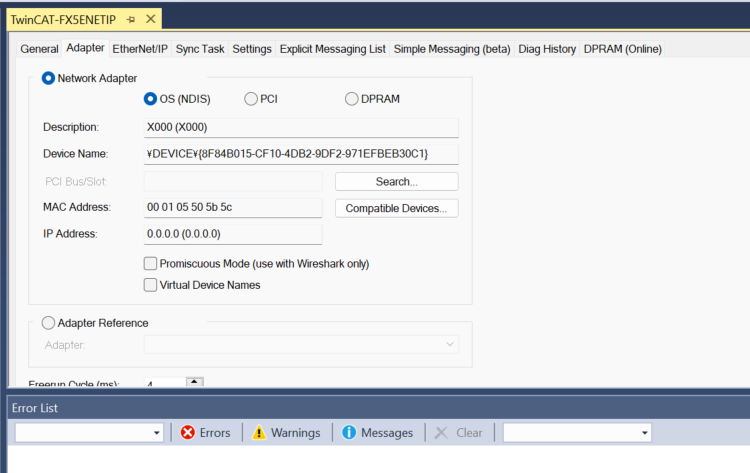
Done!
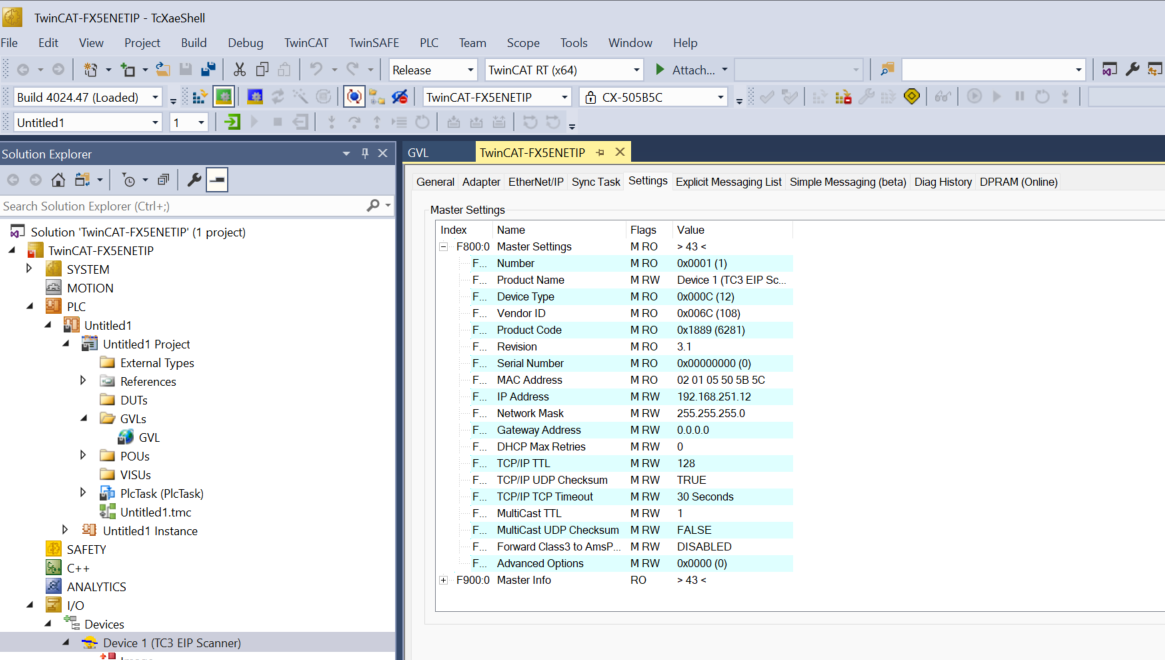
Next, open the Settings tab. Set the IP Address and Network Mask according to your network configuration.
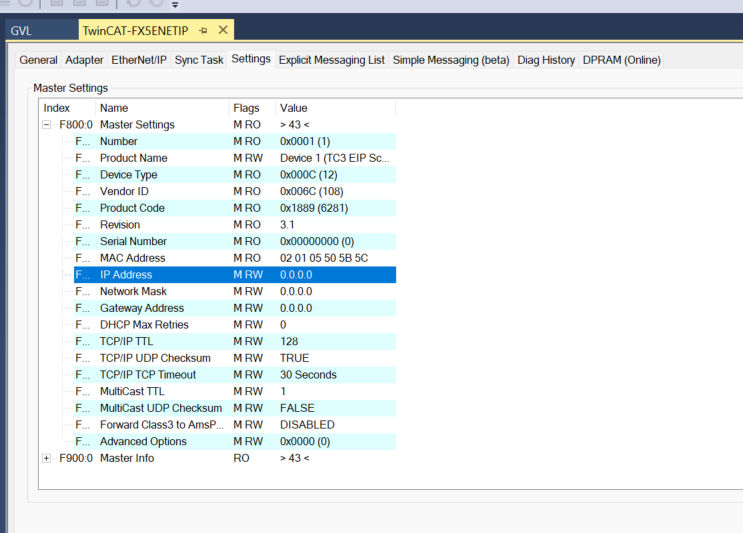
Done!
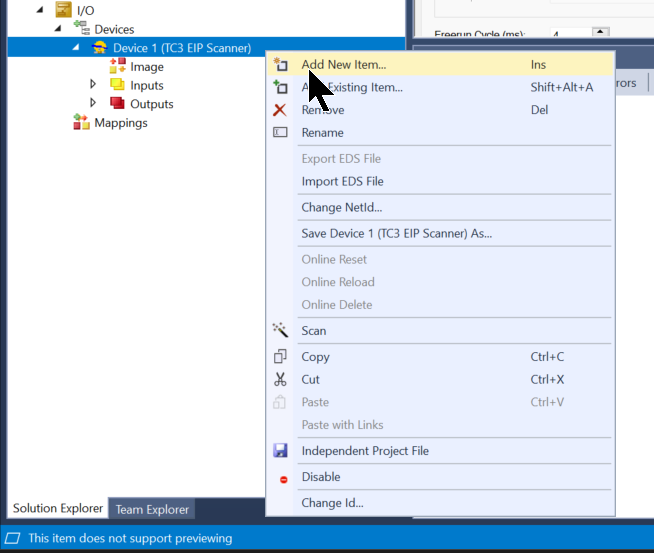
Add an FX5 Ethernet/IP Connection
Next, to add an EtherNet/IP connection for FX5, right-click on Device1 and select Add New Item.
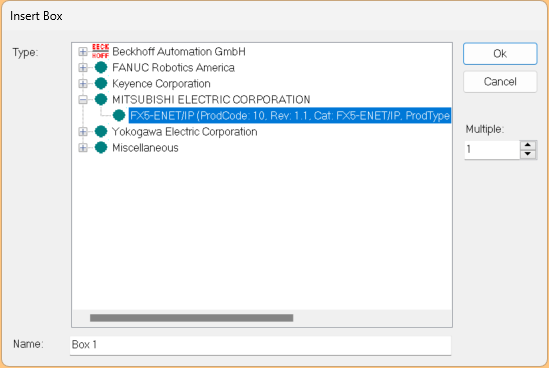
Since I just saved the EDS file, select FX5-ENET/IP and click OK to proceed.
Done!
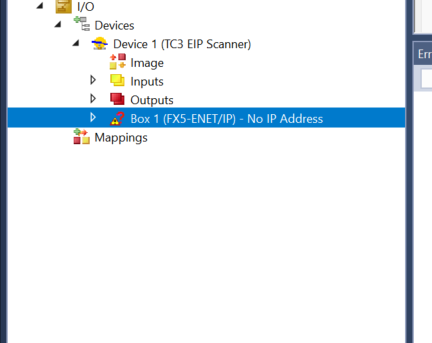
Change your IP address
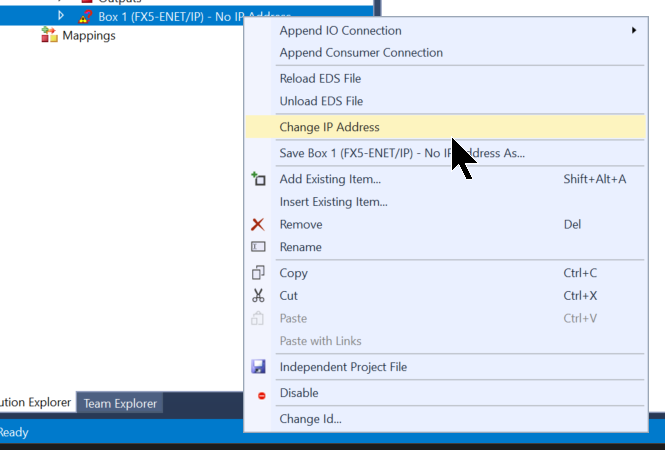
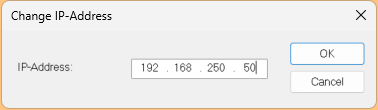
Next, to change the IP address for the FX5-ENET/IP connection, right-click and select “Change IP Address.”
Add an IO connection
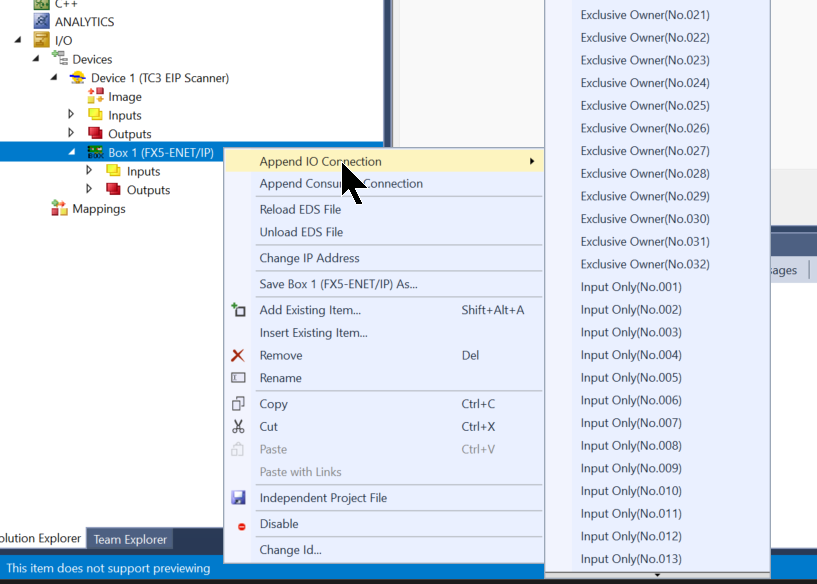
Next, to configure the EtherNet/IP connection type, right-click and select “Append IO Connection.”
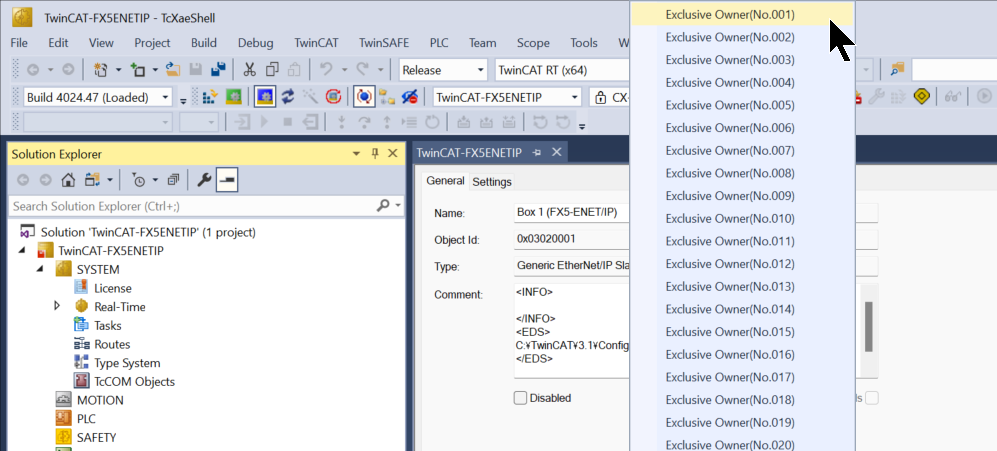
This time, we will set it to No. 001 Exclusive Owner.
Click “Yes” to continue.
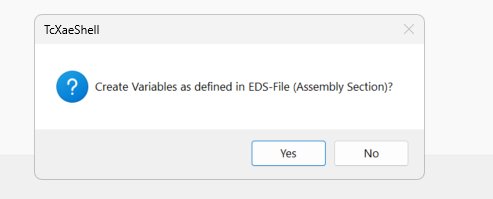
Done!So a new connection has been added.
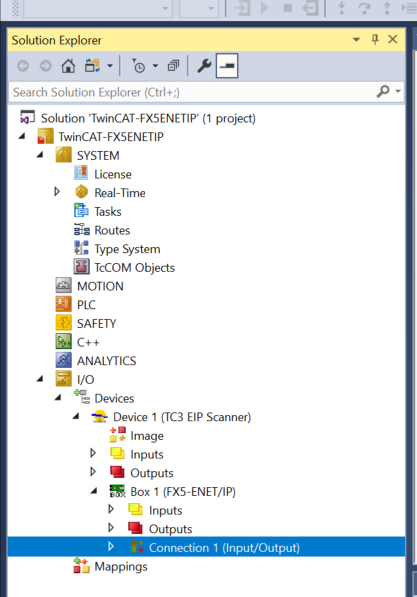
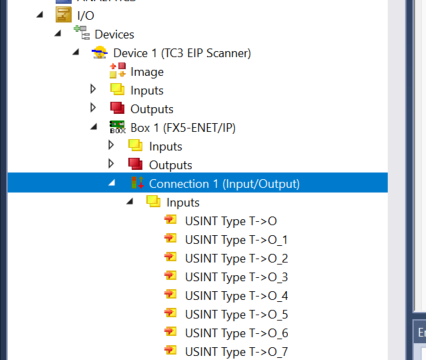
The input is set to the default 256 bytes.
The output is also set to the default 256 bytes.
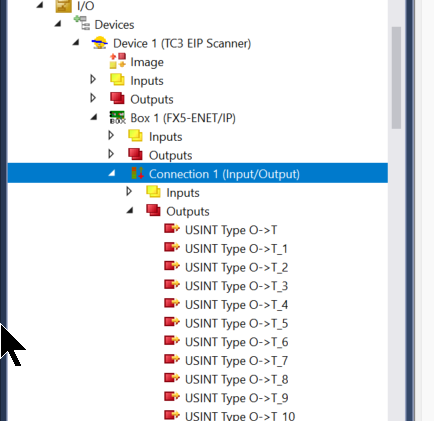
Finally, let’s take a closer look at the connection settings in TwinCAT 3.

Adding a PLC
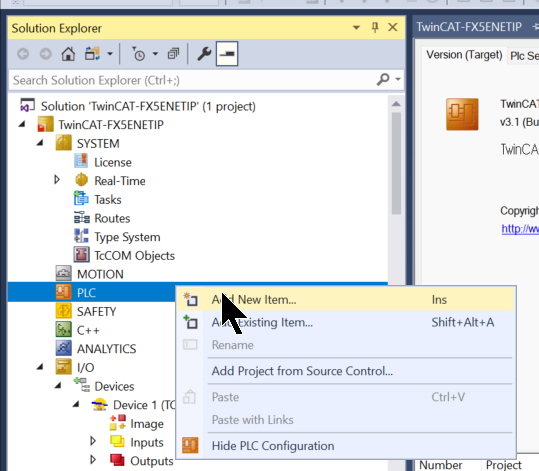
Next, to add a PLC, go to PLC → Add New Item.
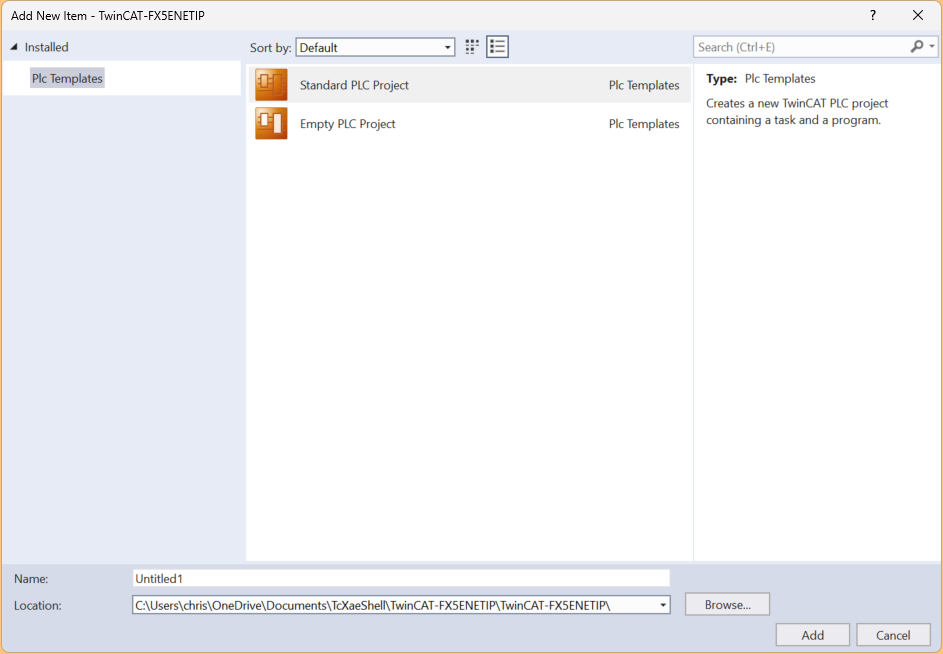
Select “Standard PLC Project” and click “Add.”
GVL
Create a GVL and define 256-byte input/output process data.
{attribute ‘qualified_only’}
|
|---|
Main Program
Next, we’ll create a program for testing.
- Global input/output arrays and local arrays are synchronized by copying them in their entirety.
-
The first MEMCPY:
- Copy GVL.arrDataInputsFromFX5 (input data from FX5) to inWords (for local processing).
- → This is an effort to read and process inWords during scanning.
-
The second MEMCPY:
- Copy outWords (output data generated locally) to GVL.arrDataOutputsFromFX5 (the area for outputting to FX5).
PROGRAM MAIN
|
|---|
Build
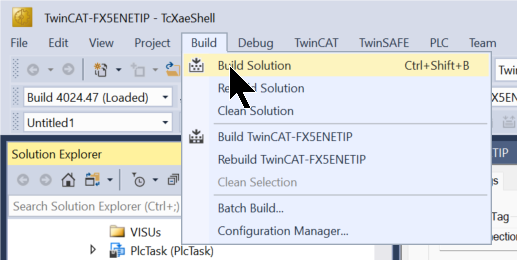
Compile the project by selecting Build → Build Solution.
Mapping Input
Map the Inputs variable to the project variables.
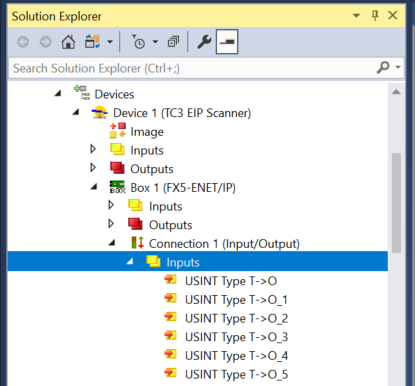
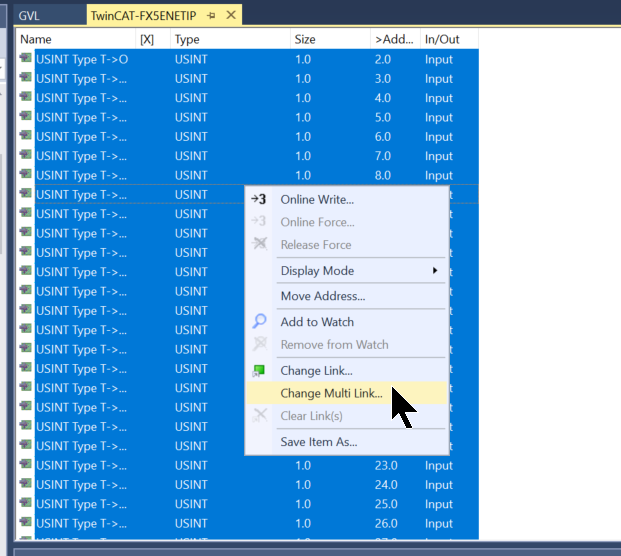
Select all variables in the FX5-ENET/IP connection, then click “Change Multi Link.”
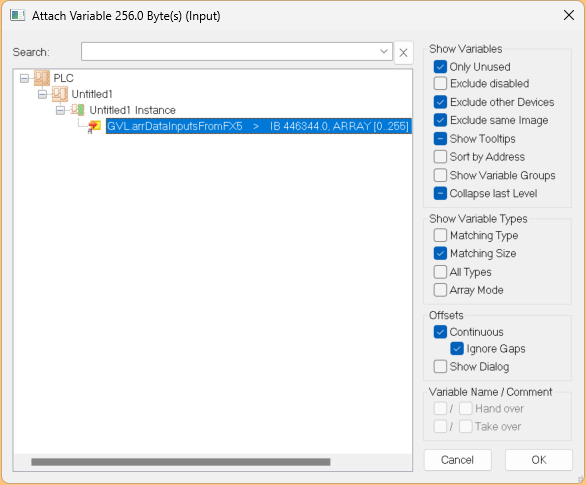
Set the WORD array that was declared earlier.
Mapping Output
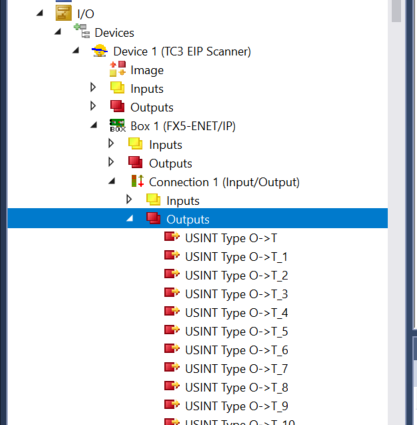
Map the Outputs variable to the project variables.
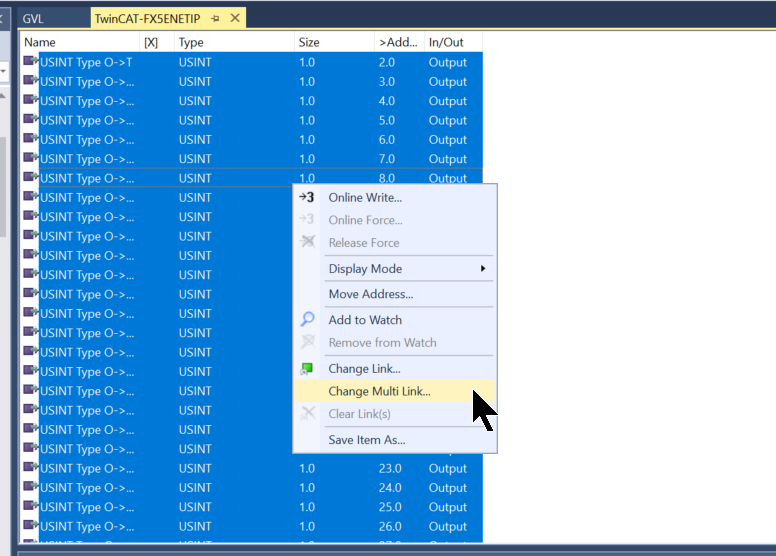
Select all variables in the FX5-ENET/IP connection, then click “Change Multi Link.”
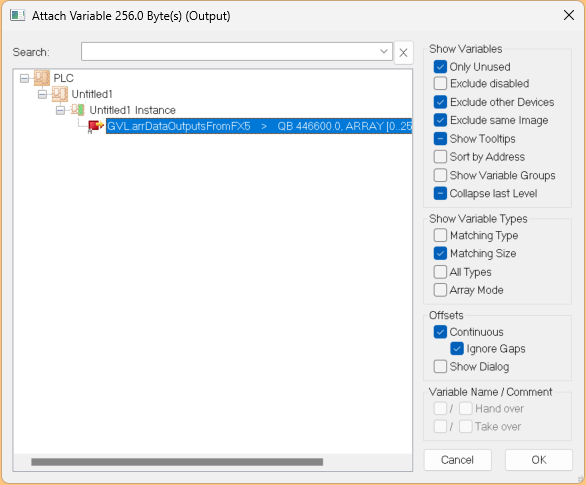
Set the WORD array that was declared earlier.
Results
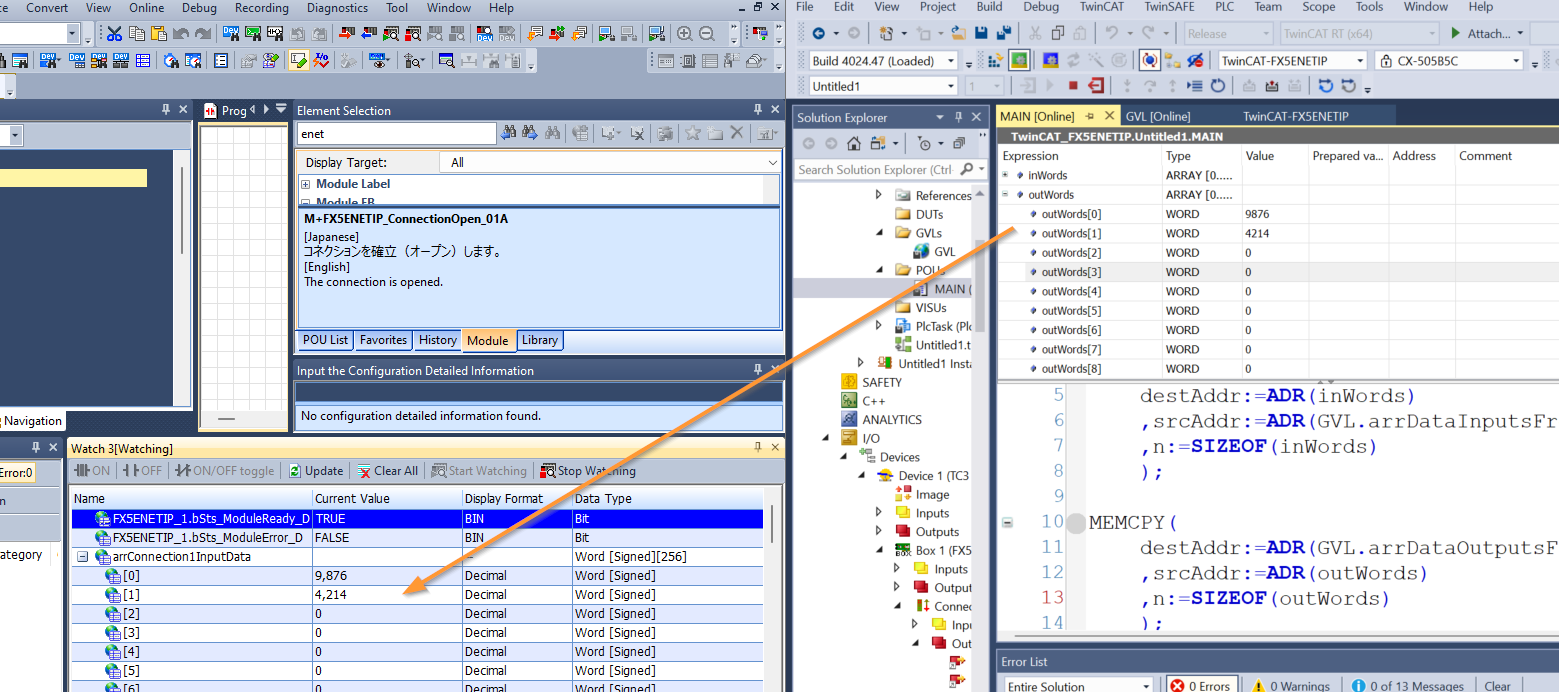
As shown in the figure below, the data output by the Mitsubishi FX5-ENET/IP was received by TwinCAT 3.
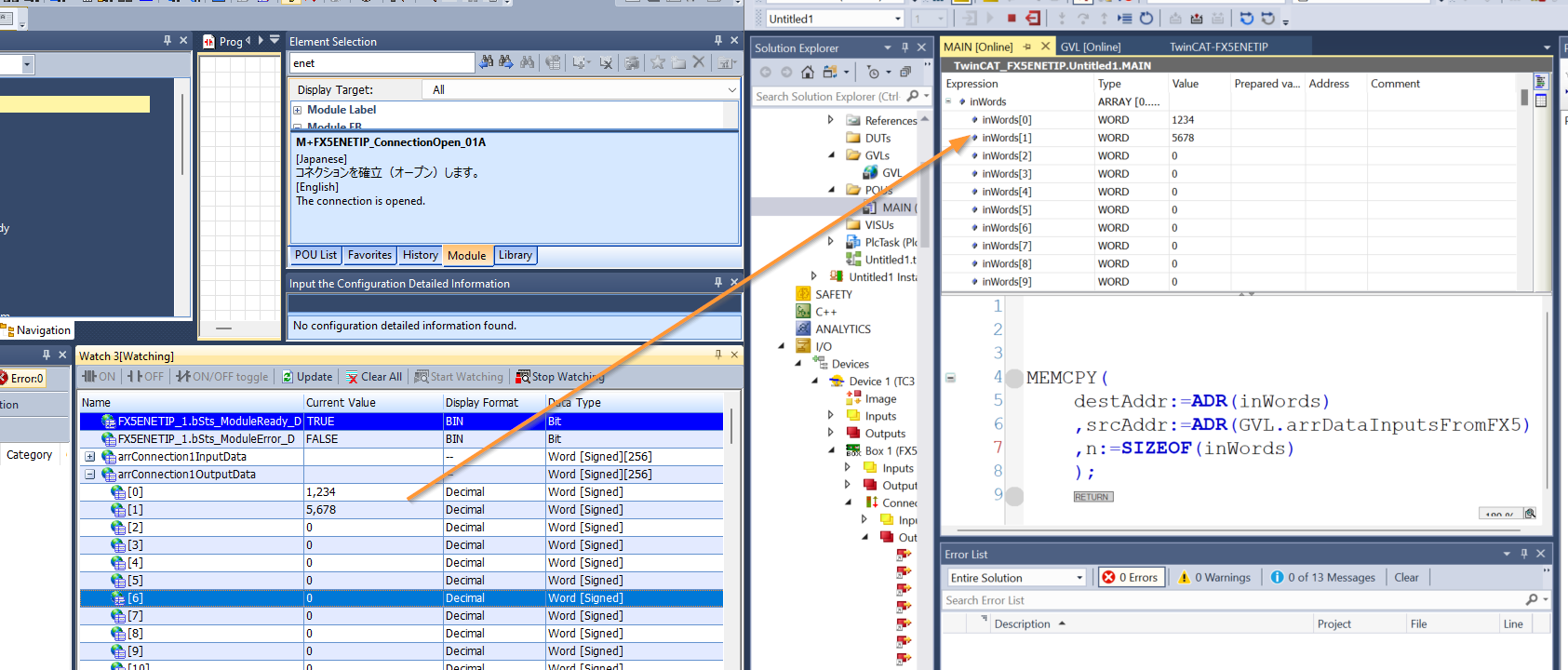
In addition, the data sent by TwinCAT 3 was successfully received by the FX5-ENET/IP.